
Search
To search for documents across rooms, follow the steps below:
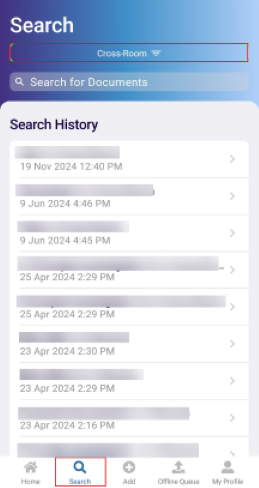
- On the myTI home screen, click on the Search tab.
- On the Search screen, click on the Cross-Room search tab.
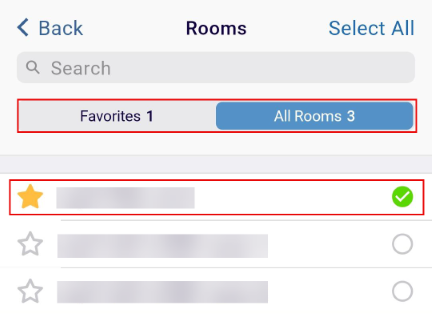
- Click on the All Rooms tab, select a room, and navigate back to the Search
screen.
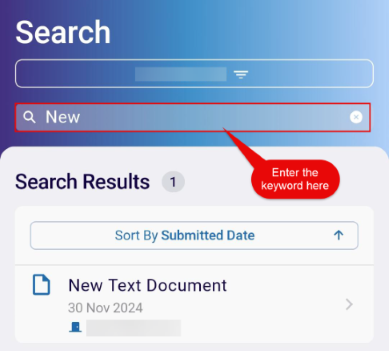
- Depending upon the room selected, the search results will populate accordingly.
- Optionally, enter a keyword in the ‘Search for documents’ search box to look for a
specific document.
- Select the required option and follow the document completion process detailed in the +Add section.
Important:
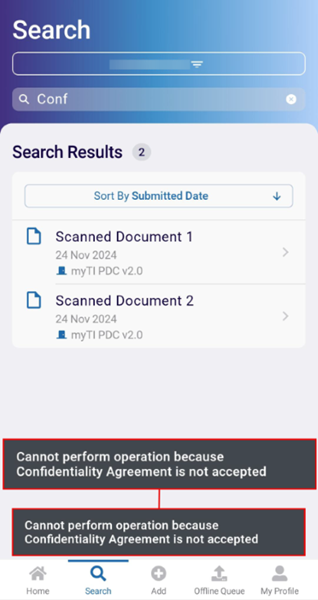
To ensure secured access to the document, the Search screen displays a notification when users attempt to open a Confidentiality Agreement document via the Cross Room search.

TransPerfect’s Trial Interactive is an industry leader in practical, global eClinical innovation
PRODUCTS
 Linkedin
 X
X
Didn’t find what you need?
Our dedicated Project Management and Client Services team will be available to meet your needs
24 hours a day, 7 days a week.
Toll Free:
(888) 391-5111
help@trialinteractive.com
© 2025 Trial Interactive. All Rights Reserved

