
Translations
The Translations module in Study Start-up is a dedicated area that helps manage the identification, request, tracking, and delivery of translated study documents required for global or multi-country clinical trials. It ensures that trial materials are accurately translated and made available in local languages to meet regulatory, operational, and site requirements before study activation.
The primary purpose of the Translations module is to streamline and control the translation workflow during the study start-up phase by:
- Centralizing all translation-related requests and documents.
- Supporting compliance with local regulatory requirements.
- Ensuring the timely availability of translated study materials for participating countries and sites.
To translate the documents, follow the steps below:
Note: The documents are in the correct workflow stage or required status (e.g., Pending for Regulatory Approval).
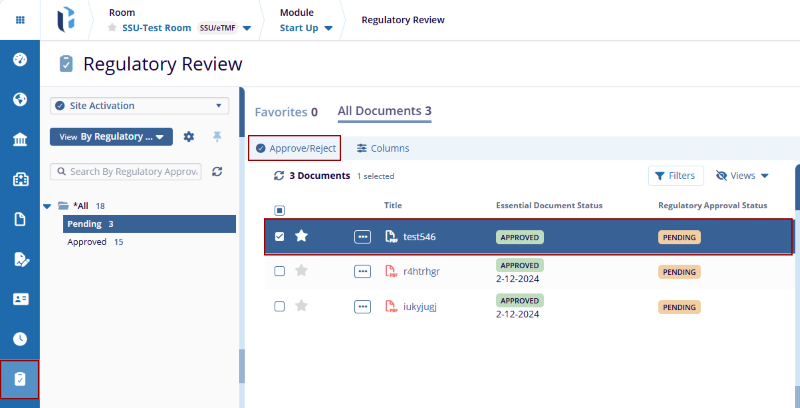
- Navigate to the Regulatory Review icon in the toolbar. The Regulatory Review page is displayed with the available documents in the grid.
- Select the document from the grid and click the
Approve/Reject button in the top menu bar.
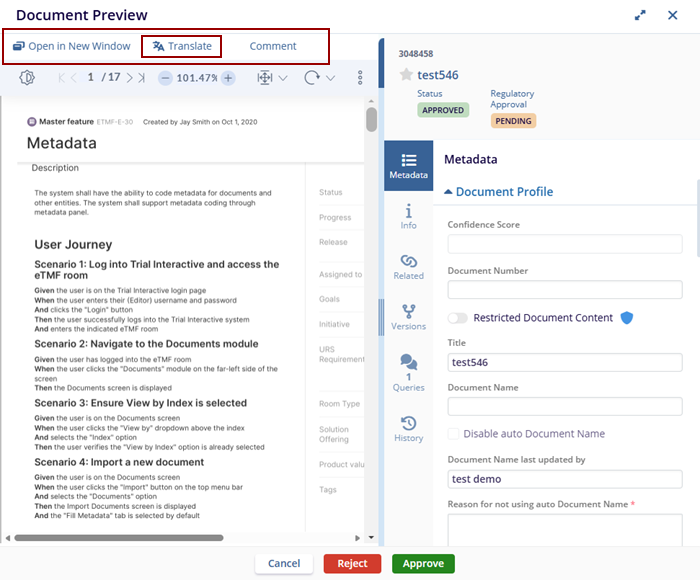
- The Document Preview pop-up window is displayed with the option at the top:
- Open in New Window
- Translate
- Comment
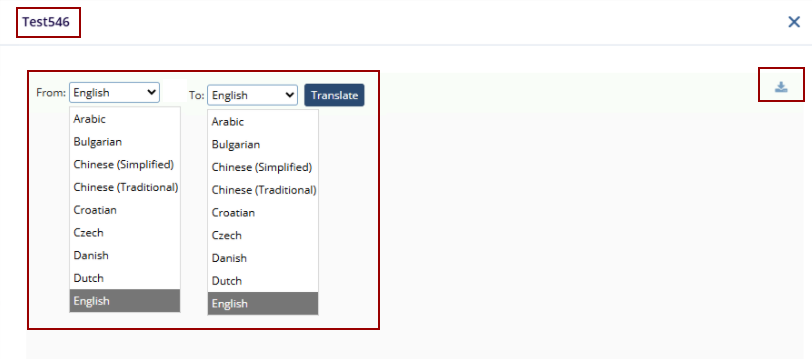
- Click the Translate option, and the document name pop-up window is displayed with the From and To fields with the Translate button.
- The document is displayed in the translated language.
- The user can also have access to download the translated
document.
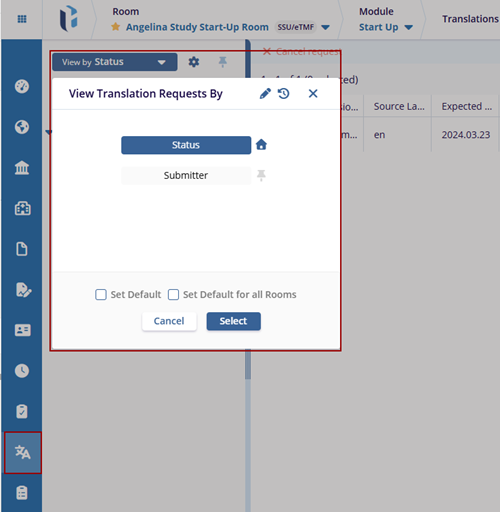
- Navigate to the Translations icon in the
toolbar. The Translations page is displayed with the available
requests.
Note: The request displays in SSU translations once the request is raised in the eTMF.
- Here, the user has two types of views:
- Status
- Submitter
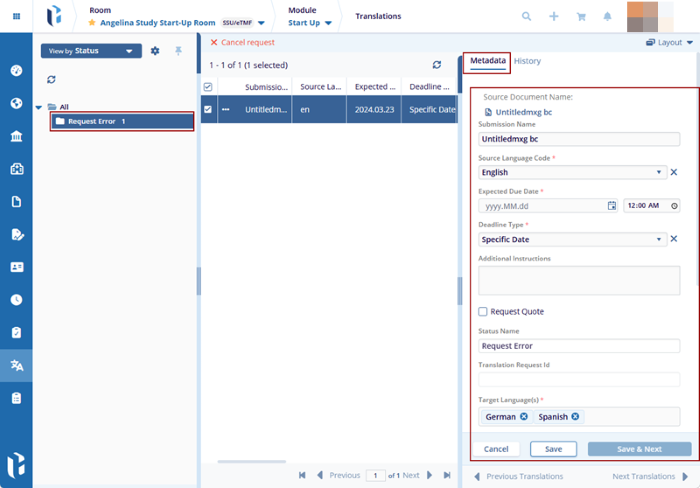
- If the view is set to View by Status, the Request Error folder is displayed in the index panel.
- Click on the folder, and the available request is displayed in
the grid, and the Metadata Panel opens on the
right side of the screen with the details.
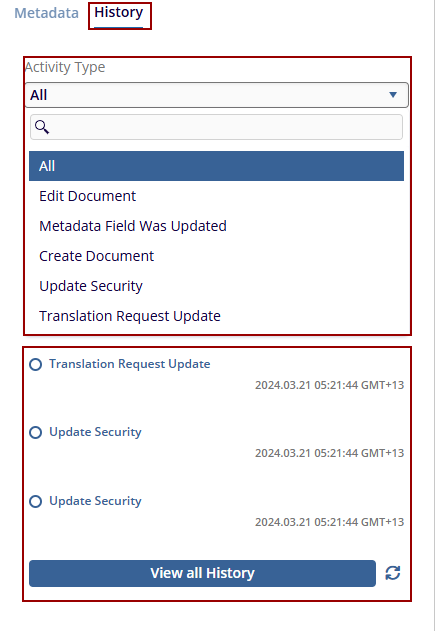
- Click the History tab in the metadata panel. The system displays a list of recent activities performed on this document/translation request.
- At the top, open the Activity Type drop-down. You can choose:
- All – shows every tracked action.
- Edit Document – changes made to the document content.
- Metadata Field Was Updated – updates to metadata fields.
- Create Document – original creation event.
- Update Security – changes to document/translation security or access.
- Translation Request Update – changes related specifically to the translation request (status, deadlines, target languages, etc.).
- Below the filter, each entry shows:
- The activity type (for example, Translation Request Update).
- The timestamp (date and time in system time zone).
- Entries are listed in reverse chronological order (most recent first)
- Click View all History to open the full audit trail for the document/translation request in a separate view (if enabled), showing all events beyond the initial summary list.
- Click the refresh icon next to View all
History to reload the list and include any new updates that
occurred while you were viewing the screen.
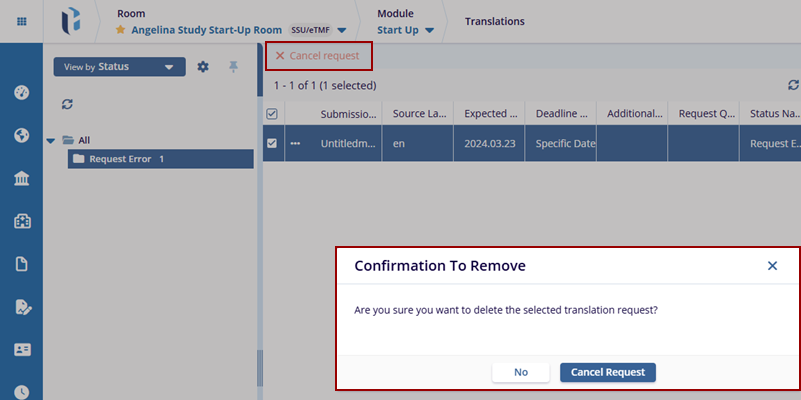
- Click the Cancel Request button in the top
menu bar, and the Confirmation To Remove pop-up
window is displayed with No and Cancel
Request.
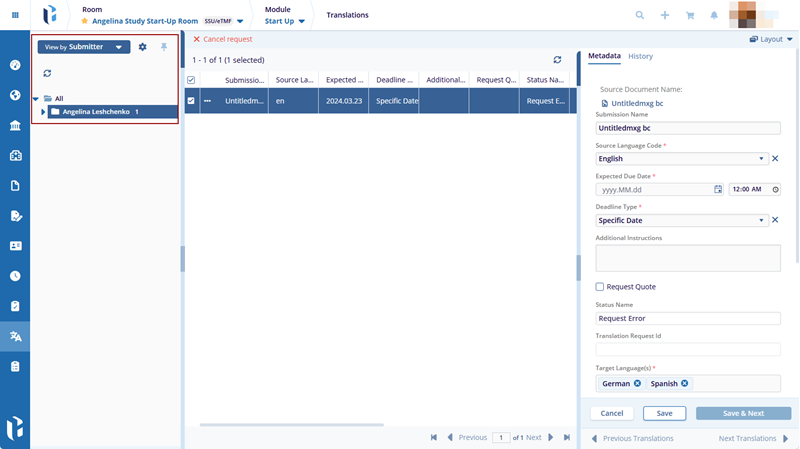
- If the view is set to View by Submitter, the submitter's name is displayed with the Request Error folder within it in the index panel.
- Follow the further steps as performed in the View by Status (steps 10 to 16).
© 2025 Trial Interactive. All Rights Reserved

