
Collaborate Metadata Panel
The metadata panel of a document in a collaborative session allows users to view and update the profile details, close the session, check back in the updated document, and access different versions of the document.
To access the metadata panel of a collaborate document, follow the steps below:
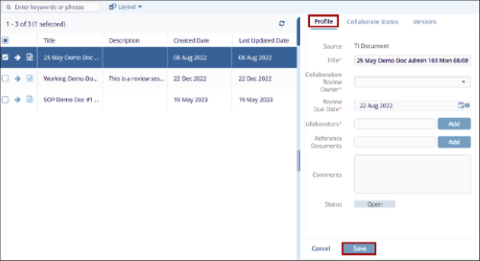
- Select a collaborate document and expand the metadata panel.
- Click on the Profile tab, update the following
details if required, and click on the Save button.
- Title*
- Collaboration Review Owner*
- Review Due Date*
- Collaborators*
- Reference Documents
- Comments
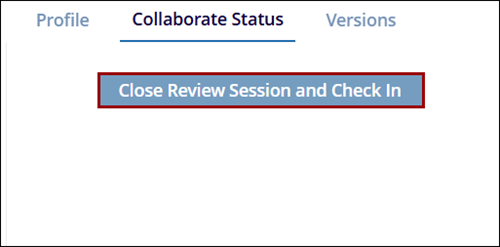
- Select the Collaborate Status tab and click on the
Close Review Session and Check In button.
- On the Close & Check In window, select a version change option and click on the
Close & Check In button.

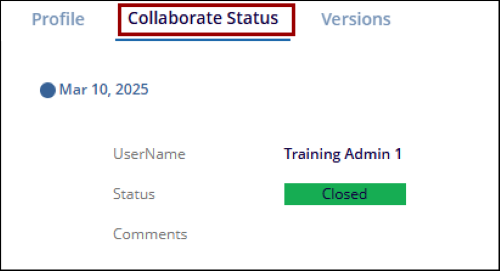
- Once the session is successfully closed, the Collaborate Status
tab displays the review status as Closed along
with the user's name.
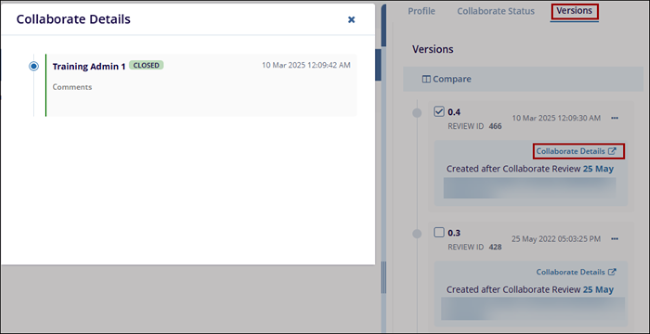
- Navigate to the Versions tab to view the version-specific details. Click on the
Collaborate Details tab to view the collaborate review details in a separate popup.
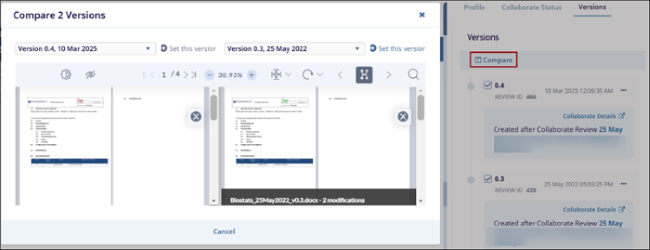
- Select two versions and click on the Compare button to display a side-by-side
view of both versions.
© 2025 Trial Interactive. All Rights Reserved

