
Initiate Workflow
To initiate a workflow for a controlled document, follow the steps below:
- Navigate to the Documents Library modal within the Collaborate Room and expand the necessary folder to access the document.
- Click on the paper plane icon which indicates the document is ready for workflow or
select the three-dot menu and select the Initiate Workflow option.

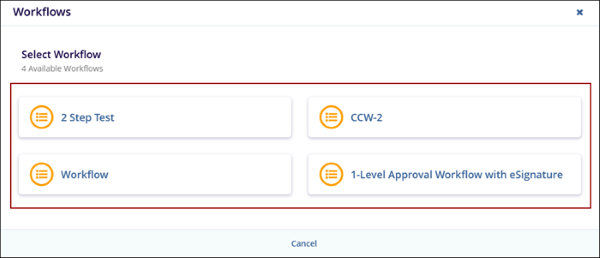
- On the Workflows wizard, select the appropriate workflow for
the specific document type.
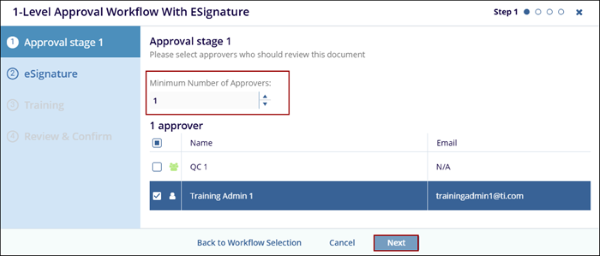
- Specify the number of approvers to complete a stage in the
workflow in the Minimum Number of Approvers section and click on
the Next button.
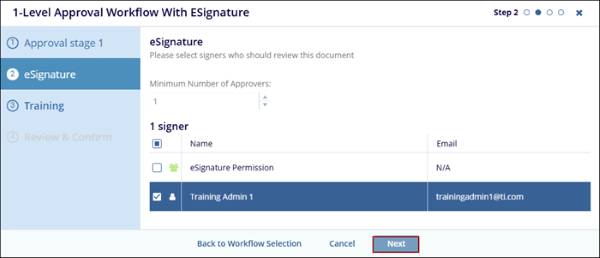
- Within the eSignature step, select the signers who should review the document and
click on the Next button.
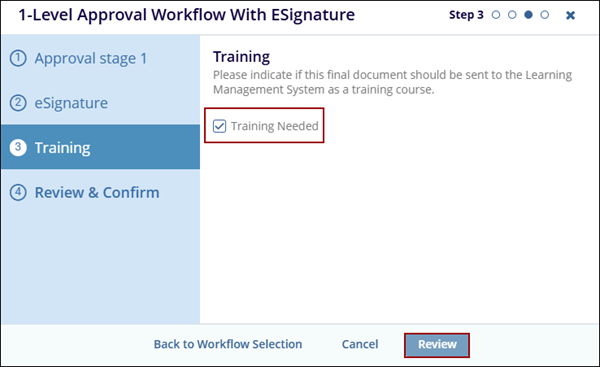
- On the Training step, check the Training Needed checkbox if users are
required to complete training in GlobalLearn when the new version becomes effective and
click on the Review button.
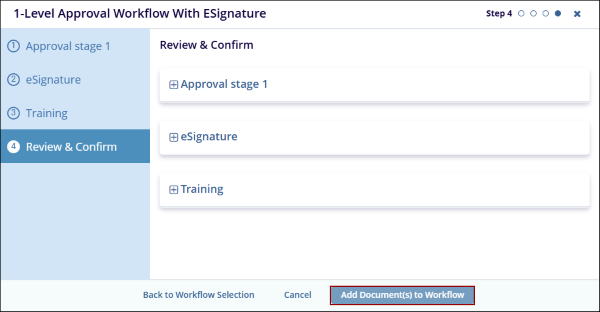
- In the Review & Confirm step, verify the details and click
on the Add Document(s) to the Workflow button for
users to begin the review.
- Once the document is successfully added to the workflow, the icon in the grid
changes, indicating the document is under review.

Important
- The Change Control workflows enabled via Settings > Workflows > Workflows are displayed in the Workflows wizard and available for selection.
- The wizard for a specific workflow shows the number of steps configured during its creation, which may vary depending on the workflow.
© 2025 Trial Interactive. All Rights Reserved

