
Collaborate Home Page
Trial Interactive helps clinical teams build an electronic Trial Master File (Collaborate) for clinical trials and manage content from author to archive. It all starts with workflow, metadata, and content strategy. Define your essential documents, determine your required metadata, configure your index structure, and manage Collaborate health in quality reviews, reports, and dashlets.
Trial Interactive helps you prioritize the collaborate and content workflows, collect the required documents to activate your investigative sites, collaborate with study teams at the sponsor, CRO, and site, and integrate with other clinical platforms to sync with other teams and types of data. This online help contains a descriptive overview of the Trial Interactive tool and step-by-step procedures of Trial Interactive functions.
If you are new to Trial Interactive, we recommend that you access the online version of this user guide and view the job aids and videos stored there. They will walk you through many of the most common functions of Trial Interactive.
Please refer to the below video, it explains the Collaborate Home Page section.
Room View
To view the number/count of documents bifurcated by their status on homepage, follow the steps below:
- On the right side of the Home Page, users can view the total number of documents available in the room.
- The Home Page provides an overview of document statuses, including the
number of Expired, Expiring, Open Queries, Periodic review, eSignature
Asignments, eSignature in progress and Rejected documents.
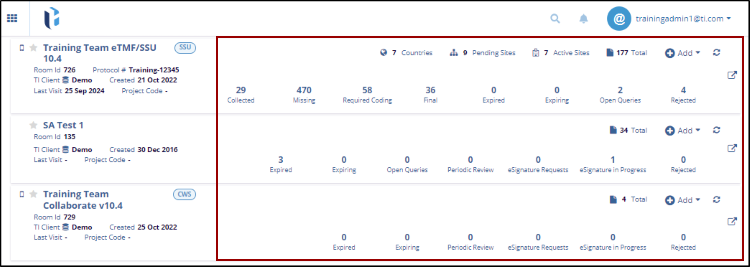
- Below, all the entities have been explained in the table.
Total documents Shows the total number of valid documents in the room, excluding deleted, purged, or missing files. Expired documents: Represents documents whose expiration date has passed. Expiring documents Displays the number of documents approaching expiration based on the room’s configured expiring period. Open queries Shows the total number of queries with a status of Pending or In Progress in the room. eSignature Asignments: Indicates the number of documents sent for eSignature that are awaiting signatures. eSignature in progress Displays the number of documents currently undergoing the eSignature process. Periodic review Shows the number of documents that require periodic review. Rejected Documents Displays the total number of rejected documents in the room, with an option to view and navigate to each document.
Grid View
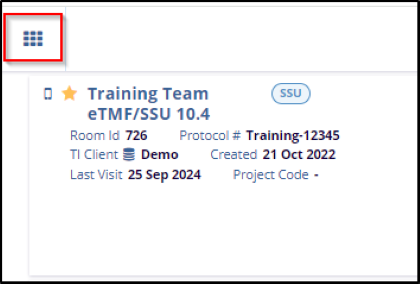
This section allows users to access rooms and view both their overview and detailed summaries. Upon signing in to Trial Interactive, users are automatically directed to the Home Screen, as shown in the screenshot below.
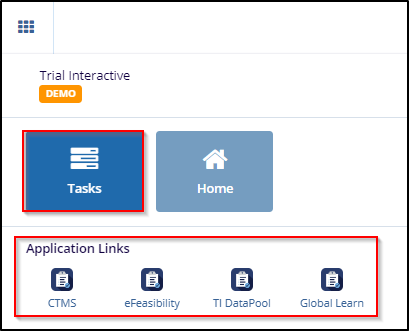
- Click on the Grid icon at the top left corner, that displays the
Tasks and Application Links.
- Click the Taskto check the assigned task that will redirect the user to the Task grid view.
- Additionally, the user can access the application by clicking on the
Application Name.
Search
To Search and Access room, follow the steps below:- At the top right of the application, you'll find a magnifying glass icon for searching assigned rooms.
- Click the magnifying glass icon to open the search screen.
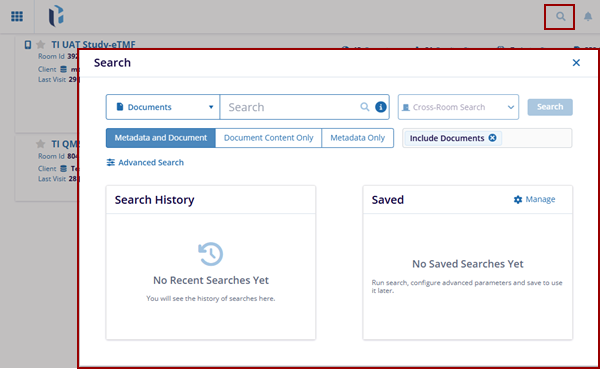
- Select a room entity from the drop-down menu and enter the room name to perform a search.
- Click on the room name in the panel to enter the room.
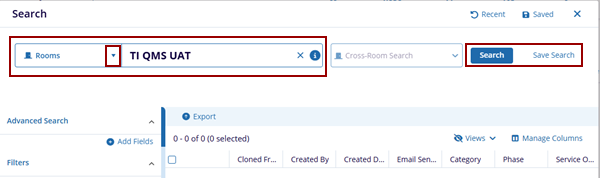
- To learn how to perform advanced search in TI, click here.
Notifications
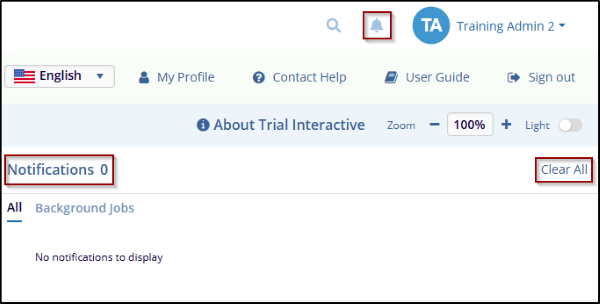
When the username menu slides out from the side of the screen, the lower section displays the Notifications panel. From here, you can view messages related to tasks you have performed in the system.
If you request an export or download and miss the initial notification option to view the result, the notification remains available in this panel until you leave the room.
The total number of notifications for your current Trial Interactive (TI) session is shown in a red circle next to the bell icon in the top-right corner of the screen.
This section displays the following tabs:
- All: Click this tab to get a list of all the tasks that are ongoing, pending, or overdue. This is a shortcut that provides you with an overview of all the tasks in your current room.
- Background Jobs: Through this tab, you are notified about a
background job that is executed or completed.
- Some messages, like downloading/mass coding documents, provide the Get Job Result button that you click to get further details on the action, like a message or a downloadable file.
- Clear All: Click on this tab to immediately clear all notifications.
About Trial Interactive
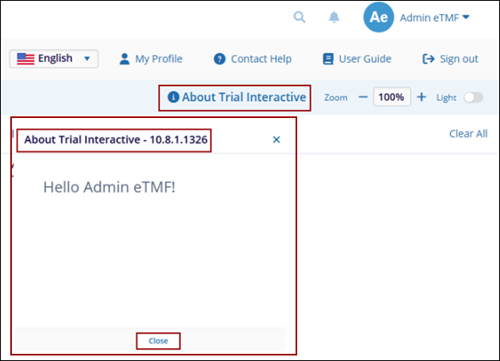
Follow the steps below to know about Trial Interactive:
- Click the About Trial Interactive to view the page. The About Trial Interactive pop-up window is displayed, the administrator-level users configure this page to welcome new users and provide information about the Trial Interactive version.
- Click the Close button at the bottom, to close the pop-up window of Trial Interactive.
Zoom
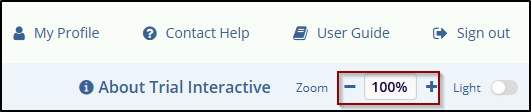
To zoom in, press + sign to enlarge the content size. To zoom out, press – sign to decrease the content size.
Light Mode and Dark Mode
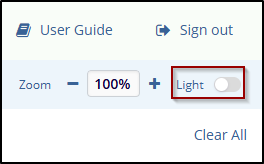
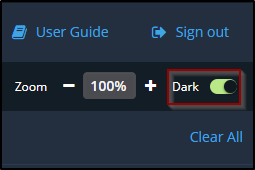
To switch between Dark Mode and Light Mode. Choose Dark Mode for a low-light-friendly interface or Light Mode for a brighter look, switch based on your system preferences.
© 2025 Trial Interactive. All Rights Reserved

