
Search in QMS
Users can search for quality records by selecting the appropriate primary record type, i.e., Quality Events, CAPA, and Action Item, etc., directly from the rooms search interface. Users must have access to the Quality module to access and perform the search activity.
Note: Search and filter fields can be configured through the Form Settings
screen, subject to the user having the necessary configuration permissions.
To perform a Search in the Quality Module, follow the steps below:
- Navigate to the collaborate room from the Home Page to initiate the search.
- Click the Waffle Menu in the top-left corner of the screen and select Quality
Module.

- Click the Search button at the top-right corner of the screen to open the Search
window.
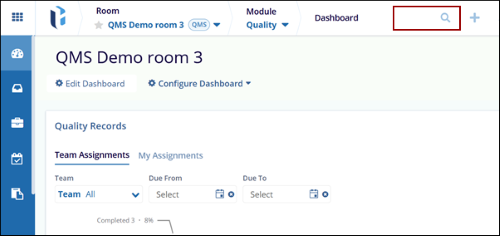
- In the search window, use the dropdown menu in the top-left corner to view available categories and choose Quality Records.
- Select Quality Event, enter at least three characters of the record title or ID, and click Search.
- Select the checkbox next to the desired record and expand the quick view panel to review metadata and additional details.
Filter:
- After results are displayed, the filter panel is visible on the left side of the search window.
- To apply a filter, for example, to filter by Impact:
- Click the dropdown arrow next to the Impact filter.
- Select the desired filter options (e.g., Low).
- Once filters are applied, the grid will auto-refresh to show only the matching records.
© 2025 Trial Interactive. All Rights Reserved

