
Teams
The teams page allows Admin users to create and manage teams comprising of multiple users who are responsible for handling assignments related to records. These teams can be designated for specific workflows and records within the system. Users can add or remove team members, associate teams with specific record types, and manage associated authority types.
- Team Listing and Management
Team Listing:
The Team Listing screen allows users to view all existing teams in a grid and manage them. Additionally, it displays all created teams with information within the following columns:- Team name
- Description
- Purpose
- Members
- Record types
Actions:
- Add: Users can create a new team with QMS purpose - required to provide the assigned level for each Authority Type.
- Edit: modify existing teams in the QV panel.
- Delete: Deleting a team will prompt a confirmation dialog.
-
Team Details Page – General Information
The General Information section of a team provides an overview of the team's main information:
- Team Name: Editable name of the team.
- Description: A detailed description of the team’s role, which is editable.
- Purpose: Displays either QMS or Responsible Parties specified during team creation.
Available Actions
- Edit: Enables modification of team details
- Change Log: Displays a history of team modifications
-
Team Details Page – Responsible Authorities
The Responsible Authorities section allows assignment and management of authority levels for team members.
Responsible Authorities Columns:
- Authority type
- Assigned
- Escalated
- Informed
- Document Types
Teams can be associated with specific Document Types to manage related documents and actions when Responsible Parties are selected during team creation.
Actions:
- Add Document Types: Select document types from a categorized list (e.g., Investigative Site, Recruitment Plan)
- Remove Document Types: Removes the document type association with the team.
Columns:
- Category: Document Types category
- UDID: Universal Document Type ID number - configured in settings
- Type: Document Type name
- Paths: The full path of each document type is displayed for clarity.
- Team Members
Team members can be added or removed to manage responsibilities for records or workflow stages:
Actions- Add Members: Add existing users or groups using search and filter options as team members.
- Remove Members: Remove members only if no Authority Type is assigned.
- View Member details: Access additional information via the quick view panel.
- Edit Authority Type: Modify authority levels directly in the member quick view panel. If a user is the last member assigned to a specific Authority Type level, the authority can only be modified from the Team Details page.
Default Columns:
- Name
- Status
- Authority Type
- Phone
- Expiration
- Record Types
Teams can be linked to specific Record Types to manage workflows and related tasks.
Actions available:
- Add Record Types: Users can add record types to the team by selecting from a categorized list (e.g., Quality Events, CAPA, Action Item)
- Remove Record Types: Record types can be removed from the team, which triggers a confirmation modal
Columns:
- Category: Record types category
- UDID: Universal Record Type ID that is configured in settings
- Type: actual Record Type name
To access the Teams modal, follow the steps below:
- Navigate to the Users Management module within the QMS room, or click the Module dropdown and select the Users Management module option.
- Navigate to the left-hand menu and select the Teams modal.
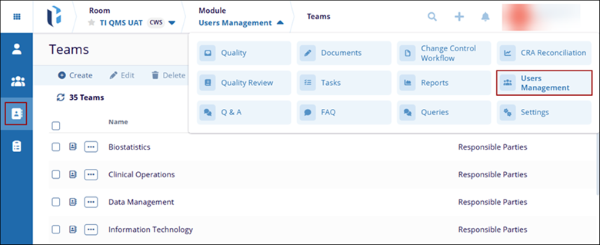
- The Teams screen displays options to Create, Edit and Delete the teams’ related actions.
© 2025 Trial Interactive. All Rights Reserved

