
Editing a Package
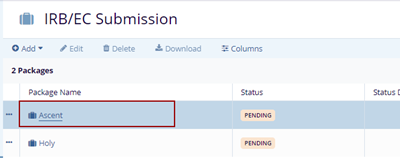
- Click on the package name the Package Details
page is displayed.
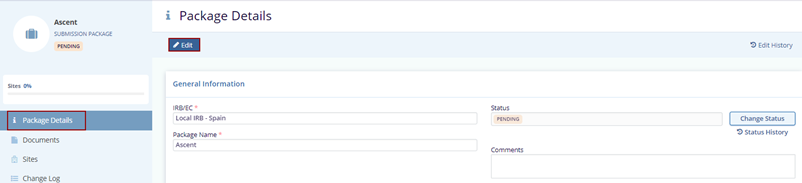
- Click on the Edit button displayed
on the top menu bar. The Package Name field gets editable on the
General Information page with the Save and
Cancel buttons.
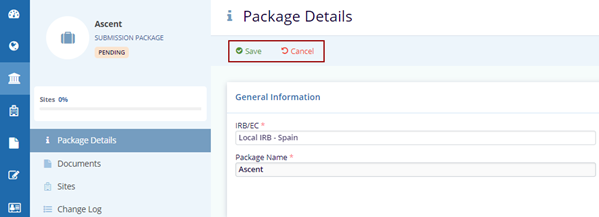
- Make the changes in the required fields and click the Save button displayed on the top menu bar.
- Click the Cancel button to discard the
changes.
Change Status
The user can change the status of a country by following the steps below:
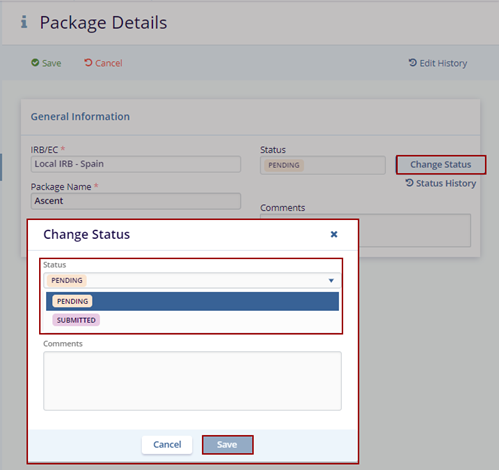
- Click the Change Status button displayed on the Package Details page. This opens the Change Status pop-up window.
- Select the appropriate status from the dropdown menu of the Status field.
- Select the Status Date by clicking the Calendar icon. Mention comments if required in the box below.
- Click the Save button at the bottom
of the pop-up window.
- The notification message is displayed as ‘Status
Changed’.

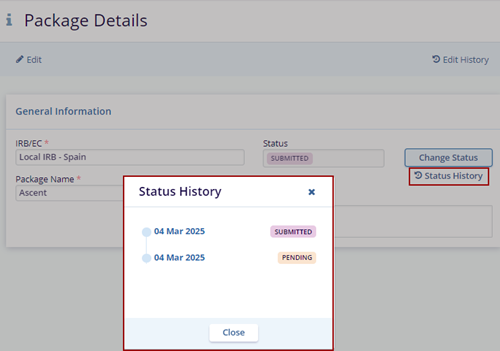
Status History
A Status History button is displayed below the Change Status button. Click the button to view the name of the user who made the changes on the IRB/EC Details page.
Note: The user can only view the history and cannot edit any information in the table displayed.
Documents
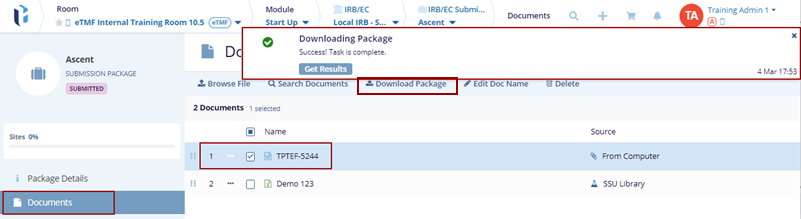
- Select the document that is added to the selected package and click the Download Package button.
-
The package is downloaded notification message is displayed on the top right of the screen.
-
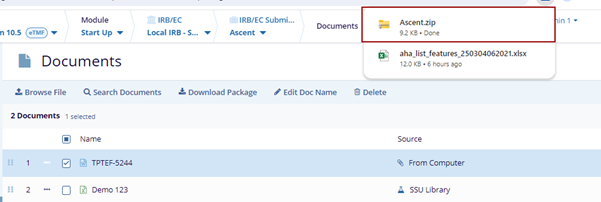
Click on the Get Results button on the notification message. The zip file of the selected package is downloaded.
Sites
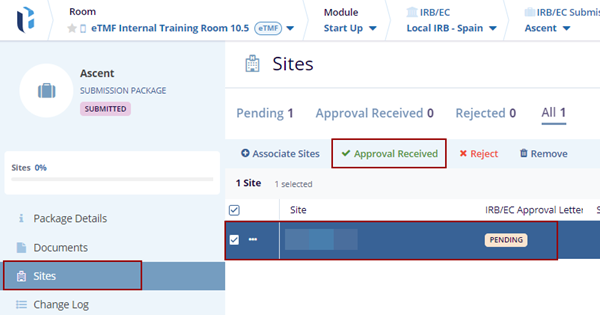
- Select the associated site of the selected package and click
the Approval Received button on the top menu bar.
- The Approval Received for Site (s) pop-up window is displayed with the Cancel and
Confirm Received Approval buttons.
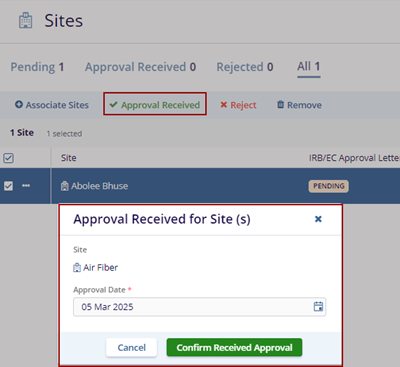
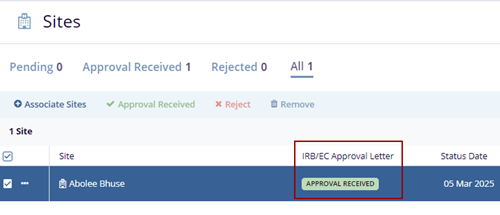
- Click the Confirm Received Approval button to confirm the approval. The IRB/EC Approval Letter column displays the Approval Received status for the selected site.
- Click the Cancel button to discard the
changes.
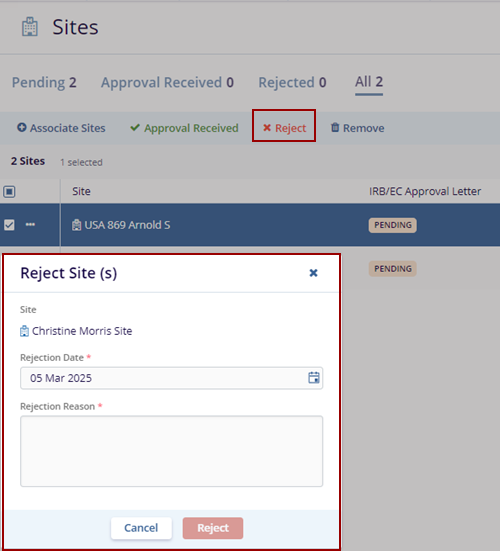
- Locate the Site and click the Reject button on the top menu bar. The Reject
Sites (s) pop-up window is displayed with the Cancel and Reject buttons.
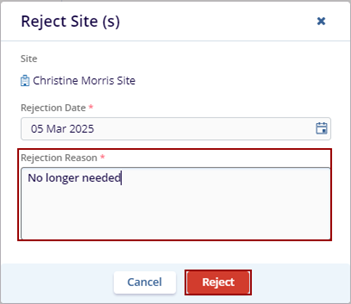
- Click the Reject button once the user enter the Rejection Reason in the box.
- Click the Cancel button to discard the
changes.
- Locate the site and click the Remove button on the top menu bar. The Remove
Site (s) pop-up window is displayed with the No and Remove buttons.
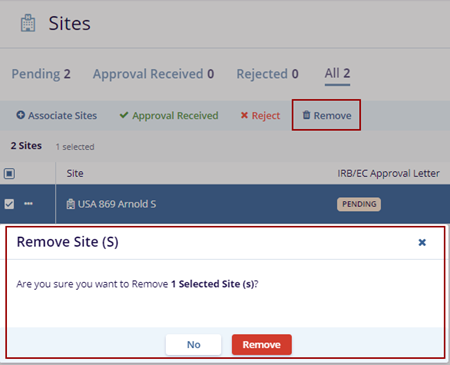
- Click the Remove button the selected site gets removed from the grid.
Change Log
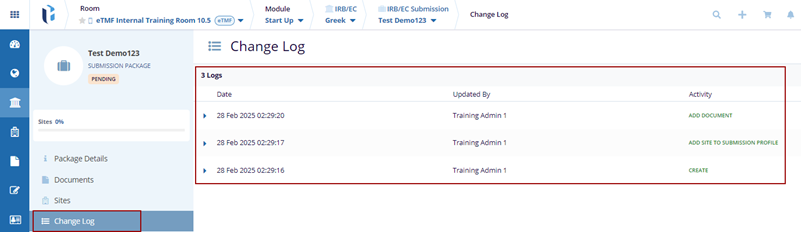
A Change Log is a file that records all notable changes made to a package. It helps users understand what has changed in different versions of the package.
© 2025 Trial Interactive. All Rights Reserved

