
Resolving a Query
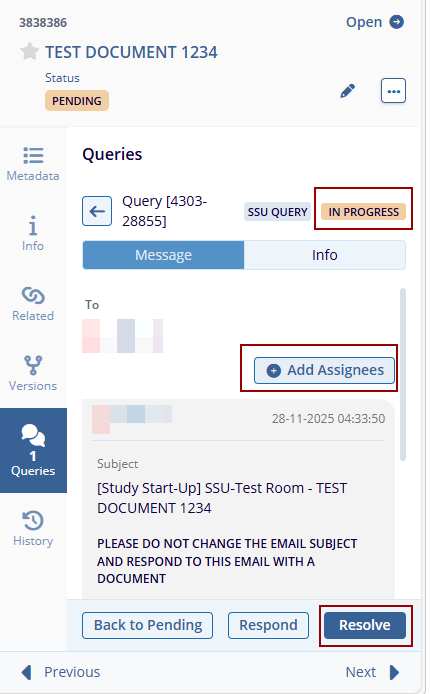
- Navigate to the relevant SSU Query in the system.
- Click the Resolve button – the Resolve
Query pop-up is displayed.
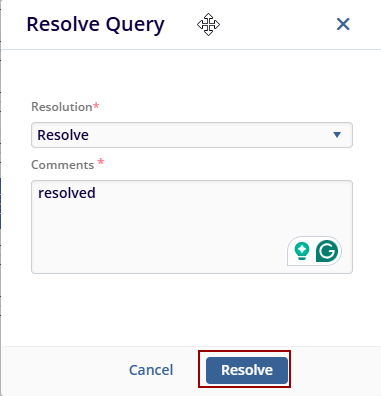
- Verify the following options are available:
- Resolution: Resolve
- Comments text box
- Cancel and Resolve buttons
- Enter the required comments and click Resolve.
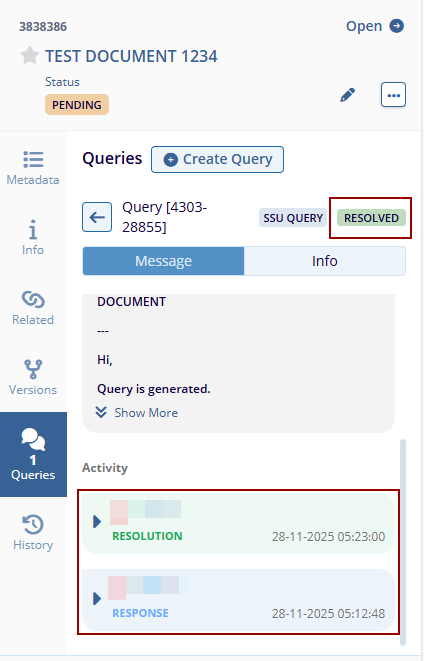
- Confirm the success message: Resolve Query - Query was successfully resolved.
- Verify in the Queries tab (Quick View Panel) that the query status is updated to
Resolved.
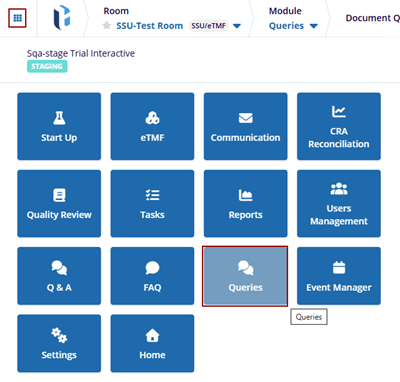
- Navigate to the Query Module. Here the user can able to view the SSU Queries.
- In the Pending folder, select the document the quick view panel is displayed.
- Click Add Assignees and send the query to the
added assignees.
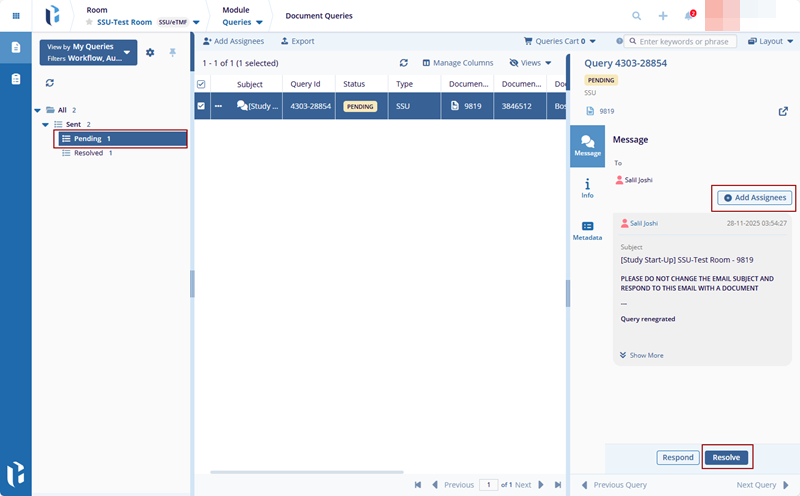
- Click the Resolve button – the Resolve
Query pop-up is displayed.
.png)
- Verify the following options are available:
- Resolution: Resolve
- Comments text box
- Cancel and Resolve buttons
- Enter the required comments and click Resolve.
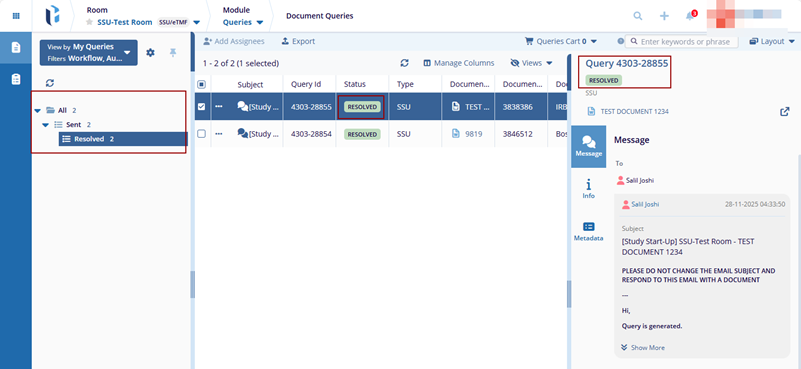
- Confirm the success message: Resolve Query - Query was successfully resolved, and the document disappears from the pending folder.
- Click the Resolved folder and select the document.
- Verify in the Queries tab (Quick View Panel) that the query status is updated to Resolved.
© 2025 Trial Interactive. All Rights Reserved

