
Setting IRB/EC Documents at Country Level
Follow the steps below to set the IRB/EC documents at the Country level:
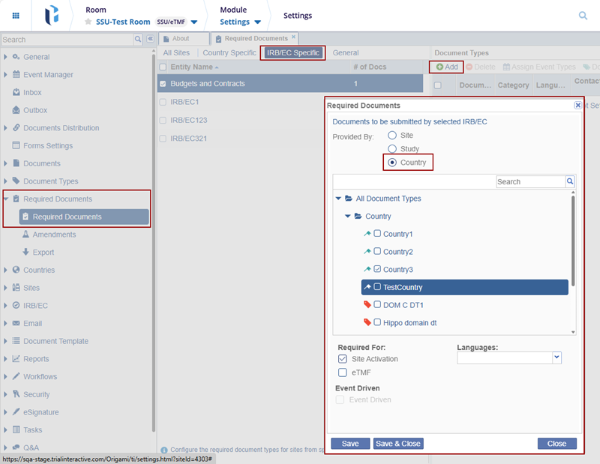
- In the Settings module, select the IRB/EC specific from the list within the Required Documents section.
- Click the + Add button within the Document Types section the
following radio buttons:
- Site
- Study
- Country
- Select the Country radio button that will show country-level documents in the Required Documents modal window.
- Select the documents and enable the Site Activation in the Required For section.
- Click the Save & Close button.
- In the Study Start-up module, select Sites > Site Details page > click the IRB/EC menu in the index panel.
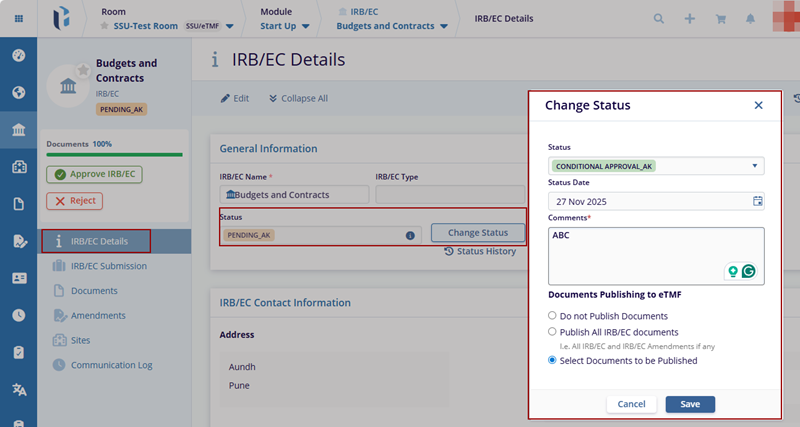
- The IRB/EC details page is displayed with the General Information section.
- Click the Change Status button in the General Information section.
- Select the Conditional Approval status from the list and provide the
Comments in the comment box, and click the Save button.
© 2025 Trial Interactive. All Rights Reserved

