
Add Assignees
It allows users to assign individuals to the selected queries. Once checked, the user can select assignees from a list or search for a specific user.

Steps to Add Assignees for queries:
-
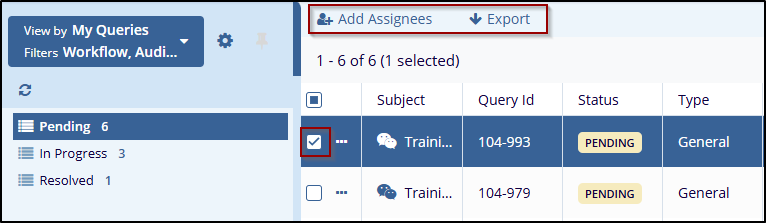
- Navigate to the left panel, and select status as per user requirements (Pending, in Progress, Resolved). This will display queries in a grid view.
- From the grid view, click on the checkbox to select the
queries. Once the query is selected, the top menu bar will display
options to take action on the selected query.
Refer to the below screenshot:
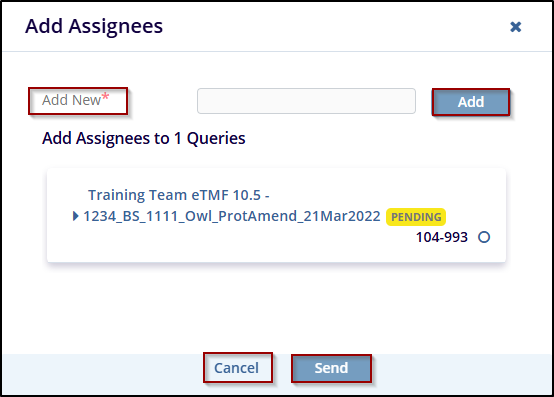
- Click on the Add Assignees button in the top menu bar. This will open the Add Assignees window.
- In the Add Assignees window, enter the assignee's name in the Add New text box. Select the appropriate Assignee and click on Add to add it.
- Below, the user will see the query details for which queries the users are assigning. The query’s subject, ID, and status will be displayed.
- Once selected, click the Send button to assign
the user to the query. This will confirm the assignment, or click
Cancel to discard changes.
Refer to the below screenshot:
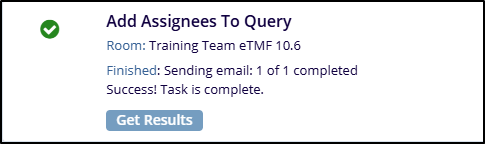
- Once you click on the Send button, a confirmation message will appear in the same window.

 Linkedin
 X
X

