
Collaborative Workspace
Explore Videos for more help:
Videos
The Collaborative Workspace group of dashlets is exclusive to TI Collaborate rooms and includes dashlets that provide users the visibility and access to documents required to be approved and electronically Signed. Additionally, users get clarity on the pending collaborative reviews and the document life cycle.
To access the Collaborative Workspace dashlets, follow the steps below.
- Login to a Collaborate room and select the Collaborative Workspace module from the Modules dropdown.
- Navigate to the bottom of the Dashboard page to access the Collaborative Workspace dashlet.
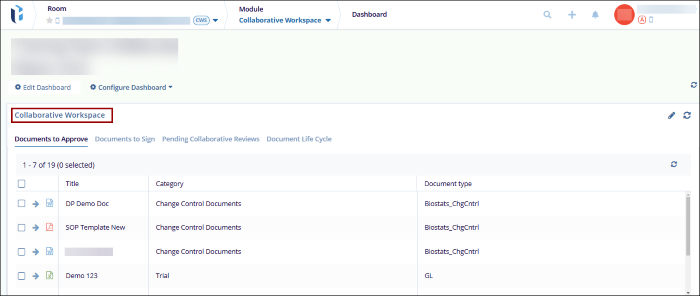
Users can access the following dashlets exclusive to the Collaborative workspace.
-
Documents to Approve
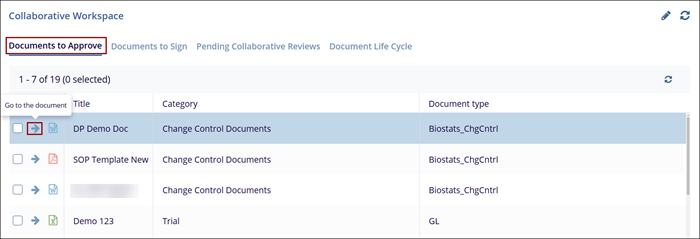
The Documents to Approve dashlet displays a list of documents that require users’ approval. If the user belongs to a pool of approvers of the same level, documents may be approved without user intervention.
To access the documents to approve, select the document and click on the arrow to open the documents in the document view.
-
Documents to Sign
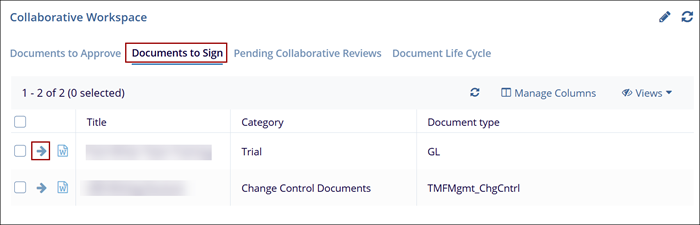
This dashlet shows a list of workflow documents awaiting the user's signature in TI. Some documents may require serial signatures and will only appear once it is the user's turn to sign.
To access the document for signature, select the document and click on the arrow to open the document signature interface, which utilizes the implemented signature engine (TI Sign, Adobe Sign, etc.)
-
Pending Collaborate Reviews
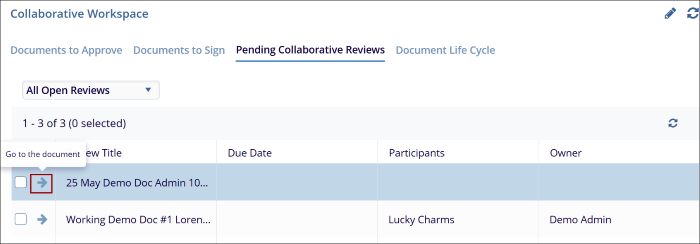
This dashlet displays all documents that are currently open in Team Edit mode for collaborative review by the current user.
Users can choose to view the documents pending review for All users (default) by selecting the All Open Reviews option. Additionally, users can select the My Pending Reviews option to view documents only for themselves.
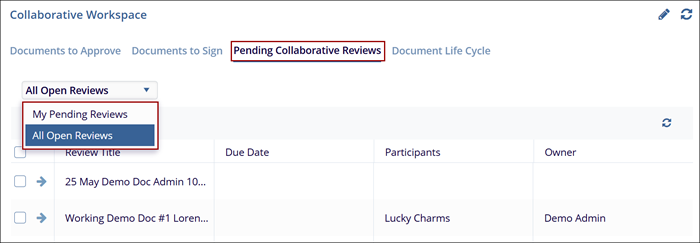
To access the documents pending collaborative review, click on the arrow to open the Collaborative Review tab from the documents metadata panel.
-
Document Life Cycle
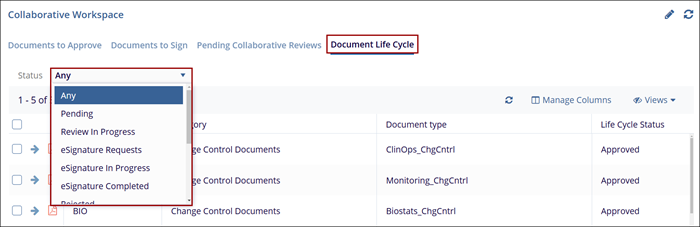
This dashlet displays documents based on their review status. Users can select a review status from the dropdown options and view documents in that particular status. For example, documents in the below-mentioned review status can be filtered and displayed.
- Any
- Pending
- Review In Progress
- eSignature Requests
- eSignature in Progress
- eSignature Completed
- Rejected
- Approved
- Effective
- Periodic Review Required
- Periodic Review Overdue
- Periodic Review in Progress
- Obsolete
© 2025 Trial Interactive. All Rights Reserved

