
Edit Countries
To edit a country in the Collaborative Workspace module, follow one of the methods below:
Method 1
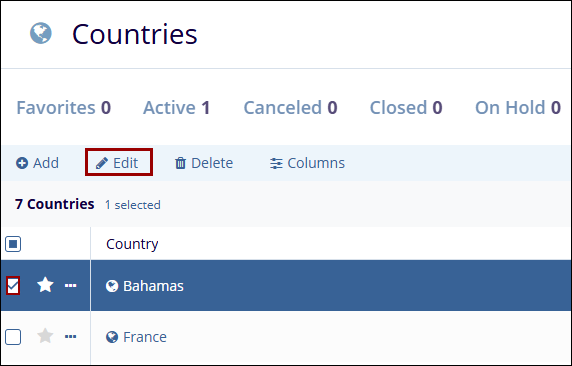
- On the Countries screen, select the country to edit by checking the box next to its name.
- Click on the Edit button. This opens the Edit Country panel on the right side
of the screen.
-
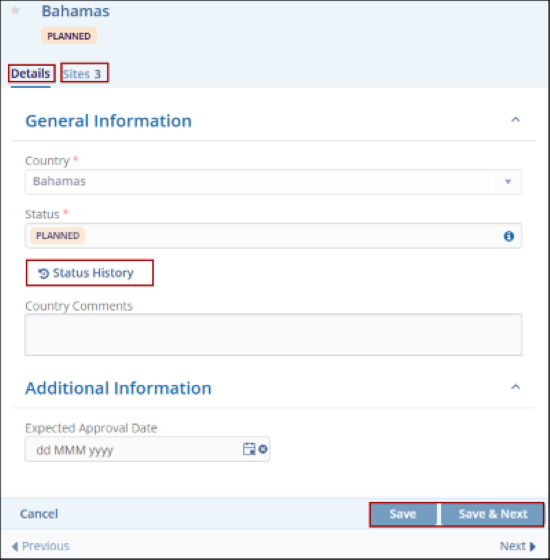
In the Edit Country panel, click on the edit icon at the top right and make the necessary changes under the Details tab.
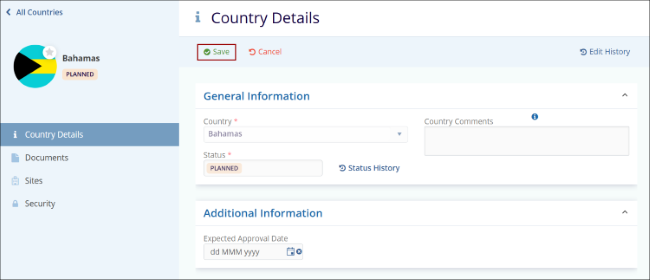
- Under General Information, update the Country name and Status if needed.
- Add or modify Country Comments as required.
- Click on the Sites tab to view the sites associated with the country.
- Click on the Status History button to view the status changes and users responsible for changing the status.
- Once the desired changes are made, click on Save to apply the updates, or
Save & Next button to edit the next country in the list.
Method 2
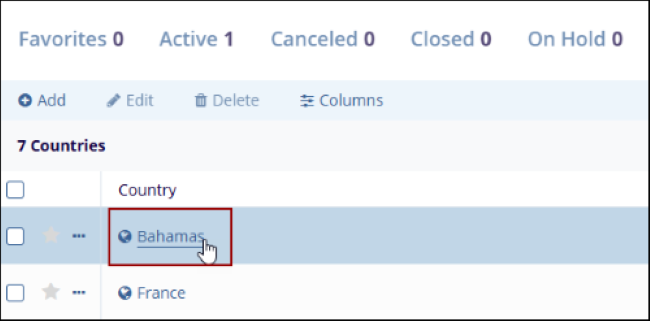
- On the Countries screen, click on the country name to edit.
- On the Country Details screen, Click on the Edit button.
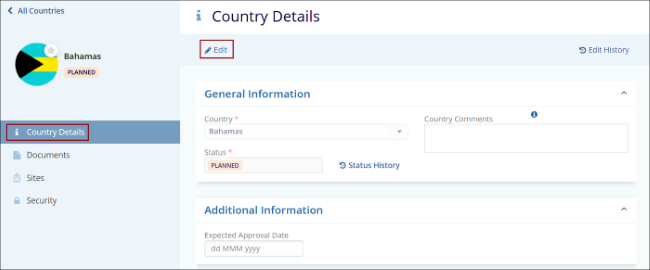
- Make changes to the General Information sections and click on the Save button.
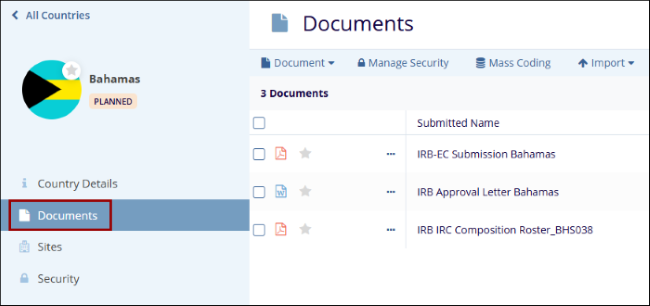
- Click on the Documents tab from the left-hand navigation pane to add documents
and access other functions.
 Note:
Note:Refer to the Documents Library - Top Menu Ribbon section to add documents and perform the other functions.
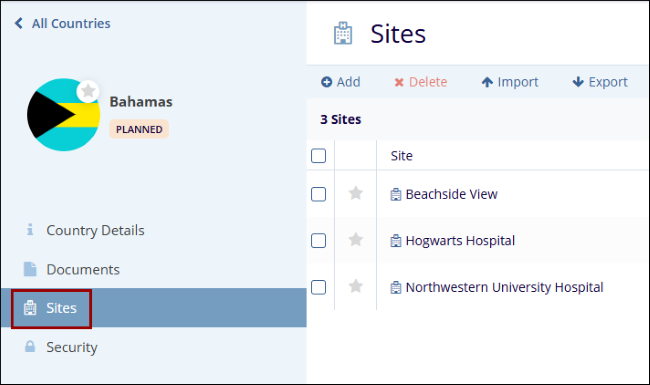
- Click on the Sites tab from the left-hand navigation pane to add and access
other functions.
 Note:
Note:Refer to the Sites section to add sites and perform the other functions.
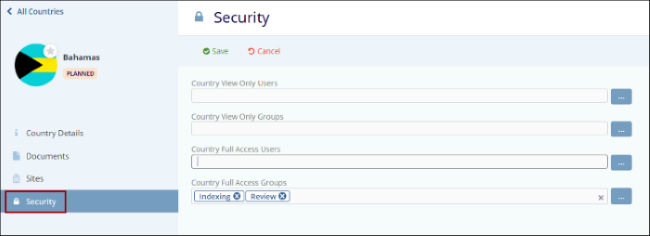
- Click on the Security tab from the left-hand navigation pane to grant users,
the necessary access permissions.
© 2025 Trial Interactive. All Rights Reserved

