
User Profile and Roles
User Profile
Users can access and edit their profiles using any one of the following two methods.
Method 1: User Name Dropdown
To access and Edit the User Profile, follow the steps below.
- Navigate to the top right of the home screen, click on the User Name Dropdown, and
click on Profile.
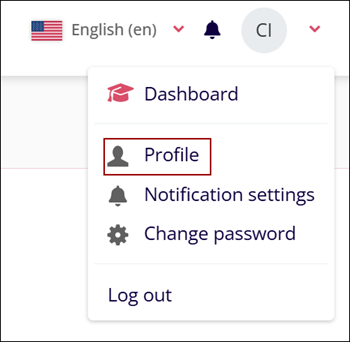
- On the user profile page, click on Edit Profile from the User details
section.

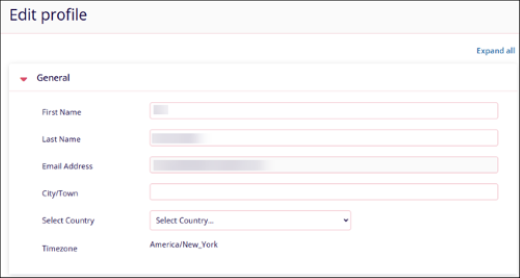
- On the Edit Profile page, update the following details.
- First Name
- Last Name
- Email Address
- City/Town
- Select Country
- Time zone.
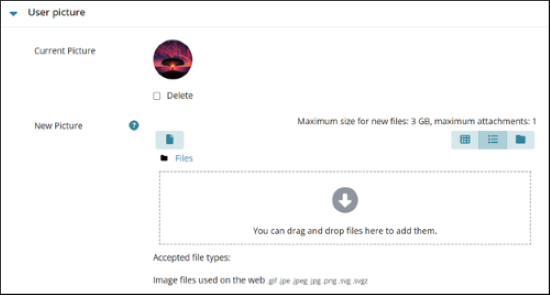
- Replace the existing picture or add a picture by uploading the desired file in the
specified file formats in the User picture section.
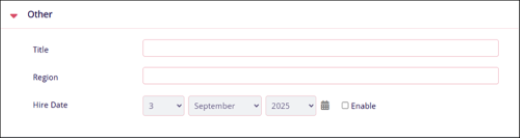
- Update the following details in the Other section.
- Title
- India
- Hire Date
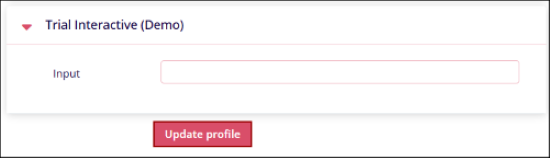
- In the Company section, add or edit details in the configured fields and click on the
Update Profile button.
Method 2: User Profile Dropdown
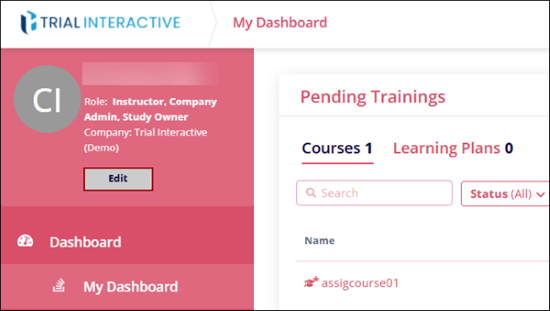
The user profile, situated at the top left of the home screen, displays the following details
- User Name
- Role
- Company
- Training Groups
- Study/Site
To edit user details through the user’s profile dropdown, follow the steps below
- Navigate to the user’s name section on the top left of the home screen and click on
Edit.
- Follow the further steps to edit the users detailed in Method 1: User Profile Dropdown.
User Roles
| User Role | Description |
| Learner | The Learner role is designated for users assigned specific course content to complete. |
| Instructor | Instructors are responsible for creating, managing, and administering courses. They can be assigned to multiple courses and also act as dedicated instructors for specific Learners within a course. |
| QA | The QA role provides users with oversight of all organizational training activities, including additional supervision of external training programs. |
| Manager | Managers in Global Learn can view course enrollment and progress information for any users directly reporting to them. |
| Department Manager | This role includes most CA (Company Administrator) permissions, except for creating/deleting users, deleting training groups, or creating/editing/deleting profile or course fields. |
| Training Group Manager/Owner | This role allows the delegation of training management or administration to a user for specific training groups, such as departments or study-specific groups. |
| Site Co-Ordinator/Owner | This role enables the delegation of training management or administration to a user for one or more specific sites. |
| Site Learner | Learners may be assigned courses based on their site association but do not have access to the course catalog. |
| Company Administrator | Company Administrators have full access to all courses and users within the organization. |

TransPerfect’s Trial Interactive is an industry leader in practical, global eClinical innovation
PRODUCTS
 Linkedin
 X
X
Didn’t find what you need?
Our dedicated Project Management and Client Services team will be available to meet your needs
24 hours a day, 7 days a week.
Toll Free:
(888) 391-5111
help@trialinteractive.com
© 2025 Trial Interactive. All Rights Reserved

