
Method 1
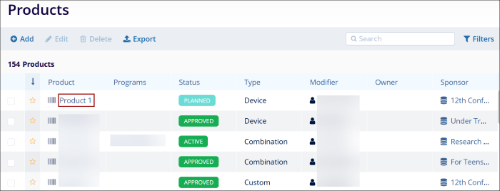
- Click on the Product name to edit which will then open the Product
Details screen.
- On the Product Details screen, click on the Edit (pencil) icon.
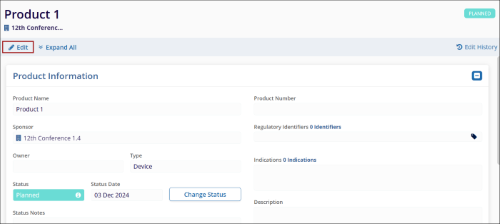
- Make the required edits in the Product Information section along with the
following.
- Change Status:
- Click on the Change Status button.
- On the Change Status screen, update the Status*, and Status Date* and enter notes if required.
- Once the required changes are made, click on the Change
button. The respective status-related field will be updated with
the latest status, date, and notes if any.

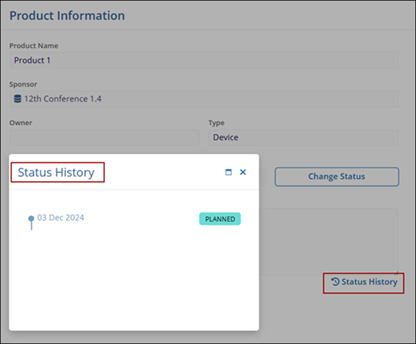
- Status History:
- Click on the Status History icon.
- On the Status History box, the user can view the status change
trail.
- Regulatory Identifiers
- Click on the Regulatory Identifier edit (pencil) icon
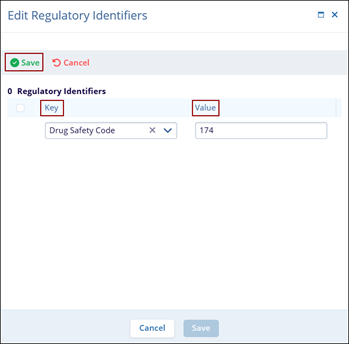
- Click on +Add to add a new Regulatory identifier
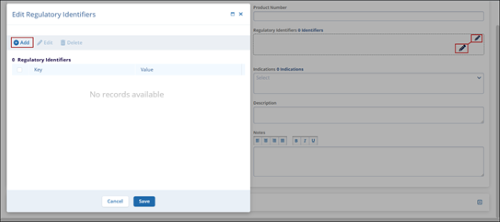
- In the Key field, select the required value from the available dropdown options.
- Enter the suitable value in the Value field.
- Once the required details are added, click on Save
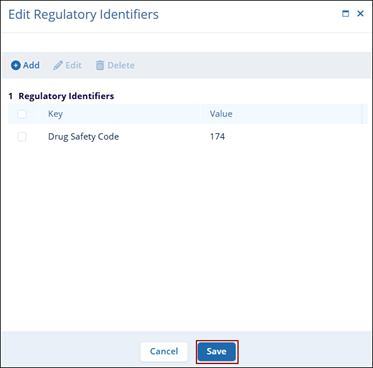
- Click on the checkbox for the newly added Regulatory Identifier
and click on Save.
- Change Status:
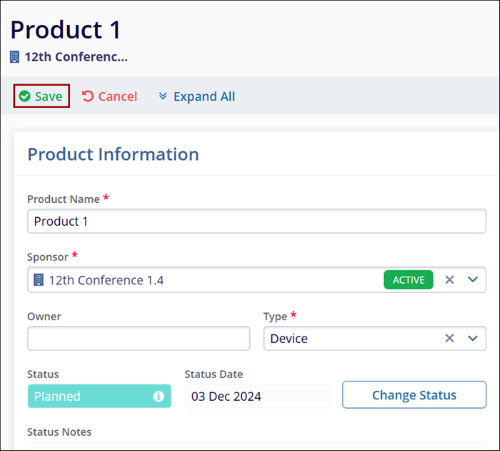
- Once all the details are edited/updated, click on the Save button.

TransPerfect’s Trial Interactive is an industry leader in practical, global eClinical innovation
PRODUCTS
 Linkedin
 X
X
Didn’t find what you need?
Our dedicated Project Management and Client Services team will be available to meet your needs
24 hours a day, 7 days a week.
Toll Free:
(888) 391-5111
help@trialinteractive.com
© 2025 Trial Interactive. All Rights Reserved

