
Create Products
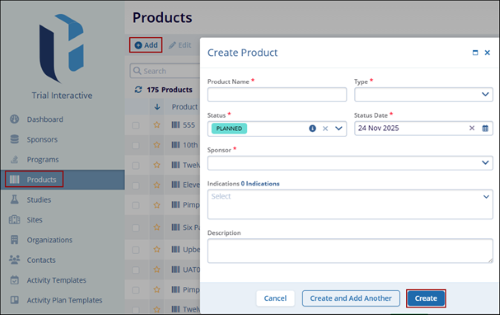
To navigate to the Products screen and view all the product entries, follow the steps below:
- From the left-hand navigation links, select Product which will open the Products screen with a list of existing products.
- Click on +Add from the top menu bar.
- On the Create Product window, fill in all the mandatory metadata.
Metadata field(s) Description Product Name* Enter a suitable name for the product. Type* Select the product type from the available dropdown options.
- Combination
- Custom
- Device
- Medicinal
Status* Select a suitable status from the available dropdown options.
- Planned: Product is planned
- Active: Product is currently being actively used
- Approved: Product has been approved
- Archived: Product data has been archived
- Cancelled: The product has been canceled
- Closed: The product has reached the end and no additional data will be tracked
- In Use: Product is currently in use
- Inactive: Product is not currently in use
- Pending Approval: The product is pending an approval
- Postponed: Product is postponed until a future date
- Terminated: Product has been terminated
Note:- The Status field will be displayed in a different color depending upon the status selected.
- A tooltip showing the status description is visible after hovering over the icon.
Status Date* Enter the status date Sponsor* Select the sponsor's name from the available dropdown options. Indications Select one or more indications from the available dropdown options.
Note: The Indications differ from client to client and are configured by Super Admin users.Description Enter a suitable description for the product. - Once all the mandatory metadata fields are entered and reviewed, click on
Create and the newly created product appears on the Products home screen.
Important Behavior of Creating a Product
- An error appears if the user clicks on Create and any one of the mandatory metadata fields is blank.
- If the user selects Create and Add Another, the system saves the initially created product and enable creating a new product right away.
- If the user selects Cancel, the system discards all the changes made to the Create Product window.

TransPerfect’s Trial Interactive is an industry leader in practical, global eClinical innovation
PRODUCTS
 Linkedin
 X
X
Didn’t find what you need?
Our dedicated Project Management and Client Services team will be available to meet your needs
24 hours a day, 7 days a week.
Toll Free:
(888) 391-5111
help@trialinteractive.com
© 2025 Trial Interactive. All Rights Reserved

