
Customize Products Screen
To apply filters to the Products screen, follow the steps below:
- Click on the All filters dropdown to select and apply the required filter from the
available dropdown options.
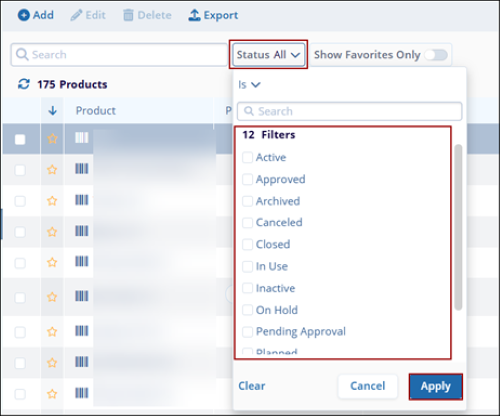 Note: By default, the Status filter is applied to the Products screen, and the dropdown options display all the statuses the user can select.
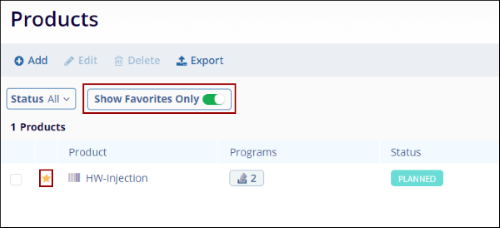
 - Switch the Show Favorites Only toggle button to display records marked as
favorites.
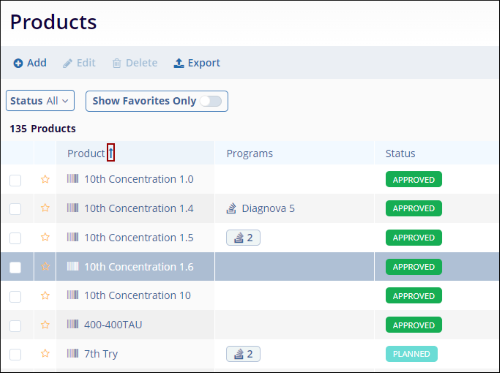
- Click on each header's Up and Down arrows to sort the columns in ascending and descending
order, respectively.
Mark Product as Favorite
To mark a product as a favorite, follow the steps below:
- Click on the star icon next to the product to mark it as favorite.

- Click on the same icon again to remove that product from the favorites list. Enable the Show Favorites Only toggle switch to display products marked as favorites.
Important
Users can add Programs, Studies, Sites, Organizations and Contacts at a product level by accessing the Product Details screen.
To access the product details screen, follow the steps below.
- On the Products screen, click on the product name.

- On the Product Details screen, select the relevant links from the left-hand navigation menu.

Note: Refer to the relevant sections in this document to add programs,
studies, sites, organizations and contacts within a product.

TransPerfect’s Trial Interactive is an industry leader in practical, global eClinical innovation
PRODUCTS
 Linkedin
 X
X
Didn’t find what you need?
Our dedicated Project Management and Client Services team will be available to meet your needs
24 hours a day, 7 days a week.
Toll Free:
(888) 391-5111
help@trialinteractive.com
© 2025 Trial Interactive. All Rights Reserved

