
Configure Existing Workflow
Edit Existing Workflow
To edit and existing workflow, follow the steps below:
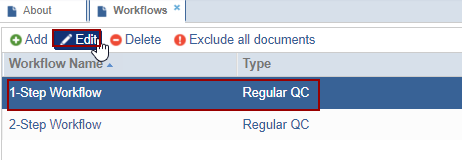
- Click the Edit button the Workflow Editor pop-up window is displayed.
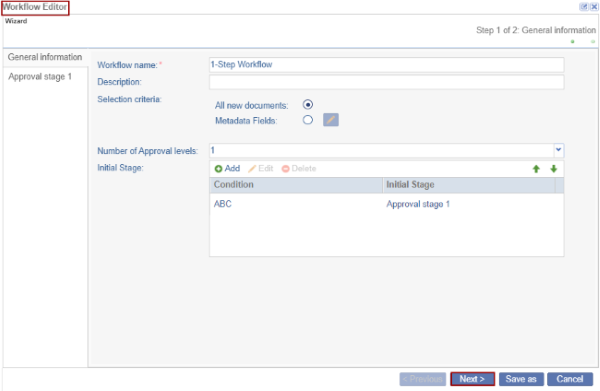
- Edit the required fields and click Next will proceed to the Approval Stage 1
information page.
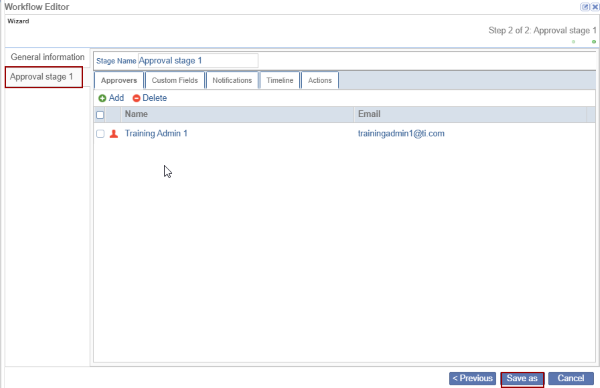
- Edit the required fields and click Save As to save the workflow under a new name.
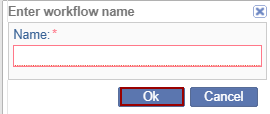
- Click on the Save as button.
Note:
Editing of an existing workflow should be executed with caution because any saved changes require a new and revised workflow to be created. As a result, only Super Administrators can edit an existing workflow. To request workflow changes, contact the TI Service Desk.
Delete Existing Workflow
Deleting an existing workflow will result in the removal of any related status from documents previously processed as a part of the deleted workflow.
To delete an existing workflow, follow the steps below:
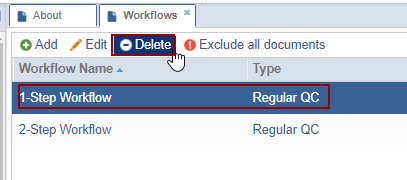
- Select a workflow from the list to delete and then click Delete from the top
menu.
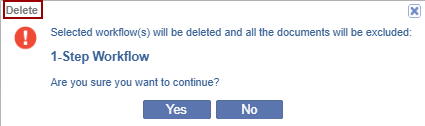
- The Delete pop-up window is displayed.
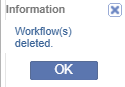
- If clicked Yes, the Information dialog is displayed.
© 2025 Trial Interactive. All Rights Reserved

