
Locate and Claim a Document
To locate and claim a document in an administrative workflow, follow the steps below:
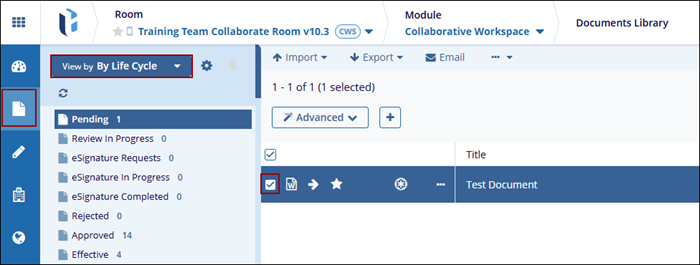
- Navigate to the Documents Library modal, and set the view to Document Life Cycle.
- Click on the Pending folder and select the document.
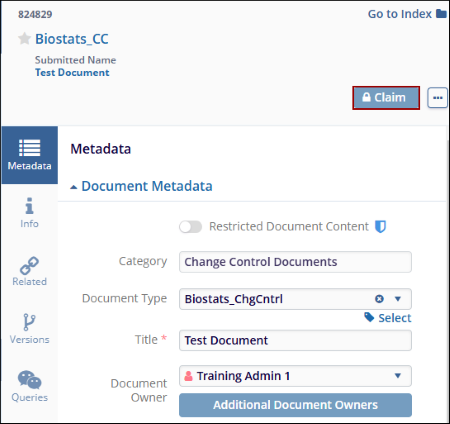
- Navigate to the metadata panel of the document and click on the Claim button.
- Review the document and mandatorily add a status from the available dropdown options.
- Click on the Save button so that the document moves to the next stage of
approval or signature.

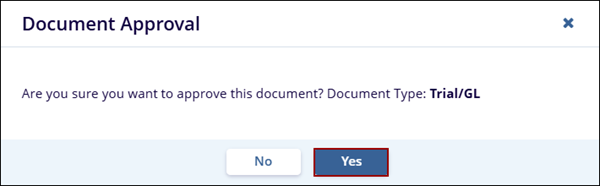
- On the Document Approval confirmation popup, click on the Yes button.
Important
- Documents to claim can also be accessed from the Documents to Approve and Document Life Cycle sections from the Collaborative Workspace dashlet.
- Pending Documents have at least one stage of review in the workflow.
- Documents need to be claimed before sending an eSignature request.
© 2025 Trial Interactive. All Rights Reserved

