
My Profile
In this section, the user can manage the profile using settings which are user-specific. Any changes made in this section impact the user account and not to the room.
Follow the steps below to access My Profile:
- Click the Username dropdown located at the top right corner, click
My Profile.
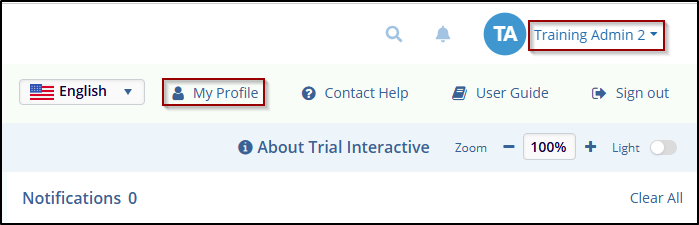
- The user will be direct to the profile settings page. My Profile area has
the following sections:
- Main (Profile Settings)
- Notifications
- Export Requests Log
- Audit Trail
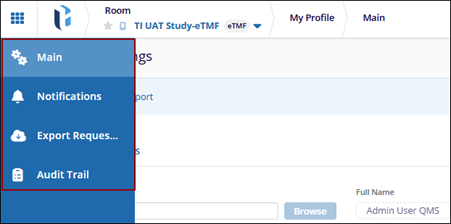
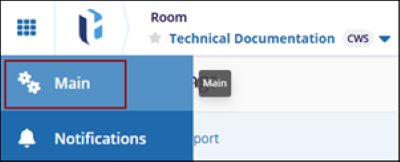
- Click on the Main section from the left panel.
-
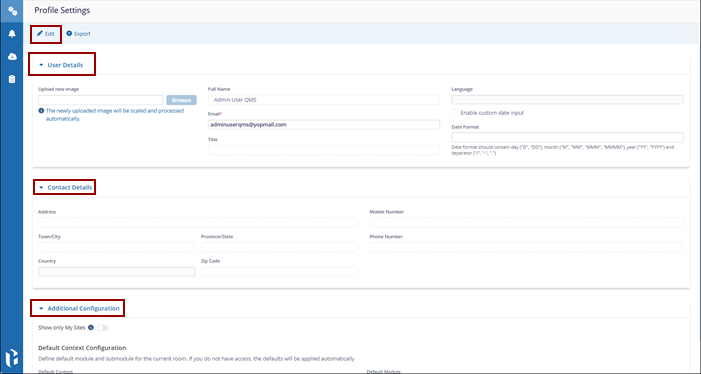
In this Section, the user will view the following sections:
- User Details
- Contact Details
- Additional Configuration
-
Click Edit to make the changes.
-
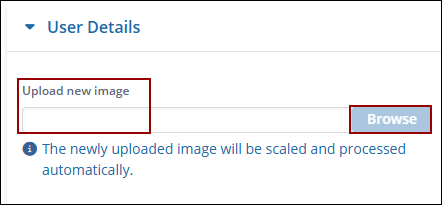
Click on the Browse button to upload a new image to set the user's profile picture.
-
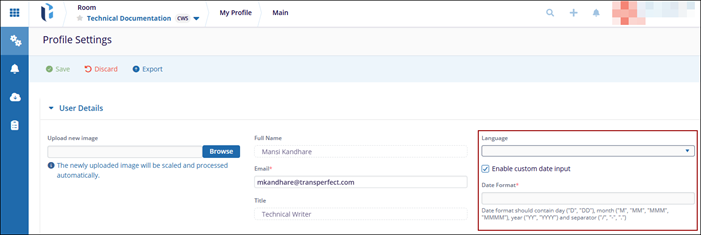
To set the preferred language and date applicable in the Profile settings:
- Click the Enable custom date input checkbox and click on the Language dropdown.
-
Select your preferred language. The user profile dashlet and field labels will change to the selected language.
-
Enter the date format preferred by user. Date format should contain day ("D", "DD"), month ("M", "MM", "MMM", "MMMM"), year ("YY", "YYYY") and separator ("/", "-", "."). Save the changes.
-
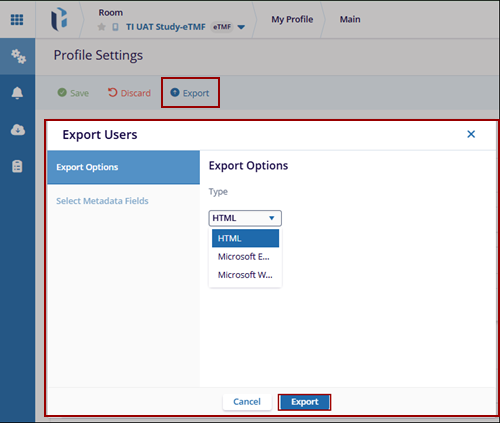
Click Export to export the Profile Settings page. The Export Users page is displayed, where users can select the type of the export and click the Export button.
Notifications
The Notifications section allows users to choose which email notifications they want to receive for their account, based on the rooms the user have access to.
Follow the below steps to access a Notifications:
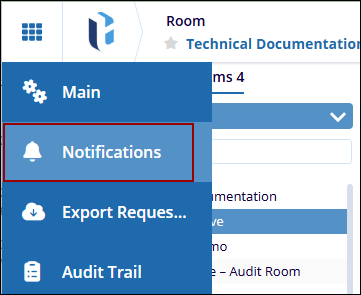
- Click on the Notifications section from the left panel.
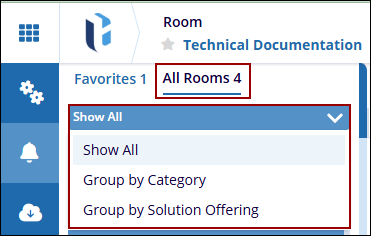
- Click the Show All drop-down to view notification categories and
choose a category to filter notifications accordingly.
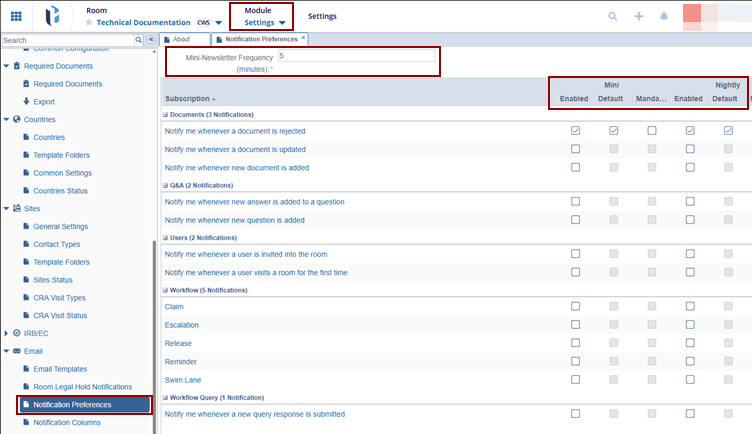
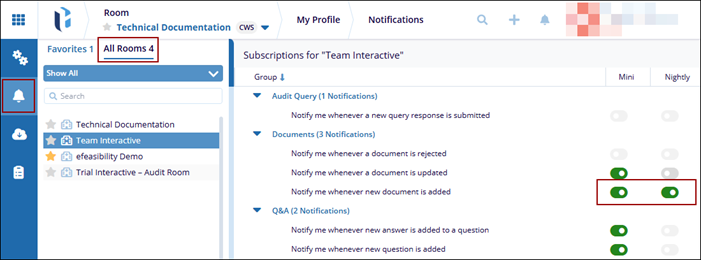
- The user can choose to receive either a mini summary of notifications or a
nightly newsletter that summarizes all new events from the past 24 hours for
each notification category. The Room Administrator configures the
frequency of mini-notifications in the Settings module.
Export Requests Log
The Export Requests Log allows you to view and download a record of all export requests made in the system for tracking and reference purposes.
Follow the below steps:
- Click on the Export Requests Log section from the left
panel.
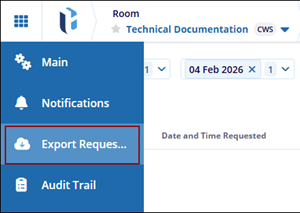
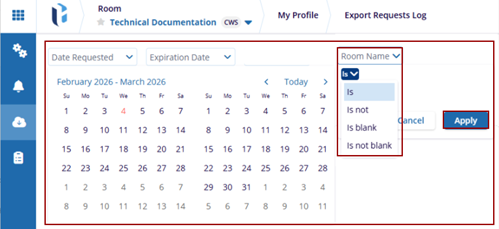
- The Export Requests Log page displays the Date Requested, Expiration Date,
and Room Name drop-down fields. Use these options to select the required
date range and room name to view the corresponding export log.
Audit Trail
An Audit Trail is a security-relevant time-ordered set of records that provides evidence of the sequence of activities performed on a document. It displays all changes made to the document by every user.
Note: By default, the audit trails grid pane is empty, and the
documents are displayed only after entering and applying certain parameters and
criteria.
Click here to know the detail process of Audit Trail.
© 2025 Trial Interactive. All Rights Reserved

