
Extend Courses Due Date
The training window or due date may sometimes need to be extended for learners enrolled in courses created with a Max Date or Max Days. For such courses with max date or days, learners are required to complete the course within the defined timeline.
To extend the due date of a course, follow the steps below:
- Select a course from the Course Management page and click on the information (i)
icon to view the course metadata panel.
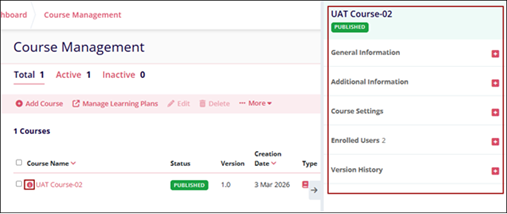
- Expand the Enrolled Users section and select View All Enrolled Users from the
course metadata panel.
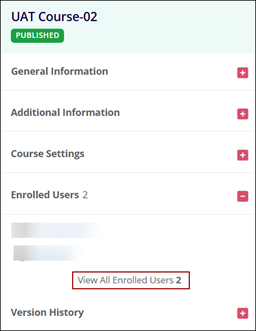
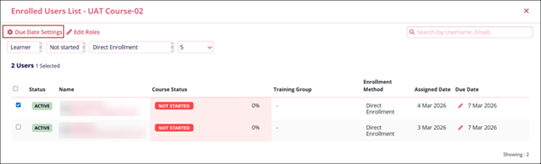
- If the course is created with a Max Date or Max Days, the Enrolled Users List pop-up displays the Due Date Settings button.
- Select a user from the list and click the Due Date Settings button.
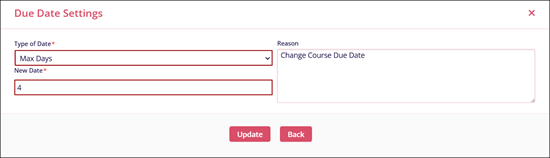
- In the Due Date Settings pop-up, click the date picker icon in the New Date field and select a new date.
- Enter the reason for the change in the text box.
- Click Update.
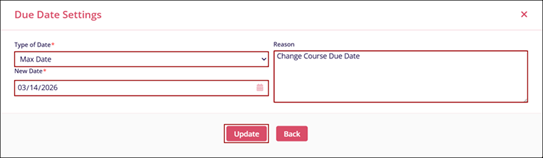
- Alternatively, users can select Type of Date as Max Days and specify the number of
days.
Note:
- If any changes are to made to a course after at least one user has accessed it, an SD ticket must be raised to update the course configuration.
- To configure a course, contact the Trial Interactive Service Desk.

TransPerfect’s Trial Interactive is an industry leader in practical, global eClinical innovation
PRODUCTS
 Linkedin
 X
X
Didn’t find what you need?
Our dedicated Project Management and Client Services team will be available to meet your needs
24 hours a day, 7 days a week.
Toll Free:
(888) 391-5111
help@trialinteractive.com
© 2025 Trial Interactive. All Rights Reserved

