
Sign In and Password Reset
Login
To log in to the GlobalLearn platform, follow the steps below:
- Click on the GlobalLearn platform link using the preferred internet browser.
- On the Login page, mandatory enter the Email* and Password*.
- Click on the Log In button.

- On the Two-Factor Authentication page, select any one of the authentication methods
and click on the Next Step button.
- Google Authenticator App
- Text Message (SMS)
- Email

Google Authenticator App
- Select the Google Authenticator App option.
- Install the Google Authenticator app from the Google Play store or Apple Appstore
- Scan the QA code on the Setup Google Authenticator page or enter the Secret Key in the Google Authenticator app.
- Enter the verification code displayed in Google Authenticator and click on the
Verify button.

Text Message
- Select the Text Message option
- Select the country from the available dropdown options.
- Enter the phone number registered with the email address.
Email
- Select the Email option
- Enter the verification code shared on the email address.
- Once the code is successfully verified, the user successfully signs in to the application.

Note:
- Depending upon the user role, the left-hand navigation pane will be populated accordingly, and certain dashlets will not be visible.
- Two-factor authentication must be enabled in the environment; otherwise, users can log in with only their username and password.
Password Reset
To reset the account password, follow the steps below:
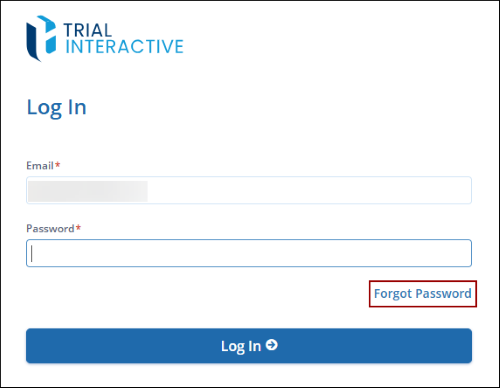
- On the Login page, enter the email ID, and click on Forgot Password.
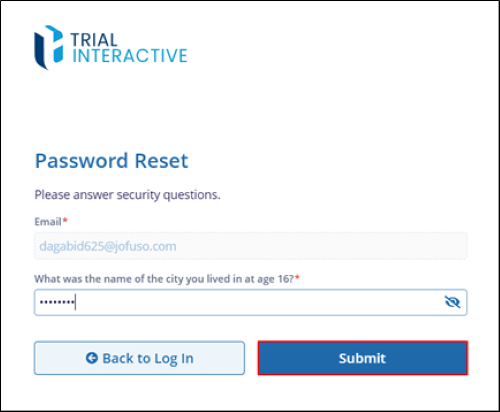
- On the Password Reset screen, enter the answer to the security question and click on the
Submit button.
- The Password Reset screen displays the success message and prompts users to check email
for further instructions.

- Click on the Rest your Password button in the Rest Password Request email.

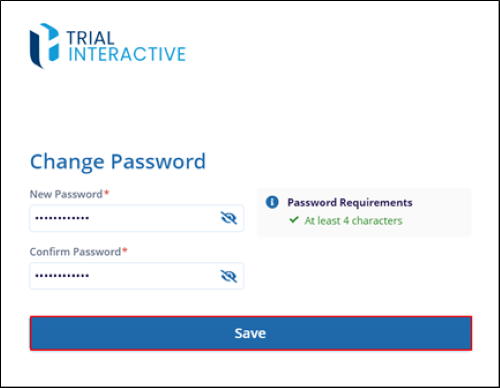
- Enter a new password in the New Password* field, re-enter the password in the Confirm
Password* field adhering to the password requirements, and click on the Save button.
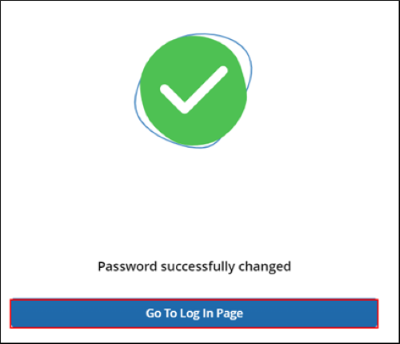
- Upon successful password change, the system displays the success notification. Click on
the Go To Log In Page button and sign in with the users name and new password.

TransPerfect’s Trial Interactive is an industry leader in practical, global eClinical innovation
PRODUCTS
 Linkedin
 X
X
Didn’t find what you need?
Our dedicated Project Management and Client Services team will be available to meet your needs
24 hours a day, 7 days a week.
Toll Free:
(888) 391-5111
help@trialinteractive.com
© 2025 Trial Interactive. All Rights Reserved

