
Search for All
Trial Interactive provides a targeted search feature that helps users quickly locate information across different record types. Users can search within five categories: Documents, Rooms, Sites, Queries, and Contacts. Results are automatically refined based on the selected category. When searching for documents, users can further narrow results by content, metadata, or both. This search can be performed directly from the Home Page Search bar.
Documents Search
Document Search allows users to find specific documents by entering keywords or criteria in the search bar. Results are displayed instantly, and users can apply filters "Metadata and Document," "Document Content Only," and "Metadata Only," depending on the type of information they are seeking.
Users can perform two types of searches for documents:
- Cross Room Search: This is used during document searches to retrieve
documents across multiple studies or rooms in a single query, eliminating the need
to navigate each room individually. It ensures efficient, comprehensive searches by
applying filters and criteria across all accessible rooms.
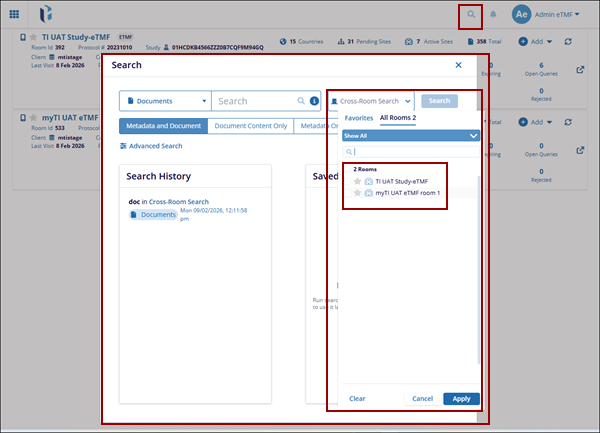
- Document Search: The Trial Interactive allows users to efficiently locate specific documents by applying various filters and criteria. Users can search within document content, metadata, or both. To narrow down results, users can select the "Limit search to the current room" checkbox to search only within a specific room.
To perform the document search, follow the below Steps:
- Log in to the Trial Interactive the Home Page is displayed.
- Click the Search icon next to the username menu, the Search popup window is displayed.
- Click the drop-down arrow beside the Documents, to view the options:
- Documents
- Rooms
- Sites
- Queries
- Contacts
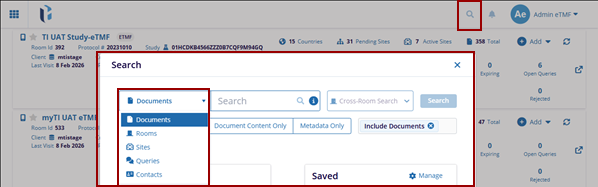
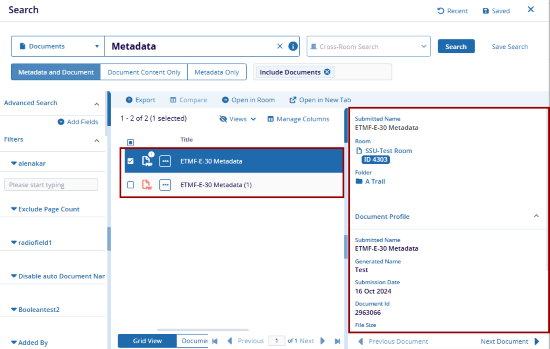
- Enter the specific document name in the Search box, results matching the entered criteria will appear in a grid view.
- Click the checkbox beside the document to open the metadata panel in the right pane.
- On the left pane within the Advanced Search the users can view the filters for the Index and Room Name where they will see the related search.
- Additionally, the user can Export, Compare, Open the document in Room, and in New
Tab.
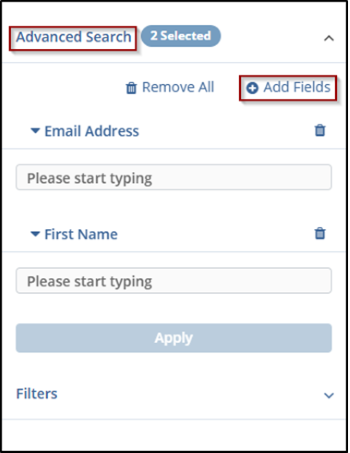
- The users can add extra fields as per the requirement by clicking on the Add Fields in the advanced search. The Add Fields pop-up window is displayed, select the required fields and click Save.
- The saved fields will be visible on the left pane within the Advanced Search.
Room Search
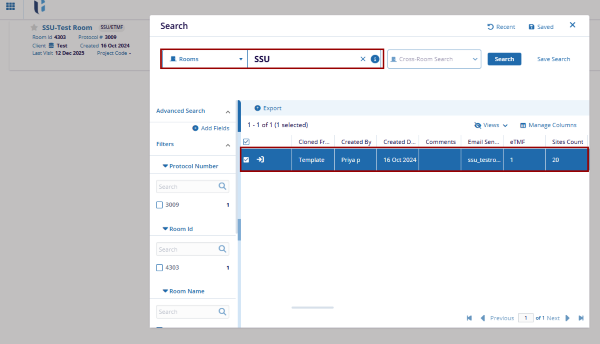
The Room Search feature allows users to quickly locate specific rooms by entering a room name or keyword in the Home Page search bar. Search results update automatically as the user types, instantly displaying matching rooms.
Note: To search for rooms select Rooms from the drop-down and refer to
the steps detailed in the Documents Search section above.
Site Search
The Site Search feature allows users to quickly locate documents and information within designated areas (rooms). It helps ensure document access remains controlled and limited to specific clinical trial sites, supporting secure collaboration and efficient document management. Site Search also keeps results relevant by focusing only on the selected room or site context.
Note: To search for rooms select Sites from the drop-down and refer to
the steps detailed in the Documents Search section above.
Queries Search
The Queries Search feature allows users to quickly locate queries related to clinical trial documents within specific rooms. It streamlines query management by filtering and displaying relevant results, supporting efficient collaboration, compliance, and timely resolution. Users can also track and address document-related queries while maintaining the context of the project or trial room.
Follow the steps below to perform a query search:
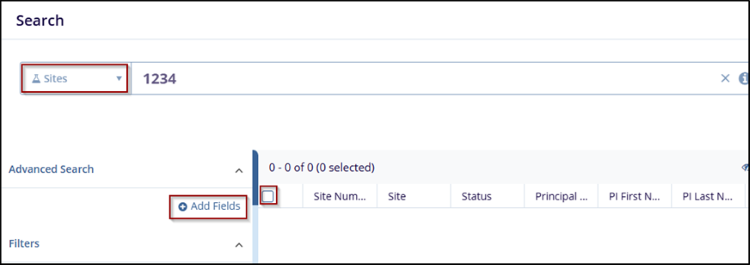
- In the Search panel, choose Queries from the dropdown menu.
- Enter the relevant query ID (e.g., 1234) or any other query-related term in the search bar.
- If needed, click on Advanced Search and Add Fields to refine your search further, such as adding filters for document status or type.
- Once the search parameters are set, click the Search button to perform the search.
-
From the search results, check the checkbox next to the document to select it.
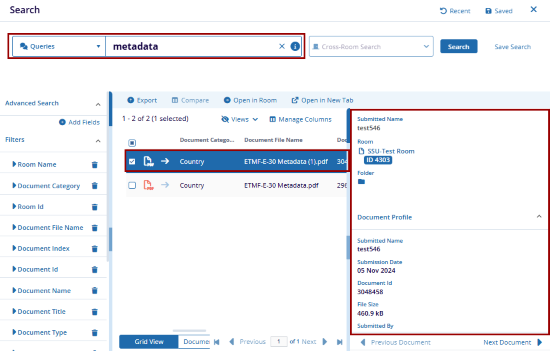
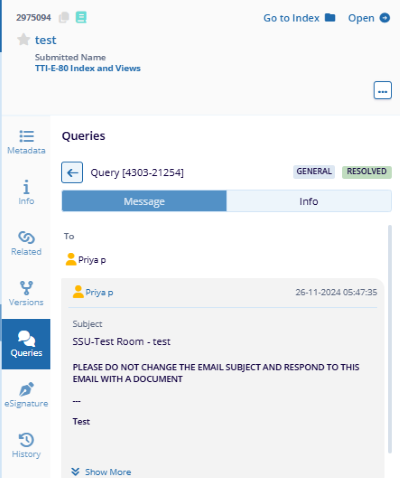
- After selecting the query, detailed information appears, including the query ID, status (e.g., Workflow or Resolved), and any associated query history.
- If the user is responsible for addressing the query, click the Claim button to take ownership of the query.
- The query details display the list of assignees (e.g., Reader 106, Editor 102, Editor 103). You can review or assign tasks to users related to this query.
- Below the assignees, the Query History shows previous updates or comments related to the query. This provides context to the query resolution and allows you to respond effectively.
- Depending on the user's permissions, the user can proceed with resolving the query
or making any necessary updates to the document associated with the query, for more
check queries module.
Contacts Search
The Contact Search feature allows users to locate specific contacts by entering a name or keyword in the search bar. Matching contact records are displayed in the results, and selecting a contact opens the contact details panel with additional information.
To search for Contacts, follow the steps below:
- From the Home Page or within a specific room, click on the search drop-down and select Contacts from the list.
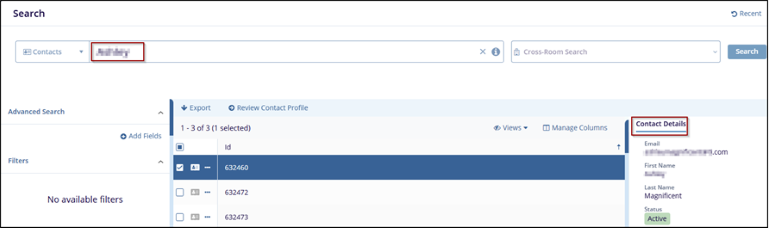
- Enter the contact name in the Search box. The system automatically displays matching contacts in the below section.
- Select a contact from the results to view detailed information in the Contact
Details panel on the right and displays detailed information about the
selected ID, including their email, name, status, and other relevant
fields.
- Use the Manage Columns option to add or remove fields displayed in the search results.
- Click Export to download the search results for further use.
- Click Advanced Search for the same contacts and add fields to apply more
specific search criteria.
Users Search
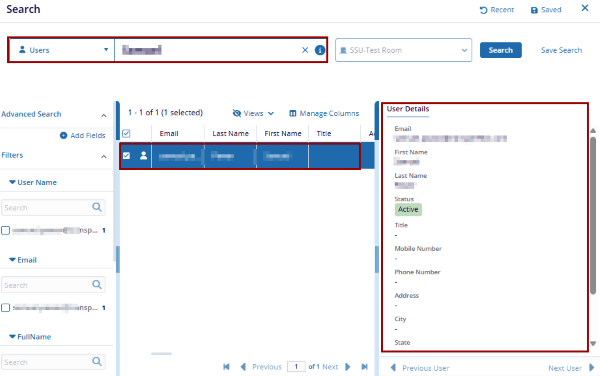
The User Search feature allows users to find individuals within a specific room, ensuring results are limited to the relevant project or clinical trial context. This helps streamline collaboration by making it easier to locate and connect with the appropriate team members for tasks within that room.
Note:
To search for rooms select Users from the drop-down and refer to the steps detailed in the Documents Search section above.

TransPerfect’s Trial Interactive is an industry leader in practical, global eClinical innovation
PRODUCTS
 Linkedin
 X
X
Didn’t find what you need?
Our dedicated Project Management and Client Services team will be available to meet your needs
24 hours a day, 7 days a week.
Toll Free:
(888) 391-5111
help@trialinteractive.com
© 2025 Trial Interactive. All Rights Reserved

