
Trial Interactive Search
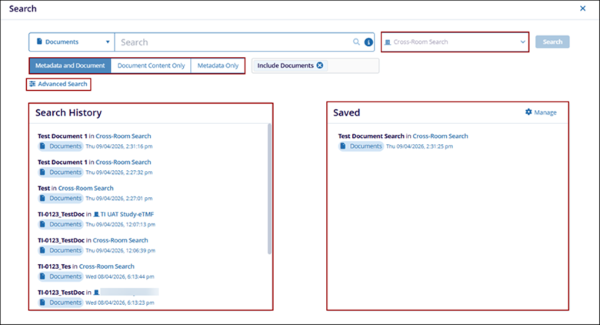
Trial Interactive provides flexible search capabilities, enabling users to perform both full-text and metadata-based searches within a single room or across multiple rooms through Cross-Room Search. Users can further refine results using filters, toggle between Metadata and Document search modes, and leverage search history or saved searches to easily revisit and manage previous queries.
This search interface has the following powerful capabilities:
- Perform searches across multiple rooms to retrieve comprehensive results spanning different projects or workspaces.
Supports multiple search modes, including:
- Metadata and Document: Searches both document content and associated metadata.
- Document Content Only: Restricts the search to document content.
- Metadata Only: Searches only within metadata fields.
- Delivers fast and accurate results by indexing both record content and metadata fields.
- Allows users to apply filters to refine results, such as including or excluding specific types.
- Maintains a history of recent searches for quick access and reuse.
- Enables users to save and manage frequently used search configurations.
- Provides an Advanced Search option to define complex queries using detailed parameters.
How does it work?
The search function matches whole words or numbers only, i.e., it does not match partial strings within a word. Separators like hyphens ( - ) split a term into multiple searchable words, while underscores ( _ ) keep a term together as one continuous word. If the characters of a whole word or number are omitted, the document will not appear in the search results.
Note:
- A search will return results as long as the entered text is a complete word or starts from the beginning of a word, but omitting any leading characters will produce no results.
- The search functionality behaves consistently across other types, such as Queries, Users, Contacts, and Sites.
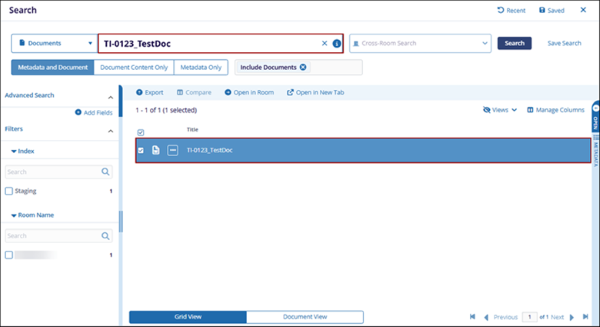
Example: Consider the document named TI-0123_TestDoc to understand how search handles different separators and partial terms.
- If the user searches with the full file name, i.e., TI-0123, the document will appear in the search results.
- However, if the user searches with only 123, the document will not appear in the search results
How is the document name indexed?
- A hyphen ( - ) acts as a separator, so TI-0123 is broken into two separate searchable terms: TI and 0123
- An underscore (_) does not act as a separator, so 0123_TestDoc is considered as a single continuous word.
| Search Term | Result | Reason |
|---|---|---|
| TI-0123 | ✅ Found | Matches both indexed terms TI and 0410 |
| 0123 | ✅ Found | It is a fully indexed term. |
| TI | ✅ Found | Exact match for the indexed term TI |
| 0123_Test | ✅ Found | Starts from the beginning of the indexed word 0123_TestDoc |
| 123 | ❌ Not found | 123 is not a whole indexed term, and is not recognized as a whole word. |
| 123_TestDoc | ❌ Not found | Skips the 0 at the beginning, which indicates that a string/character is missing. |
| _TestDoc | ❌ Not found | Does not begin at the start of the indexed word 0123_TestDoc |
© 2025 Trial Interactive. All Rights Reserved

