
Teams Details Page
To access and edit details on the Teams Details page, follow the steps below:
- Click on the team’s name from the grid.
- Click on the Open button in the metadata panel.
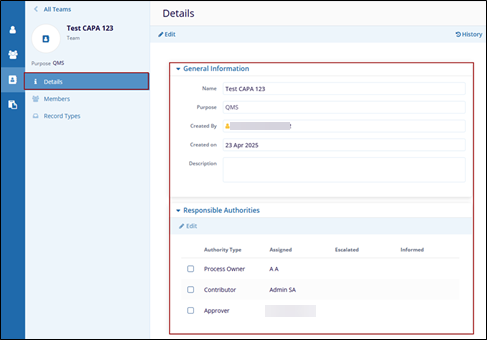
- The Teams Details page displays the General Information and the Responsible
Authorities section within the Details tab.
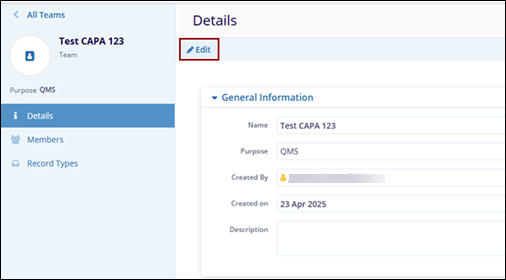
- To edit the General Information section, click the Edit button on the top menu bar.
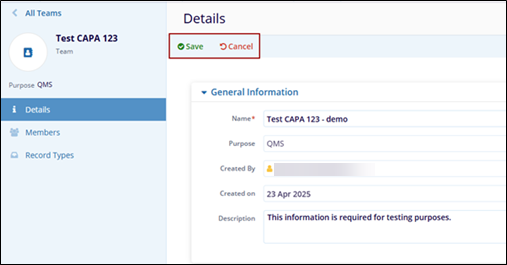
- Make the required changes to the Name and Description fields and click
the Save button.
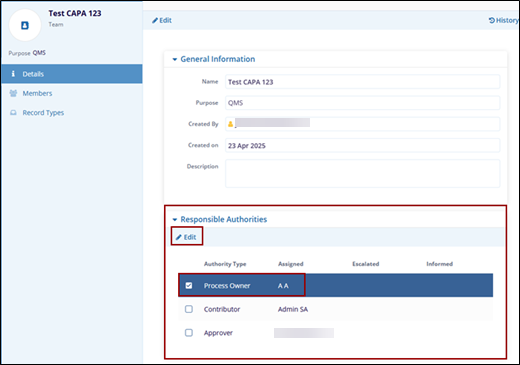
- To edit the Responsible Authorities section, select the check box of the associated Responsible Authority.
- Click the Edit button from the top menu bar of the Responsible Authorities
section.
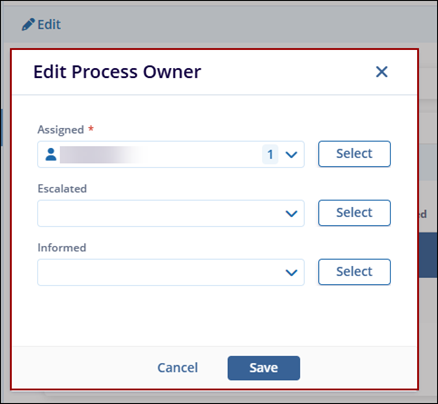
- The Edit (Authority Type) pop-up window appears with the following:
- Assigned: This field is pre-filled with the name of the user added during the Team creation process.
- Escalated
- Informed
- For each authority type, click the corresponding Select button to add
users.
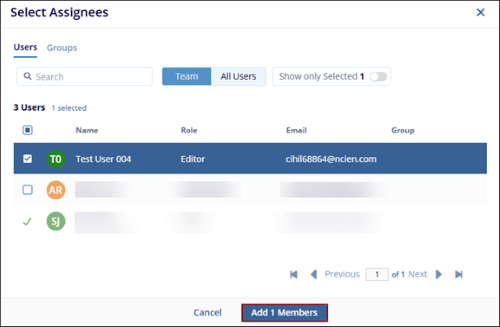
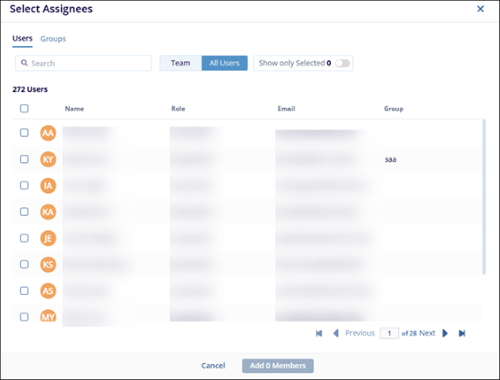
- On the Select Users pop-up window, select either the Teams or All Users tab, which shows the list of team members and all users in the room, respectively.
- Select one or multiple users and click Save.
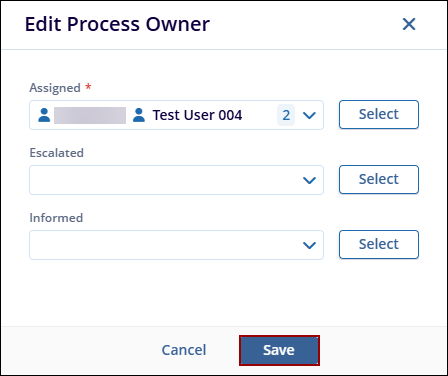
- The Edit (Authority Type) pop-up window displays the selected user added to the Assigned field.
- Click the Save button.
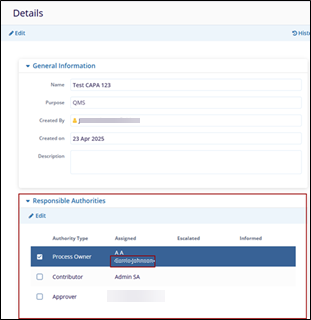
- The added user is displayed in the Assigned column in the Responsible Authorities
section of the Team Details page.
- Follow the same steps to add users as Escalated and Informed authorities.
- To edit the Contributor and Approver sections within the Responsible Authorities, repeat the steps 6 to 15.
© 2025 Trial Interactive. All Rights Reserved

