
General
The Q&A functions must be activated in the room’s Settings. The related icons will only appear if these functions were enabled when the room was created.
In the Q&A settings view, the user can add, edit, or delete Question Levels. The Q&A configuration panel allows you to enable or disable various options, including the ability to delete questions and answers, activate Subject Matter categories, and enable question issue levels.
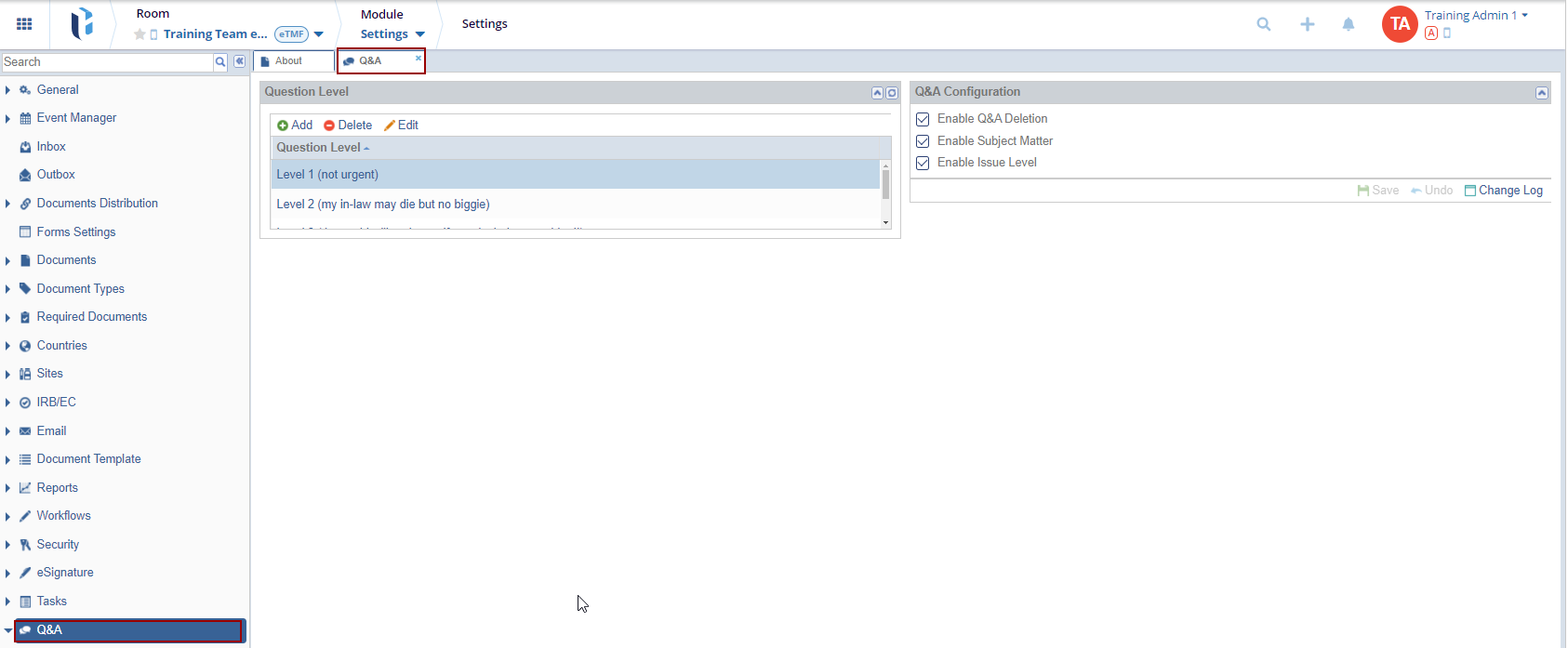
Q&A Configuration
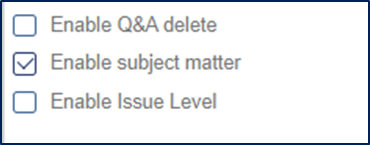
From here, you can enable and disable the following three options:
- Enable Q&A Deletion
- Enable Subject Matter
- Enable Issue Level
Refer to the screenshot below:
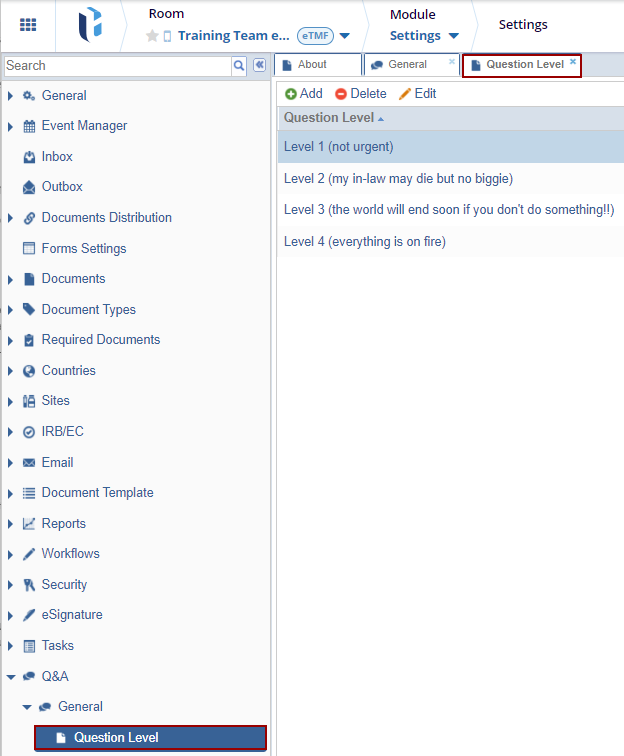
Q&A Question Level
From here, you can create a list of issues associated with the documents. These issues are then assigned to Subject Matter Experts, who are responsible for providing answers to the questions. Refer to the screenshot below:
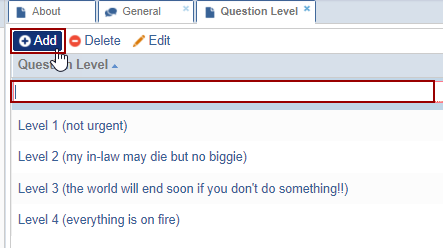
Adding New Question Level
To add a new question level:
- Click Add from the top ribbon.
- A new row appears in the grid below.
- Enter the question level and click aside to save the change.
Deleting a Question Level
To delete a question-level:
- Select the question level and click Delete
from the top ribbon.
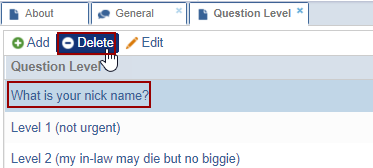
- A ‘Delete Item Configuration’ pop-up window is displayed.
- Click ‘Yes’ if the user wants to delete the question level.
.png)
Editing a Question Level
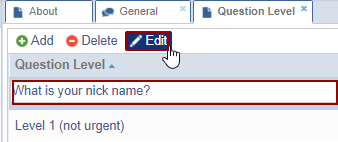
To edit a question level:
- Select the level and click Edit from the top
ribbon. You can also double-click the question level to edit.
-
- The field becomes editable.
-
- Edit the details as required and click aside to save the changes.

 Linkedin
 X
X

