
Reassigning a Reviewer
The process of changing the assigned reviewer of a document to another qualified individual. Occasionally, a room administrator may need to reassign a document reviewer.
To reassign a reviewer, follow the steps below:
- Navigate to the Document section from the eTMF module, which is available in the vertical menu on the left side of the screen.
- Select the By Status view from the dropdown menu above the index pane.
- Select from the 2-Step Workflow dropdown menu above the index pane.
- Select the Claimed folder from the index pane.
-
Locate the document that needs to be reassigned. If necessary, expand the metadata pane.
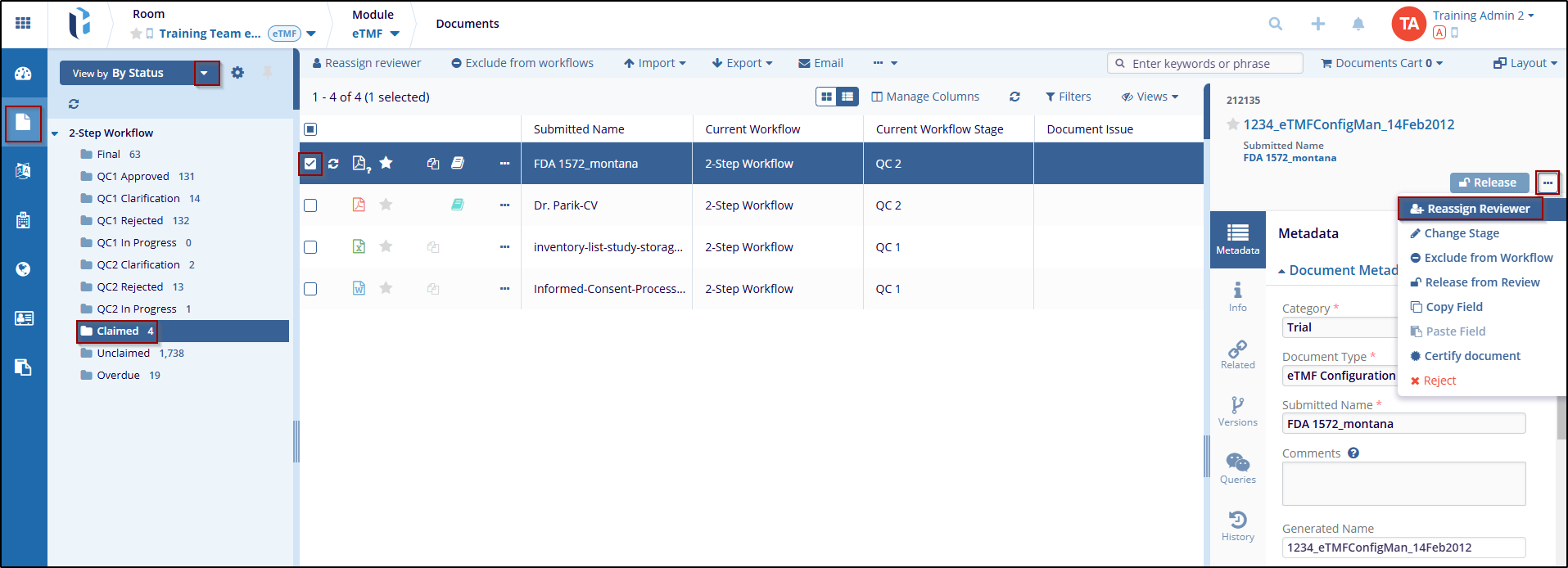
- Click the three-dot dropdown menu at the top-right of the metadata pane.
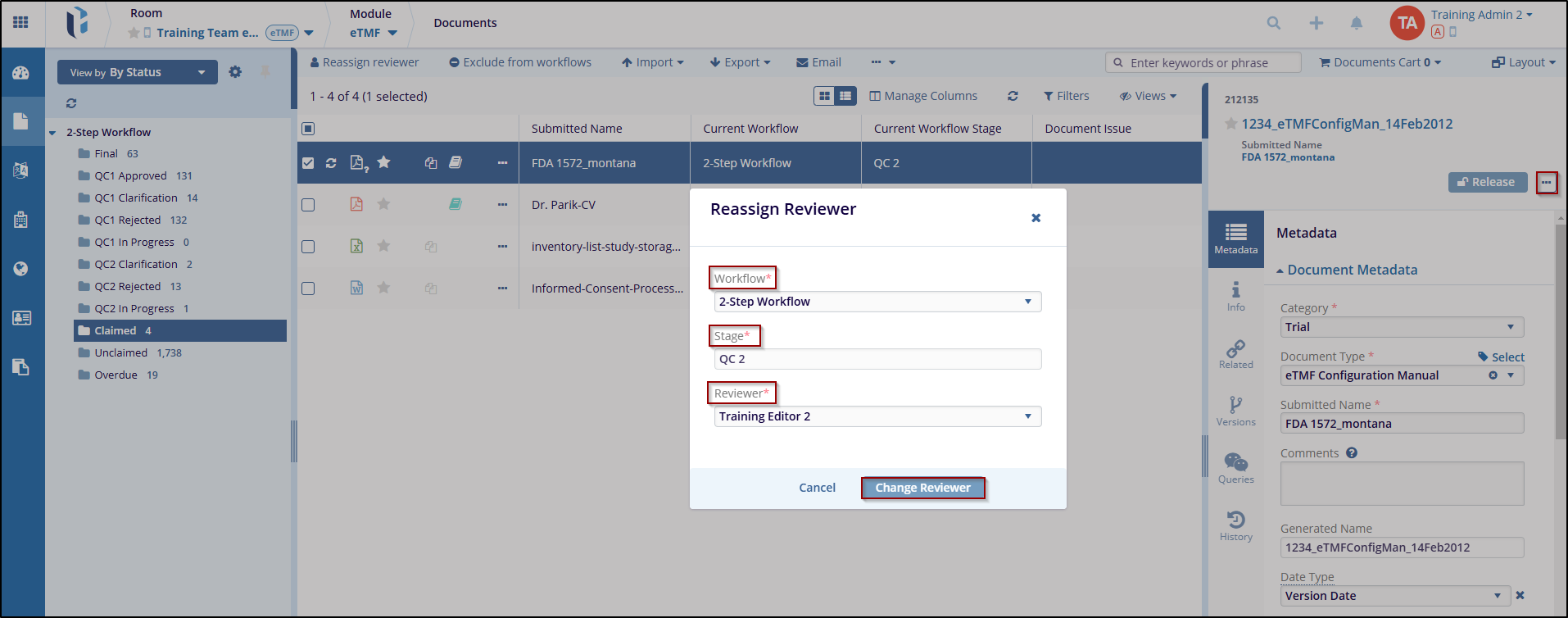
- Click the Reassign Reviewer, and the Reassign Reviewer window will open.
- Choose the appropriate reviewer and click the Change Reviewer button.

 Linkedin
 X
X

