
Domain Activity Template Records
Create Domain Activity Template Records
Explore Job Aids for more help:
Job Aids
To create Domain Activity Template Records, follow the steps below.
- From the left-hand navigation links, select Activity Templates.
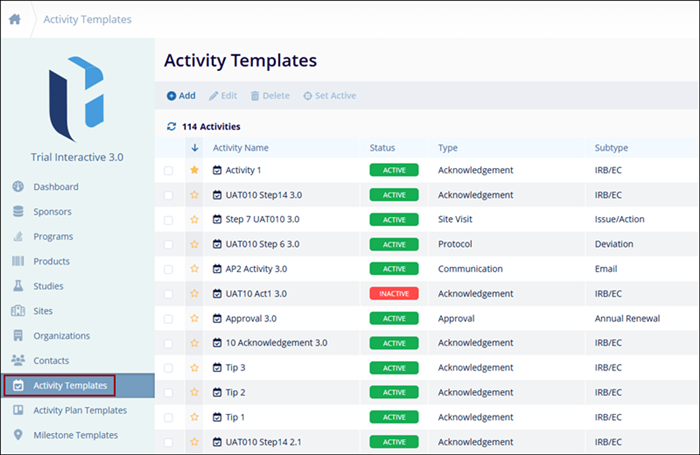
- On the Activity Templates screen, click on the Add button in the top-left of the screen.
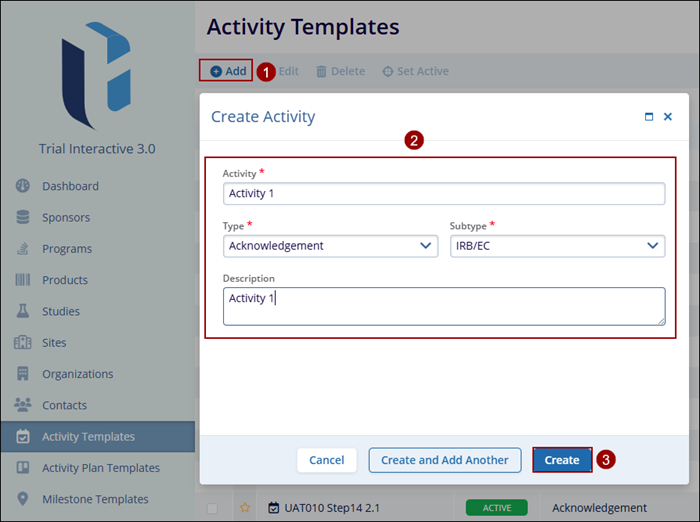
- On the Create Activity screen, enter the mandatory metadata, highlighted with a red
asterisk mark (*), to create an Activity.
- Activity
- Type
- Sub Type
- Description
- Click on the Create button once all the mandatory details are filled.
Note:
- Initially, the Sub Type field is greyed out. Once the user selects a value for the Type from the dropdown menu the related values for the sub-type appear in the dropdown menu.
- Click Create or Create and Add Another button, and users can add another activity on the same screen without accessing the +Add button.
Edit Domain Activity Template Records
To edit Domain Activity Template Records, follow the steps below.
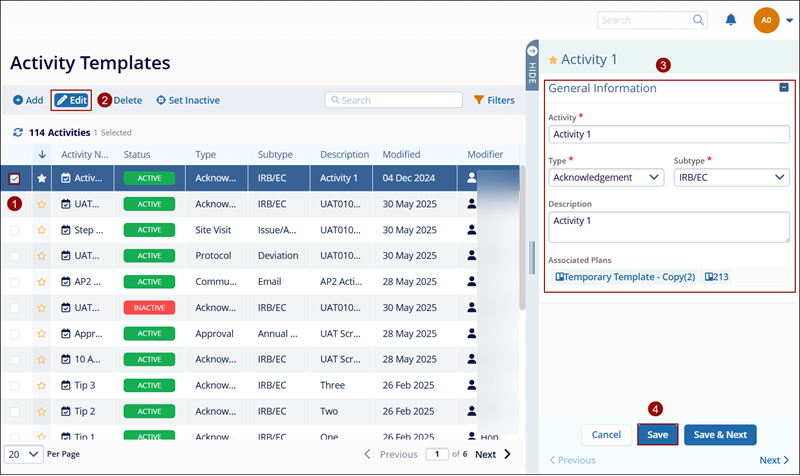
- Navigate to the activity name to edit and click the check box of the activity name.
- Click on the Edit button on the top menu bar which opens the quick view panel.
- On the quick view panel make the required changes
- Click on the Save button once all the details are edited.

TransPerfect’s Trial Interactive is an industry leader in practical, global eClinical innovation
PRODUCTS
 Linkedin
 X
X
Didn’t find what you need?
Our dedicated Project Management and Client Services team will be available to meet your needs
24 hours a day, 7 days a week.
Toll Free:
(888) 391-5111
help@trialinteractive.com
© 2025 Trial Interactive. All Rights Reserved

