
Activity Plan Templates
Access Activity Plan Templates
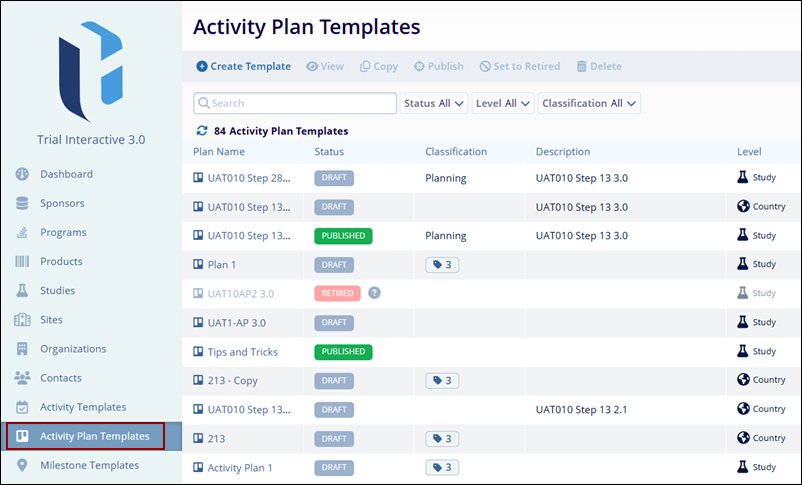
To access Activity Plan Templates, follow the steps below:
- From the left-hand navigation links, select Activity Plan Templates.
Publish Activity Plan Templates
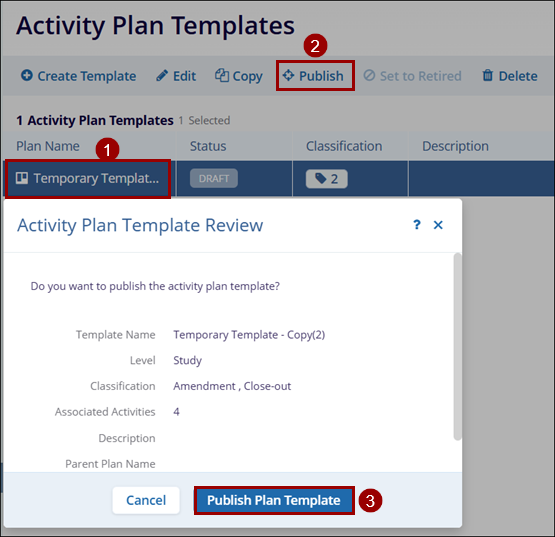
To publish an activity plan, follow the steps below:
- Select an activity plan in the Draft state.
- Click on the Publish icon from the top menu bar.
- Click on Publish Plan Template on the Activity Plan Template Review screen.
Note:
- Activity plans with Draft status can only be published
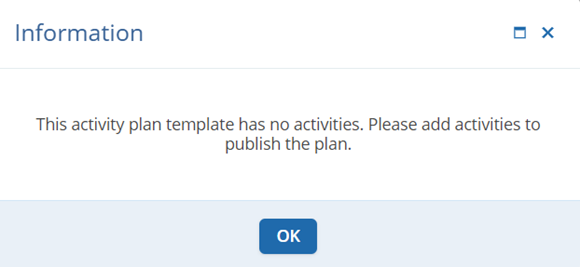
- If no activities are associated with the Activity Plan Template, the Information
notification popup displays the related message and prompts the user to add activities to
the plan.
Retire Activity Plan Templates
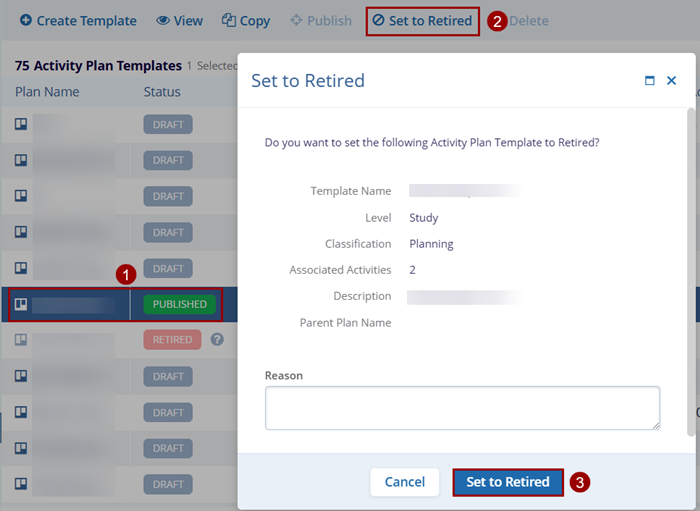
To retire an active Activity Plan Template, follow the steps below.
- Select any Activity Plan Template in the Published state.
- Click on the Set to Retired button from the top menu bar.
- Click on the Set to Retired button on the Set to Retire confirmation screen.
Note:
Only Activity Plan Templates with Published status can be retired.
Copy Activity Plan Templates
To copy an Activity Plan Template, follow the steps below:
- Select an activity plan template.
- Click on the Copy icon from the top menu bar.
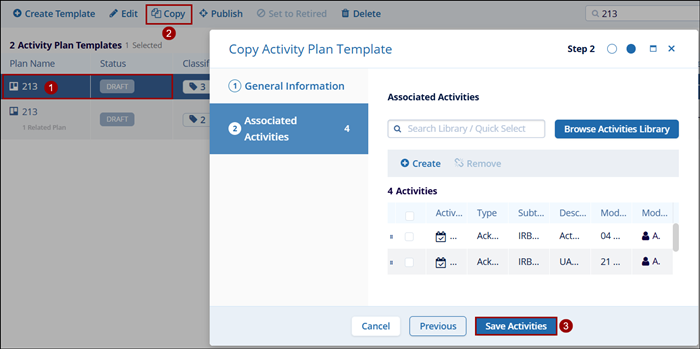
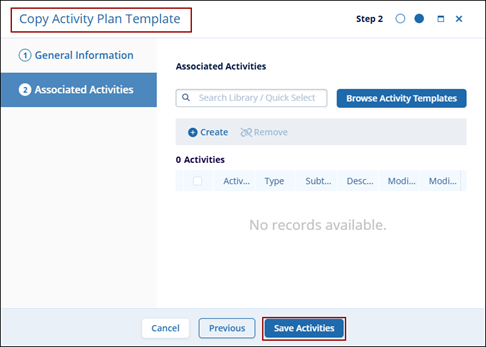
- On the Copy Activity Plan Template, modify or verify the General Information and
Associated Activities details and click on Save Activities.
Customize Activity Plan Templates Screen
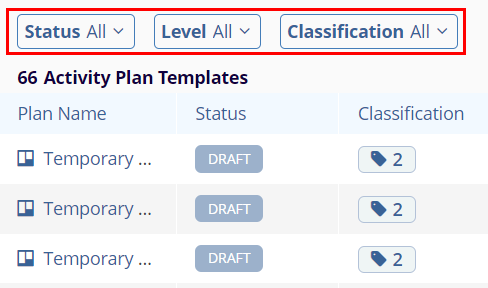
Filters
Click on the Filters icon and apply the Status, Level, and Classification filters by selecting the available dropdown options.

TransPerfect’s Trial Interactive is an industry leader in practical, global eClinical innovation
PRODUCTS
 Linkedin
 X
X
Didn’t find what you need?
Our dedicated Project Management and Client Services team will be available to meet your needs
24 hours a day, 7 days a week.
Toll Free:
(888) 391-5111
help@trialinteractive.com
© 2025 Trial Interactive. All Rights Reserved

