
Create Milestone Templates
Explore Videos for more help:
Videos
Create Domain Library Milestone Template
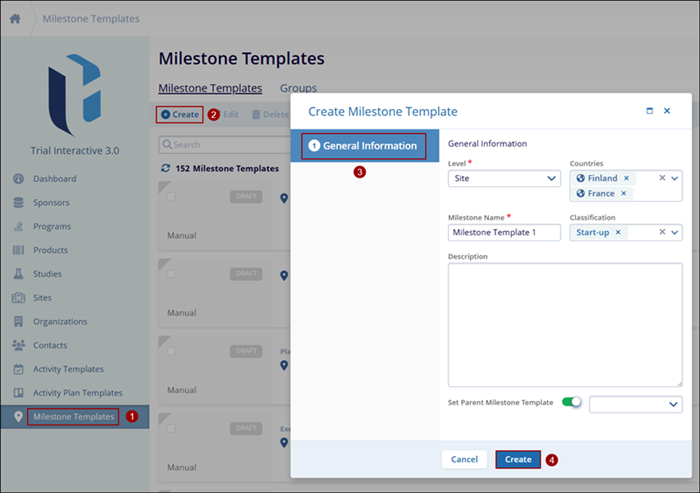
To create a Domain Library Milestone Template, follow the steps below: Refer to the sequence in the screenshot.
- From the left-hand navigation links, click on the Milestone Templates which opens the Milestone Templates window.
- Click the +Create button at the top-left of the screen.
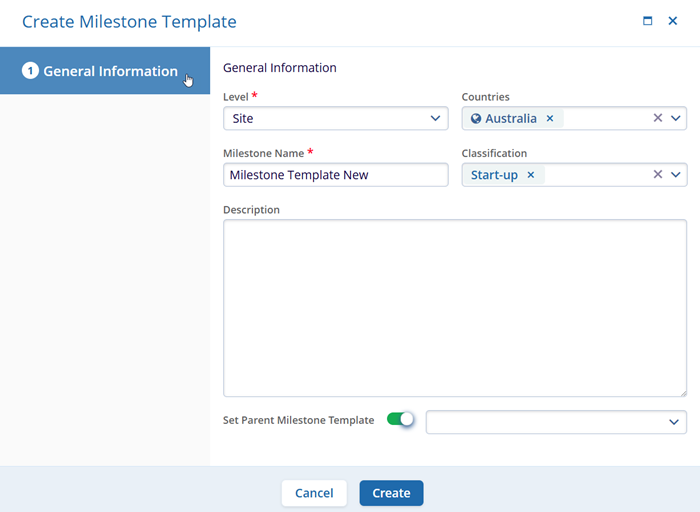
- On the Create Milestone template, enter the following metadata details. Note: Fields highlighted with a red asterisk mark (*) require a mandatory update.
- Level*: Specify whether the milestone is to be created at a Study, Site, or Country level by selecting the option from the dropdown.
- Milestone Name*: Enter a name for the milestone template.
- Classification: Select the classification criteria from the available dropdown options.
- Description: Enter a suitable description for the template
- Set Parent Milestone Template: Turn on the Set Parent Milestone Template toggle to add a parent template for the current template. Select a template from the available dropdown options.
- Countries: The Countries field is only visible if the template is created at the Site or Country level. Select the countries from the available dropdown options.
-
Click on Create once all the necessary details are entered in the respective fields.
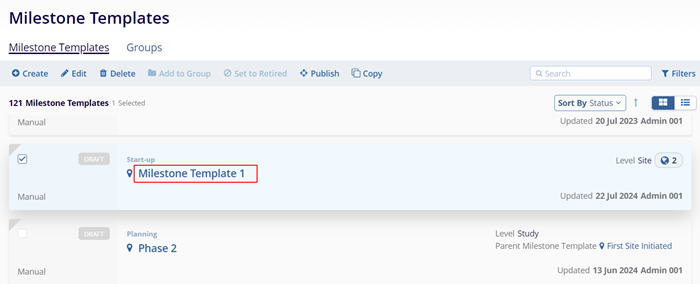
- The newly created template is visible on the Milestone Templates screen.
Note:
If any of the mandatory fields are missing and the user clicks on the Create button an error will appear prompting the user to review the necessary fields.
Create Milestone Template at Study Level
To create a Study Milestone from a Template, follow the steps below:
- From the left-hand navigation links click on the Studies.
- On the Studies window, click on the name of the study to create a milestone.
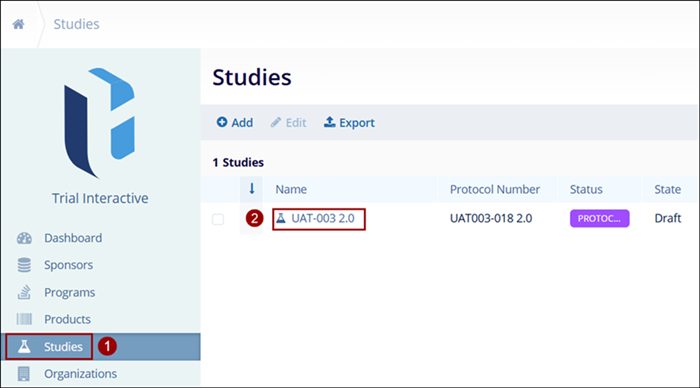
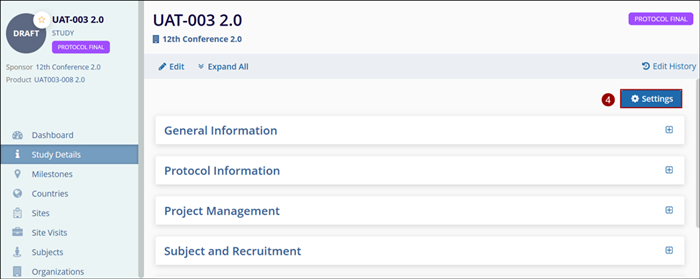
- On the selected studies window, navigate to the left-hand navigation links and click
on the Study Details.
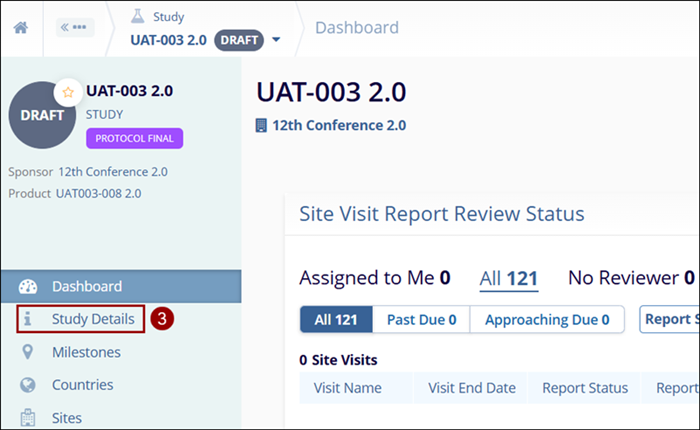
- On the Study Details screen, click on the Settings button in the top-right of
the screen.
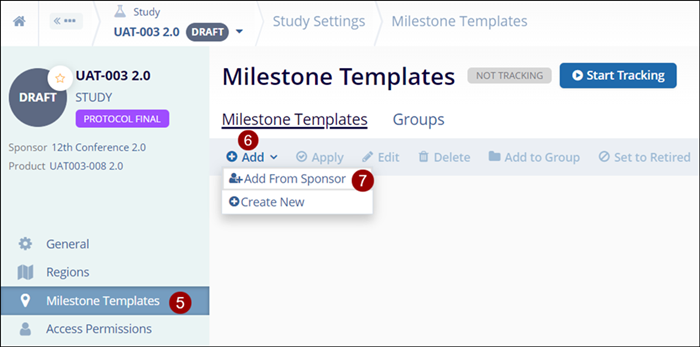
- Click on the Milestone Templates link in the Navigation menu at the left side of the screen.
- Click on the +Add button on the on the top-left of the screen.
- Click on Add From Sponsor option.
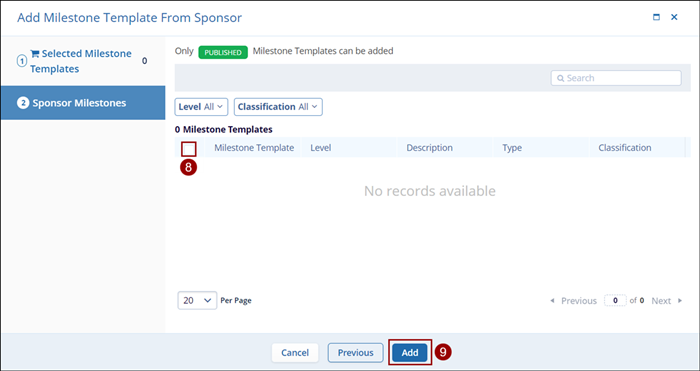
- On the Add Milestone Template From Sponsor screen, select the milestone template.
- Click on the Add button.
Additionally, to create a new template, follow the steps below:
- Click on the Add button in the top-left of the screen and
select the Create New option from the dropdown list.
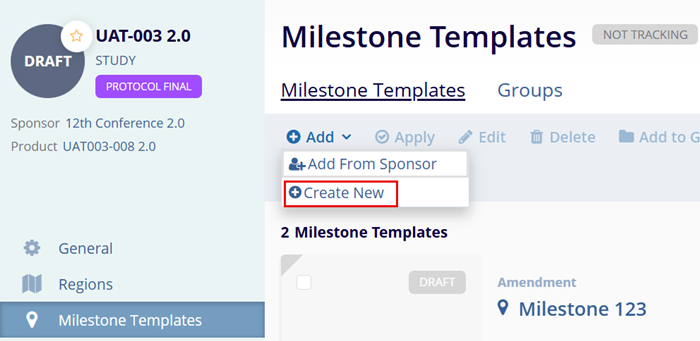
- Fill in the mandatory metadata to create a milestone template i.e., Level, Template Name as indicated by an asterisk (*) symbol next to the field title. Enter any additional information as necessary.
- Click on Create once all the details are entered.
Note:
If any of the required fields are missing, an error will appear when users click on the Create button. The error displays the fields that must be filled to create a milestone template successfully.

TransPerfect’s Trial Interactive is an industry leader in practical, global eClinical innovation
PRODUCTS
 Linkedin
 X
X
Didn’t find what you need?
Our dedicated Project Management and Client Services team will be available to meet your needs
24 hours a day, 7 days a week.
Toll Free:
(888) 391-5111
help@trialinteractive.com
© 2025 Trial Interactive. All Rights Reserved

