
Compliance Health
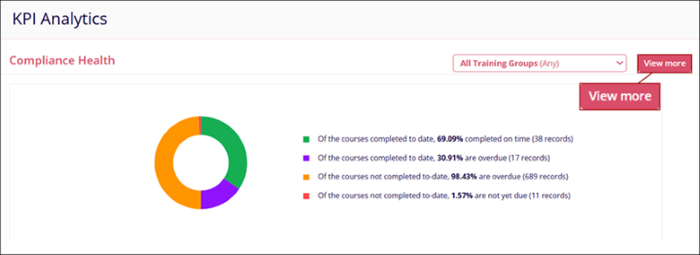
The Compliance Health Dashlet displays statistics related to completed, overdue, and incomplete but not yet overdue courses in the form of a donut chart.
This donut chart visually represents the data provided in the legend, showing how the courses are distributed across the different categories. The colors in the donut correspond to the legend items, with the size of each segment reflecting the percentage associated with each status.

Additionally, users can perform the following on the Compliance Health dashlet. (Refer to the screenshot above)
Compliance Health Report:
- Click on the View More button, which opens the Compliance Health Report page.
- On the Compliance Health Report page, apply the following filters and click on the
Search button.
- Statistics
- Training Group
- Course Name
- Employee Name

Note:
Click on a segment from the donut chart to open the Compliance Health Report where the Statistics filter is preselected.
Export Compliance Health Report data:
To export the Compliance Health Report data, follow the steps below:
- On the Compliance Health Report page, click on the Export button
- Specify the number of records in the Per Page section
- Select either the Export in CSV format or Export in Excel format options.
Compliance Health Dashlet Filters:
The Compliance Health dashlet can be filtered by Training Groups.
To apply filters, follow the steps below:
- Click on the All Training Groups filter dropdown and select the required training
groups by clicking on the respective checkbox.
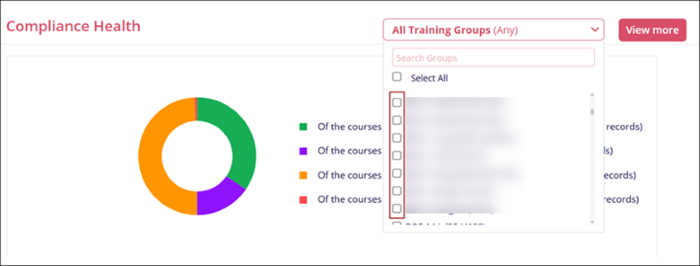
- Once a training group or multiple training groups are selected, an additional stacked bar
chart is displayed showing statistics about the selected training groups.
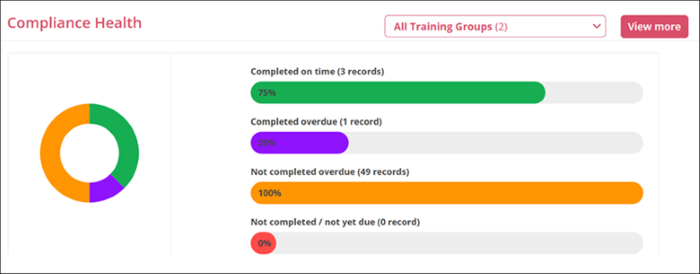
- Each bar represents a different category of course completion status, with the length of the colored section indicating the percentage of courses that fall into each category.

TransPerfect’s Trial Interactive is an industry leader in practical, global eClinical innovation
PRODUCTS
 Linkedin
 X
X
Didn’t find what you need?
Our dedicated Project Management and Client Services team will be available to meet your needs
24 hours a day, 7 days a week.
Toll Free:
(888) 391-5111
help@trialinteractive.com
© 2025 Trial Interactive. All Rights Reserved

