
Grade
If users select Grade as a restriction criterion, they need to specify the following.
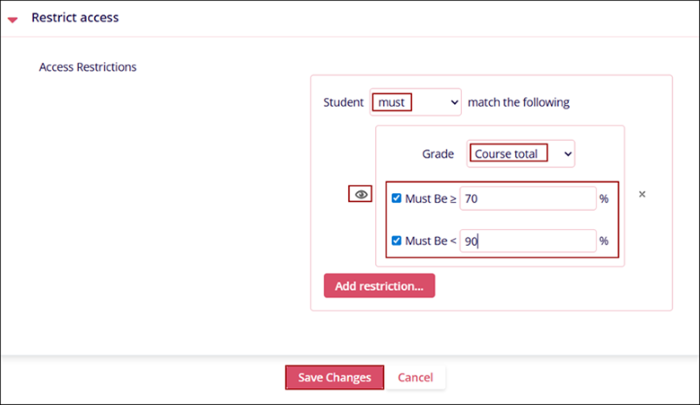
Scenario 1:
- Select must as the match criterion
- Select Course Total as the Grade criterion
- Specify Greater than or equal criteria.
- Specify the lesser than criteria.
- Click on the view (eye) icon to control the course availability message display.
- Click on the Save Changes button.
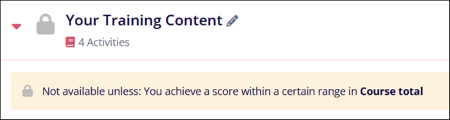
Result: The Course section will display a message requiring learners to achieve a score within the specified range in the Course Total.
Scenario 2:
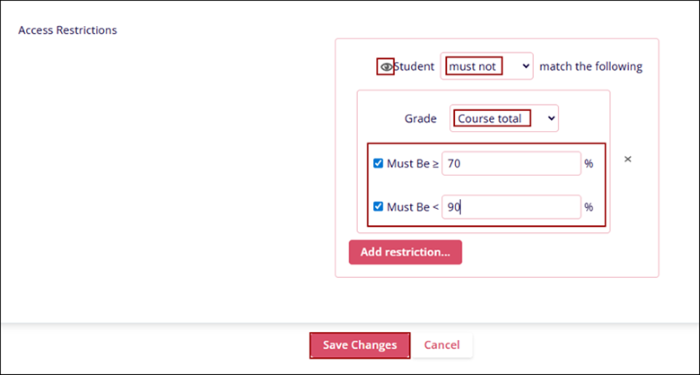
- Select must not as the match criterion
- Select Course Total as the Grade criterion
- Specify Greater than or equal criteria.
- Specify the less-than criteria.
- Click on the view (eye) icon to control the course availability restriction message display.
- Click on the Save Changes button.
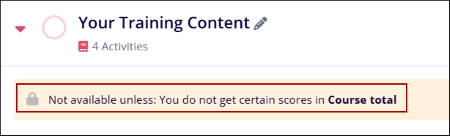
Result: A message will be displayed in the course section, informing learners that they must achieve a specific score for the section to become available.

TransPerfect’s Trial Interactive is an industry leader in practical, global eClinical innovation
PRODUCTS
 Linkedin
 X
X
Didn’t find what you need?
Our dedicated Project Management and Client Services team will be available to meet your needs
24 hours a day, 7 days a week.
Toll Free:
(888) 391-5111
help@trialinteractive.com
© 2025 Trial Interactive. All Rights Reserved

