
Add Activity or Resource
To add an activity or a resource to the course section or topic, follow the steps below.
- On the courses page, click the Turn Editing On button.
- Navigate to the activity or resource added to the course section or topic and click on the ellipsis (three vertical dots) icon.
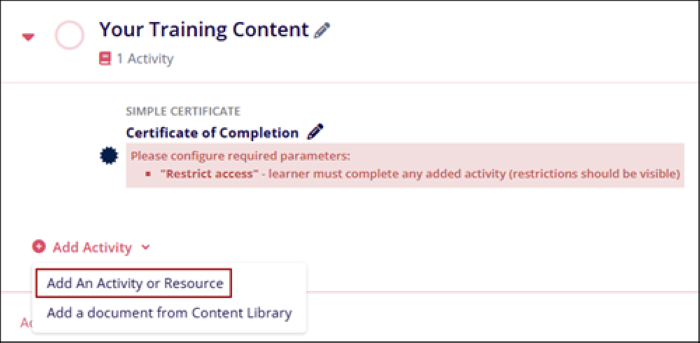
- Click on the +Add Activity > Add An Activity or Resource.
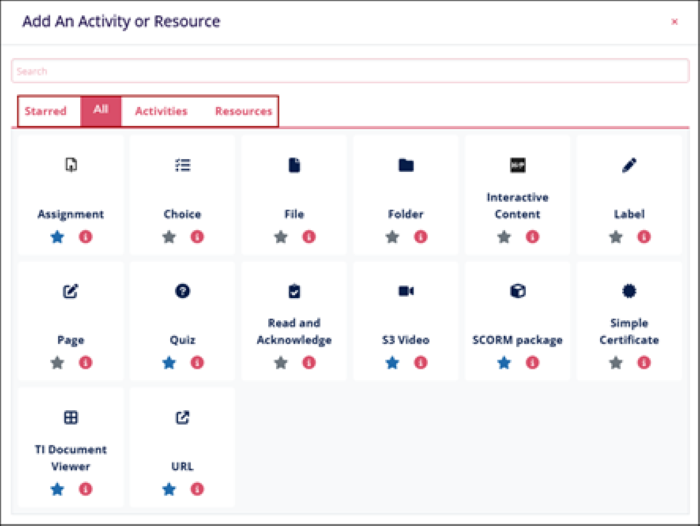
- Select an Activity or a Resource by navigating to their individual
tabs.
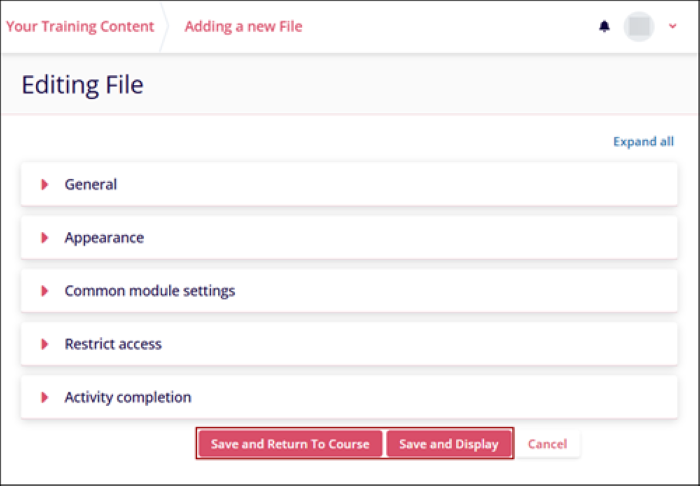
- Configure settings for the Activities and/or Resources selected and click on the
Save and Return to Course or Save and Display button.
- Refer to the Activities and Resources sections to understand each activity and associated settings.
Important
- Certain settings are common across Activities and Resources, i.e., Common Module Settings, Restrict Access, and Activity Completion.
- Some settings differ across all Activities and Resources.
- To learn more about an Activity or a Resource, click on the tooltip of each activity and resource.
- Click on each settings tooltip to know the purpose and additional information about the setting.

TransPerfect’s Trial Interactive is an industry leader in practical, global eClinical innovation
PRODUCTS
 Linkedin
 X
X
Didn’t find what you need?
Our dedicated Project Management and Client Services team will be available to meet your needs
24 hours a day, 7 days a week.
Toll Free:
(888) 391-5111
help@trialinteractive.com
© 2025 Trial Interactive. All Rights Reserved

