
Edit Dashboard
The Edit Dashboard allows users to customize the dashboard by adding or removing tabs, reorganizing layout options, and customizing the dashboard to show the information that is most important to the user. It ensures a personalized view for better accessibility of required data.
To edit the dashboard, follow the steps below:
- Navigate to the Dashboard section in the Quality module.
- Click on the Edit Dashboard button located at the top left of the Toolbar.
- The Set Up Your Dashboard includes the relevant options, such as:
- Set Up Dashboards: For selecting or adding widgets.
- Set Up Dashboard: For managing key performance indicators.
- Set Up Layout: For customizing the layout.
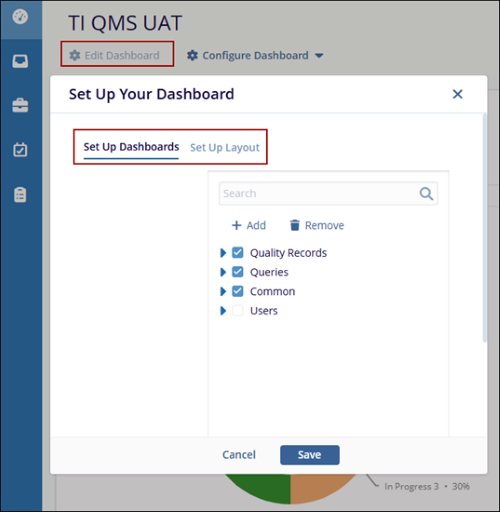
Set Up Dashboards
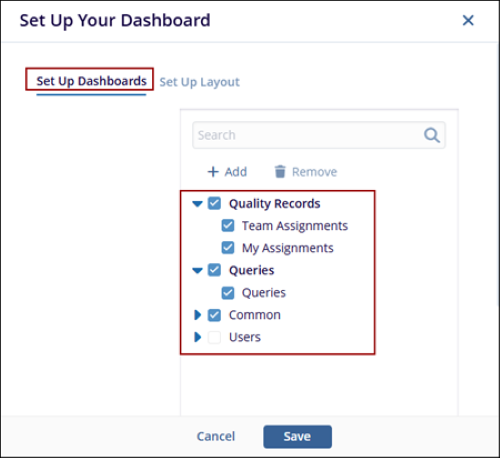
The Set-Up Dashboards allow users to customize their dashboards by adding, removing, or managing dashlets. Dashlets are individual components that display specific types of data or functionality on the dashboard, helping users personalize their view to highlight the most relevant information.
To set up the dashboard, follow the steps below:
- The Set Up Your Dashboard window appears. By default, the Set-Up Dashboard option is displayed. Expand the fields using the arrow and select the required checkbox.
- Click the Save button, and the selected options are displayed as tabs within each
dashlet on the Dashboard.
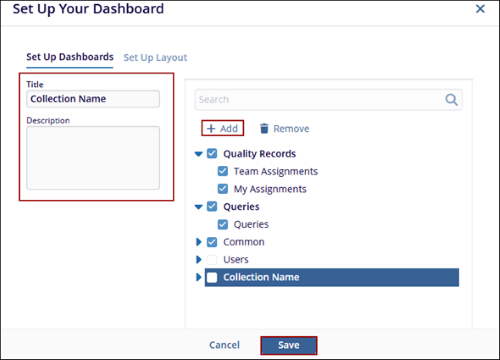
- Click on the Add button, and a new entry will appear under the list of available dashlet as (collection Name).
- Mention the Title and Description in their respective fields.
- Click the Save button at the bottom to apply the changes.
Set Up Layout
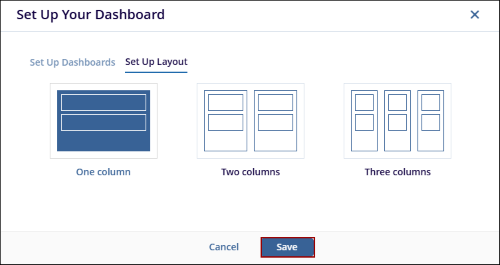
The Set-Up Layout allows users to customize the visual structure of the dashboard by choosing a column-based layout. This ensures that the dashboard is organized according to user preferences. The user has the option to select from one, two, or three Columns.
To configure the layout, follow the steps below:
- From the Set Up Your Dashboard window. Click on the Set-Up Layout.
- Select one of the available options of Layout:
- One Column: Arrange all dashlets in a single vertical column.
- Two Columns: Splits dashlets into two evenly spaced columns.
- Three Columns: Divides dashlets across three narrower columns.
- Click the Save button to confirm and apply the selected layout or use the
Cancel button to discard the changes.

TransPerfect’s Trial Interactive is an industry leader in practical, global eClinical innovation
PRODUCTS
 Linkedin
 X
X
Didn’t find what you need?
Our dedicated Project Management and Client Services team will be available to meet your needs
24 hours a day, 7 days a week.
Toll Free:
(888) 391-5111
help@trialinteractive.com
© 2025 Trial Interactive. All Rights Reserved

