
Request Clarification
When an Action Item progresses through the workflow stages, the assigned authorities at each stage can request clarification or create a query for the record, based on the workflow stage configuration.
To send an Action Item record for clarification, follow the steps below:
- Create an Action Item as an originator user and send it to the first stage of the approval workflow by following the steps detailed in the Create Action Item section.
-
As the authority in the first stage of the approval workflow, send the Action item to the next stage of the workflow, i.e., Implementation Approval by following the STEP 1 to STEP 6 from the Approve Action Item section.
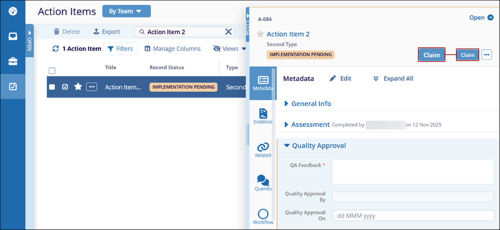
- As the authority in the Implementation Approval stage, open the Action Item and click
on the Claim button.
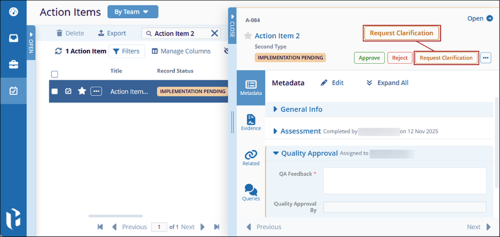
- Click on the Request Clarification button above the top of the quick view
panel.
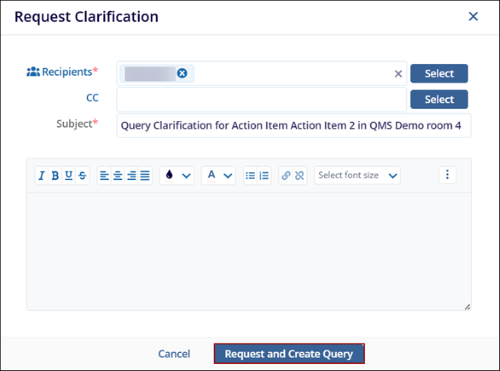
- On the Request Clarification screen, mandatorily specify the recipients, add a
description, and click on the Request and Create Query button.
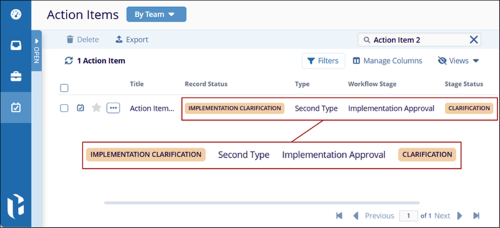
- Once the record is successfully sent for clarification, the CAPA record displays the
statuses as configured in the workflow.
- Additionally, the authority in the previous stage, i.e., Implementation, receives an
email notification stating that a clarification is required on the Action Item record.

- As the authority in the Implementation stage, open the Action Item and navigate to the
Queries tab in the quick view panel and click on the > arrow.
.png)
- Click on the Respond button.
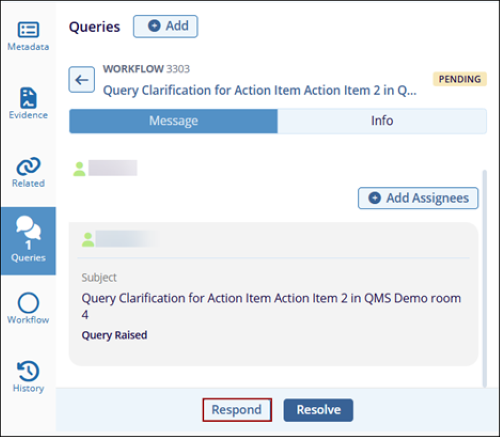
- Enter the necessary response and click on the Update and Save button.
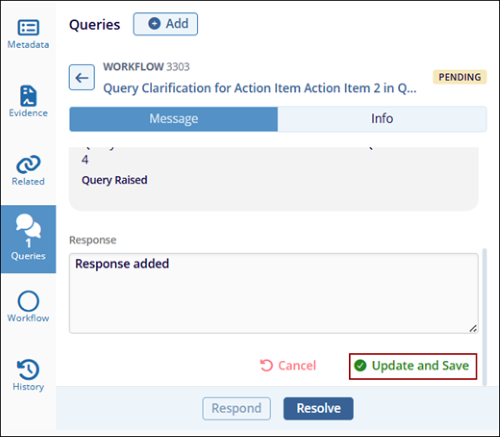
- As the query initiator, i.e., assigned authority in the Implementation Approval stage,
navigate to the Queries tab and click on the Resolve button.

- On the Resolve Query modal window, mandatorily enter comments and click on the
Resolve button.
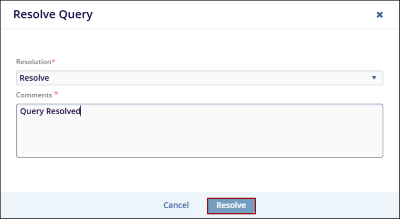
- Once the Query is successfully resolved, the Queries tab displays the status as
resolved.
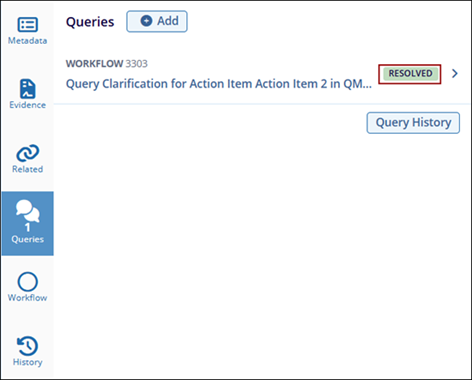
- Click on the Query History button to view the activities related to the Query.
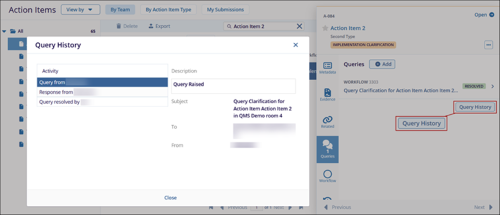
- Complete the record approval by following the steps, i.e., STEP 7 to STEP 12, detailed in the Approve Action Item section.
© 2025 Trial Interactive. All Rights Reserved

