
Program Entity Management
Product at Program Level
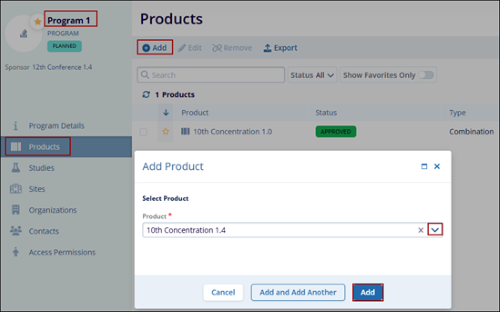
To add a product at a program level, follow the steps below:
- On the Programs screen, select a program by clicking on the product name. This opens the Program Details screen.
- Click on Products from the left-hand navigation menu.
- On the Products screen, click on the +Add button.
- On the Add Product screen, select a product from the available dropdown options.
- Click on the Add button once the required product record is selected.
Studies at Program Level
Studies linked to a specific program are displayed on the Studies screen within that program. To make a study visible within a program, it must first be associated with the study during the study creation process.
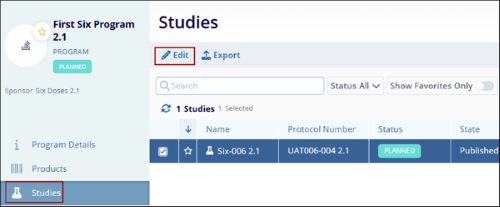
To edit a study associated at a program level, follow the steps below.
- On the products screen, select a program by clicking on the program name. This opens the Program Details screen.
- Click on Studies from the left-hand navigation menu.
- Select the particular study by clicking on the checkbox and click on the Edit button.
- Refer to the Edit Studies section for a detailed process of editing study information.
Sites at Program level
Sites associated with the Study are automatically added at the program level.
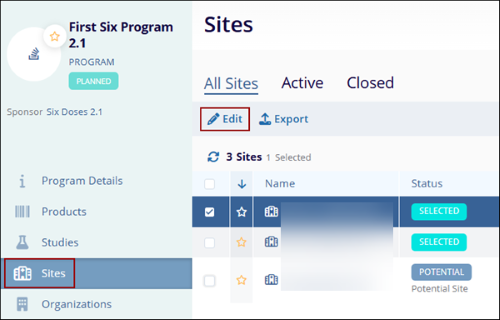
To edit the site details, follow the steps below:
- On the programs screen, select a program by clicking on the program name. This opens the Program Details screen.
- Click on Sites from the left-hand navigation menu.
- Select the particular site by clicking on the checkbox and click on the Edit button.
- Refer to the Editing a Site in Study section for a detailed process of editing study information.
Organization at Program Level
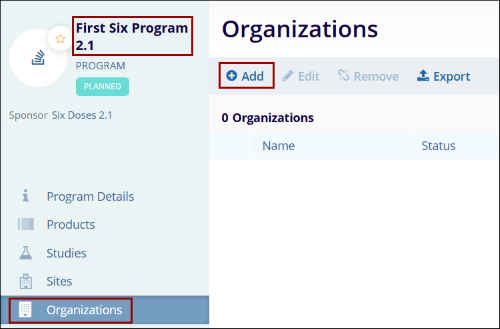
To add an organization at the program level, follow the steps below.
- Navigate to the Program Details screen by selecting an individual program.
- Click on Organizations from the left-hand navigation menu.
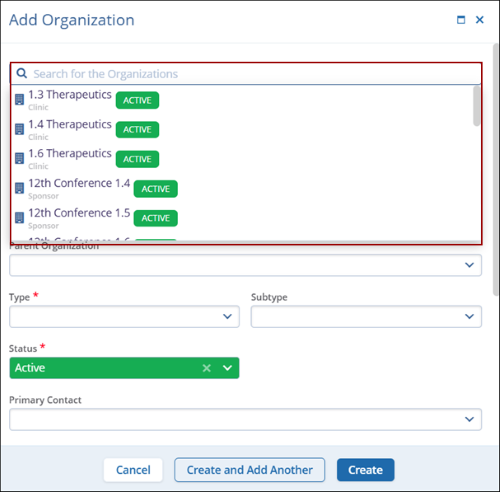
- On the Organization screen, click on the +Add button.
- To add an existing organization, click on the Search for the Organizations
search box and select an organization from the available options and click on the
Add button.
Contacts at Program Level
To add contacts at a program level, follow the steps below:
- Navigate to the Program Details screen by selecting an individual program.
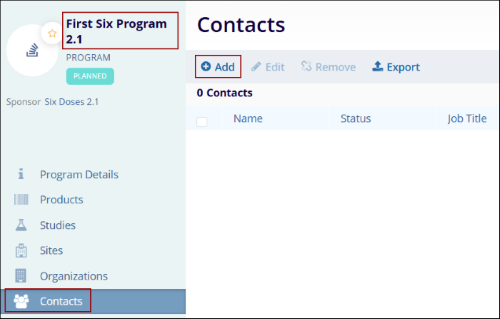
- Click on Contacts from the left-hand navigation menu.
- On the Contacts screen, click on the +Add button.
- To add an existing contact, click on the Search for Contacts search box and
select a contact from the available options and click on the Add button.
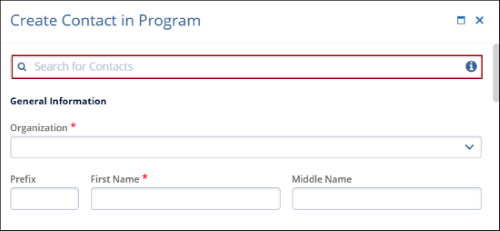 Note: Only Contacts from organizations associated to the program are included in this list.
 - To Create a new contact, Edit, Remove and Export the contact details, refer to the relevant sections from Contacts.

TransPerfect’s Trial Interactive is an industry leader in practical, global eClinical innovation
PRODUCTS
 Linkedin
 X
X
Didn’t find what you need?
Our dedicated Project Management and Client Services team will be available to meet your needs
24 hours a day, 7 days a week.
Toll Free:
(888) 391-5111
help@trialinteractive.com
© 2025 Trial Interactive. All Rights Reserved

