
Checkout and Edit
Explore Job Aids and Videos for more help:
Job Aids
Videos
The document edit process begins with checking out a document from the Documents Library module.
To check out and edit a document, follow the steps below:
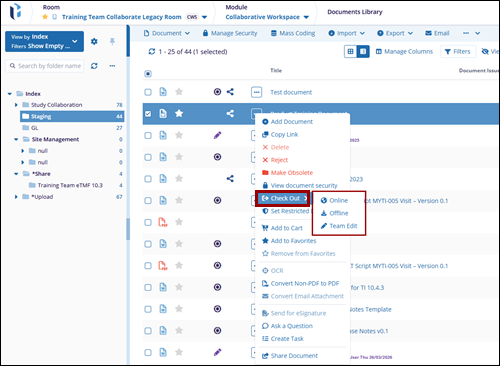
- Within the Documents Library modal, select the document.
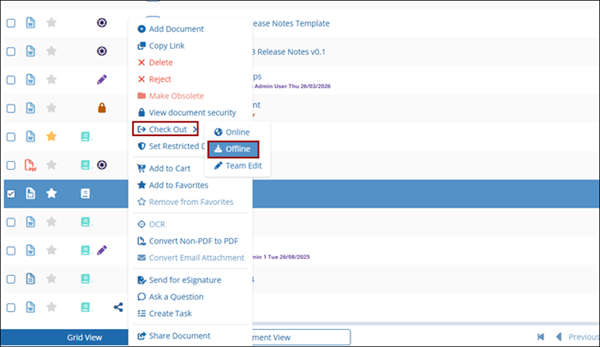
- Click on the Check Out button from the document activities menu.
- Select any one of the following checkout options.
- Online
- Offline
- Team Edit
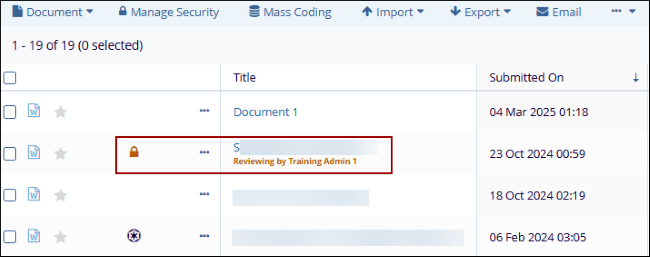
- Once a document is checked out, the document is highlighted with a lock icon with
the reviewer's name.
Online
This option is intended to be used by those who would like to edit the document within TI without downloading the file. Choosing this option will immediately open the Document Viewer in Edit Mode, where the user can perform any necessary changes to the document. While checked out, the document is locked for all other users, preventing inadvertent overwriting or conflicting edits. Other users will be able to view and download the current effective version of the document, but they will not be able to check it out until it has been checked back in.
To edit a document online, follow the steps below:
- Check out a document to edit and select the Online option.
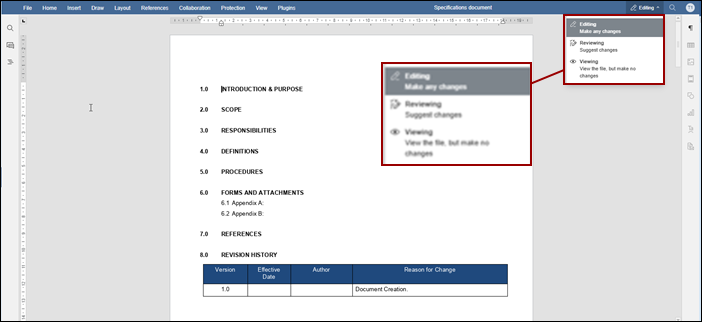
- Click on the Editing mode menu in the top right and select any one option.
- Editing: This option allows users to make any changes in the document.
- Reviewing: This option allows users to suggest changes to the document.
- Viewing: This option allows users to view the file without making any changes to the
document.
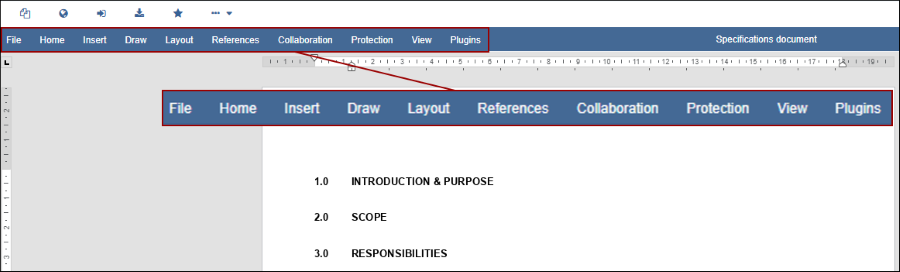
- Accessing the toolbar at the top of the Document Viewer to access options like File, Home,
Insert, Draw, Layout, References, Collaboration, Protection, View, and Plugins etc. to make
edits to the document.
- From the vertical toolbar on the left side of the editor, select the following options.
-
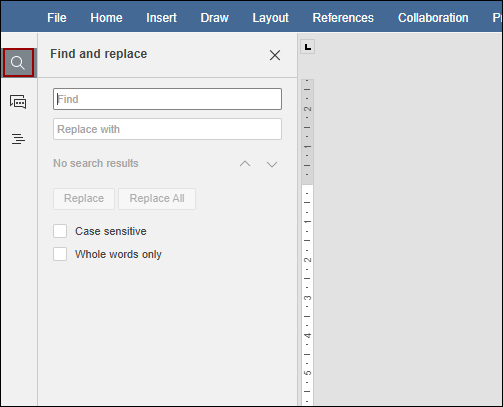
Find: Click on the Find icon to search for specific text and replace it with
alternative text.
-
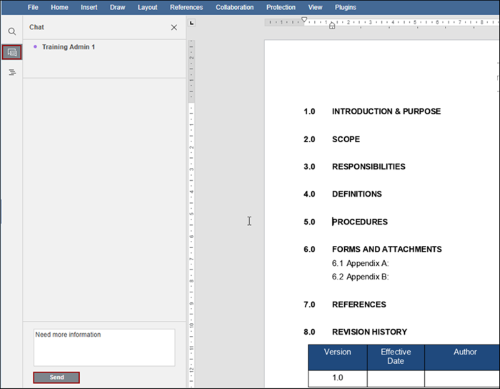
Chat: Select this option to chat with other collaborators responsible for
reviewing the document.
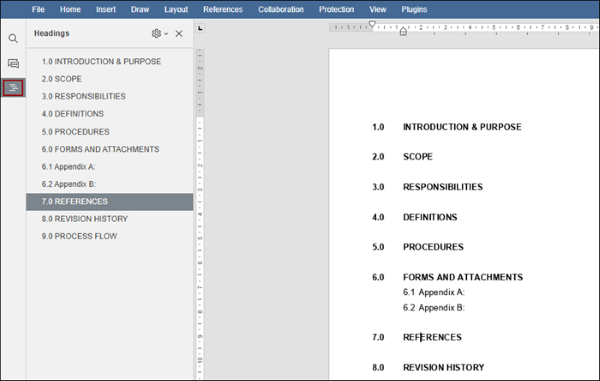
- Headings: Select this option to view the document's structured outline.
-
Find: Click on the Find icon to search for specific text and replace it with
alternative text.
Offline
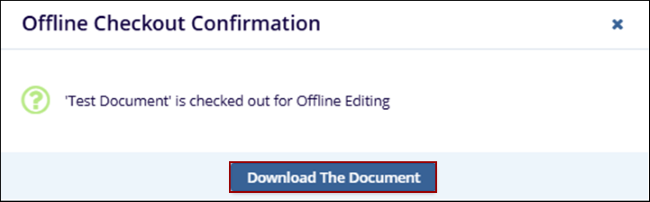
This option allows user to download the document to their system. The user will then make any changes required using their preferred, locally installed software and upload an updated copy to the Collaborate room. When checking out a document offline, the document is immediately locked, and the system prompts the user to (optionally) download the document.
To edit a document offline, follow the steps below:
- Check out a document to edit and select the Offline option.
- On the Offline Checkout Confirmation popup, click on the Download the Document
button to download the copy into the system.
Note: It is recommended to download the document during offline edits
to ensure working on the most up-to-date version of the document.
© 2025 Trial Interactive. All Rights Reserved

