
Assignment
To add an assignment, follow the steps below:
- Click on the Activities tab and select Assignment.
- On the Editing Assignment screen, configure the following settings.
General Settings Name Description. Assignment Name* Enter a short and suitable assignment name. Description Enter the assignment description. Activity Instruction Enter the Activity Instructions. Additional Files Drag and drop or upload additional files. Only show files during submission Check or uncheck the checkbox. 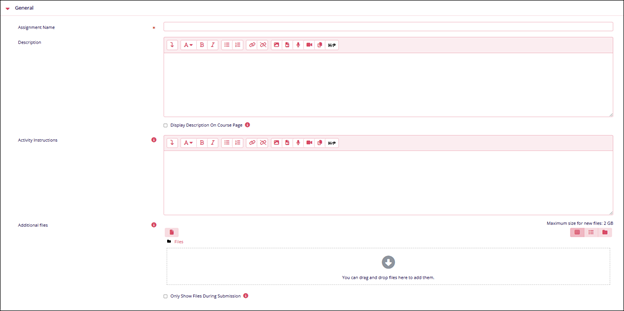
Availability Name Description. Allow Submissions from Specify a particular date and time. Enable or disable it by clicking on the checkbox. Due Date Specify a particular date and time. Enable or disable it by clicking on the checkbox. Cut-off date Specify a particular date and time. Enable or disable it by clicking on the checkbox. Remind me to grade by Specify a particular date and time. Enable or disable it by clicking on the checkbox. 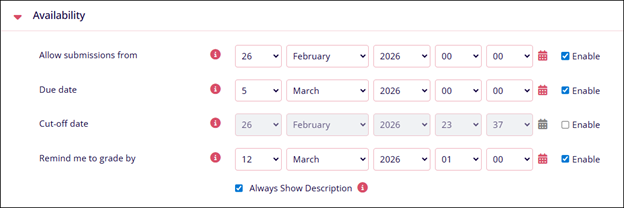
Submission Types Name Description. Submission Types - Enable the Online Text to be able to type text directly into an editor field for the submission and vice versa
- Enable File Submissions to allow students to upload more than one file as submissions and vice versa.
Maximum Number of Uploaded Files Specify the maximum number of files a student can upload Maximum Submission Size Specify the file size limit. Accepted file types Mention the file types that can be uploaded. 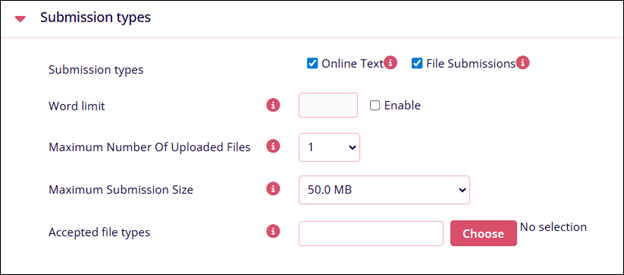
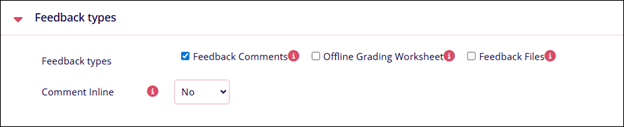
Feedback Types Name Description. Feedback Types - Feedback comments: If enabled, the marker can leave feedback comments for each submission.
- Offline Grading Worksheet: If enabled, the teacher will be able to download and upload a worksheet with student grades when marking the assignments.
- Feedback Files: If enabled, the teacher will be able to upload files with feedback when marking assignment submissions. These files may be but are not limited to, marked-up student submissions, documents with comments, or spoken audio feedback.
Comment Inline - Select either Yes or No.
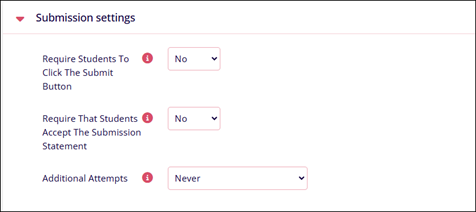
Submission Settings Name Description. Require Students To Click the Submit button Select either Yes or No Require That Students Accept the Submission Statement Select either Yes or No Additional Attempts Select either of the following
- Never,
- Manually
- Automatically until the pass
Group Submission Settings Name Description. Students Submit in Groups Select either Yes or No. 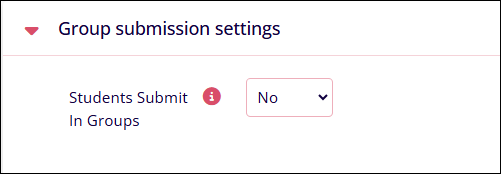
Notifications Name Description. Notify Graders About Submissions
Select either Yes or No Notify Graders About Late Submissions
Select either Yes or No Default For Notify Students
Select either Yes or No 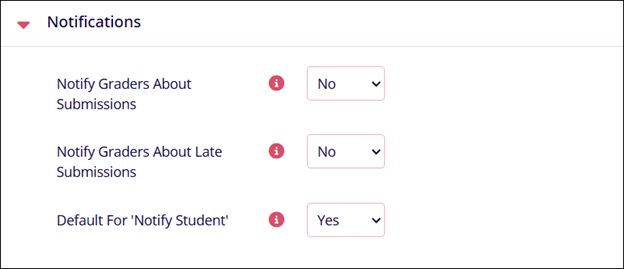
Grade Name Description. Grade If scale is selected as Grade Type
- Select either of the following from the scale
dropdown.
- Default Competence Scale
- Final Review
- Not/Confirmed
- Confirmed
- Pyramid – Final Review
- Testing
- If Point is selected as Grade Type
- Mention the maximum grade point a student can get.
Grading Method Select either of the following
- Simple Direct Grading
- Marking Guide
- Rubric
Grade Category Select Uncategorized Grade To Pass Mention the minimum grade necessary for a student to pass Anonymous Submissions Select either Yes or No Hide Grader Identity from Students Select either Yes or No Use Marking Workflow Select either Yes or No 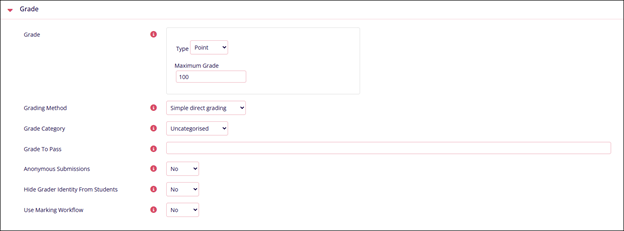
Common Module Settings Name Description. Availability Select either of the following
- Show on Course Page
- Hide on Course Page
ID Number Enter an ID number. Group Mode Select either of the following
- No Groups
- Separate Groups
- Visible Groups
Grouping This option is visible if Separate and Visible Group is select in Group Mode. Click the Add group/grouping restriction button to add collection of groups within a course. 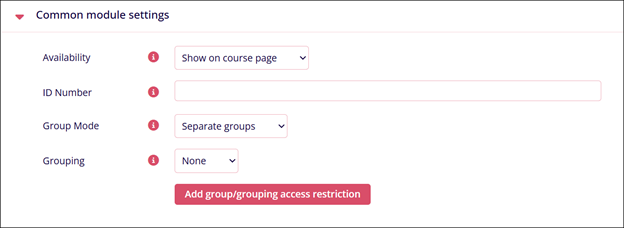
Restrict Access Name Description. Add Restrictions Refer to the Restrict Access section. 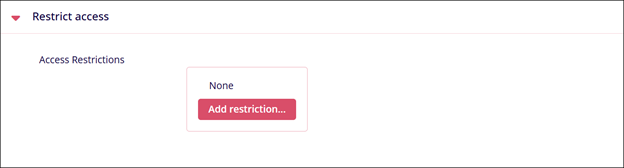
Activity Completion Name Description. Completion Tracking Select either of the following
- Do not indicate activity completion
- Students can manually mark the activity as completed
- Show Activity as complete when conditions are met
Require Review Enable the Student must view this activity to complete it checkbox Require Grade Check or uncheck the following
- Student must receive a grade to complete this activity
- Student must receive a passing grade to complete
this activity Note: This option becomes accessible when the first one is enabled.
- Student must make a submission.
Expect completed on Click the Enable checkbox and enter the date, month, and time. A specific timeline to complete an activity can be set by enabling this setting. 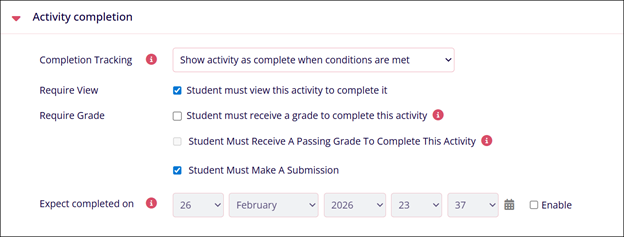

TransPerfect’s Trial Interactive is an industry leader in practical, global eClinical innovation
PRODUCTS
 Linkedin
 X
X
Didn’t find what you need?
Our dedicated Project Management and Client Services team will be available to meet your needs
24 hours a day, 7 days a week.
Toll Free:
(888) 391-5111
help@trialinteractive.com
© 2025 Trial Interactive. All Rights Reserved

