
Content Library Tags Management
Adding multiple files to GlobalLearn is inevitable for most users, and locating a file from dozens or hundreds of other files can be daunting. To identify a particular file, users can add tags to files to make them easier to find and display together with other related files.
Create Tag
To create a tag, follow the steps below:
- From the left-hand navigation links select Company Dashboard > Training Management > Content Library Tags Management.
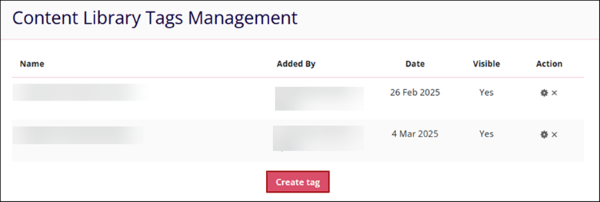
- Click on the Create tag button on the Content Library Tags Management screen.
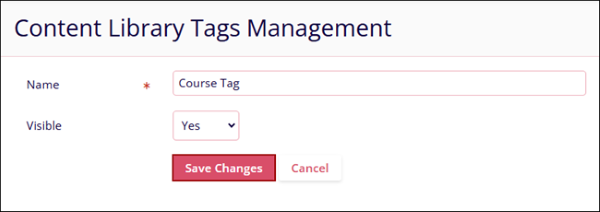
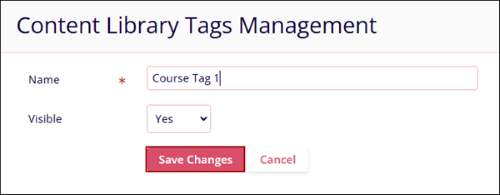
- Fill in the following details and click on the Save Changes button.
- Name*: Provide a mandatory name to the tag
-
Visibility: Select either Yes or No from the dropdown.
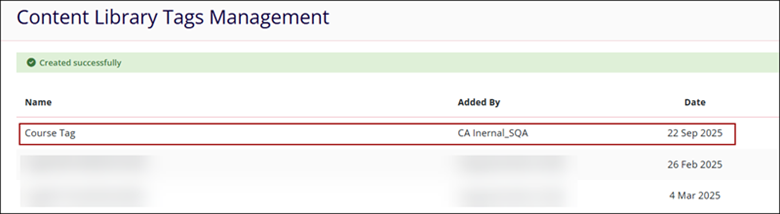
- The Content Library Tags Management displays the success message once the tag is
successfully created.
Edit Tag
To edit a tag, follow the steps below:
- Click on the edit (cog) icon of a tag.
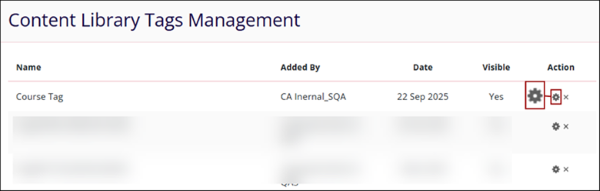
- Make the required changes to name and visibility and click on the Save Changes button.
Delete Tag
To delete a tag, follow the steps below:
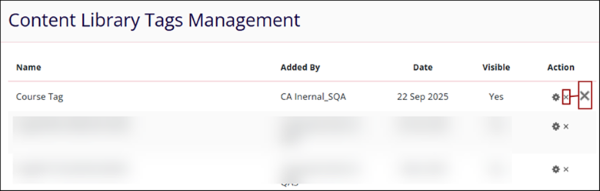
- Click on the Delete (cross) icon of a tag.
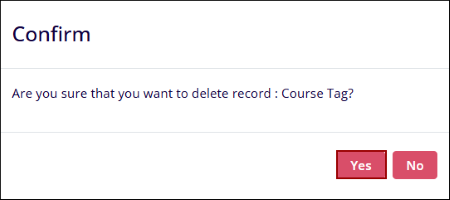
- Click on the Yes button on the confirmation popup.

TransPerfect’s Trial Interactive is an industry leader in practical, global eClinical innovation
PRODUCTS
 Linkedin
 X
X
Didn’t find what you need?
Our dedicated Project Management and Client Services team will be available to meet your needs
24 hours a day, 7 days a week.
Toll Free:
(888) 391-5111
help@trialinteractive.com
© 2025 Trial Interactive. All Rights Reserved

