
Modify Version
The modify version enables users to update the course’s minor version. To update the course version to a minor, follow the steps below:
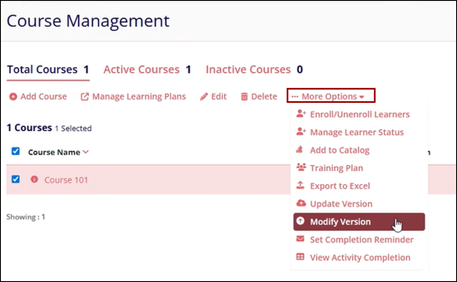
- Click on the Modify Version options from the More Options dropdown.
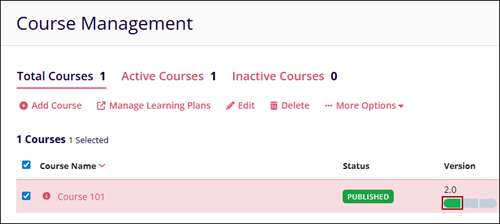
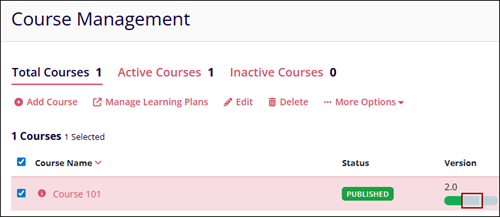
- A three-segment progress bar appears in the Version column, with the first segment highlighted in green.
- Click on the first segment which opens the course details page.
-
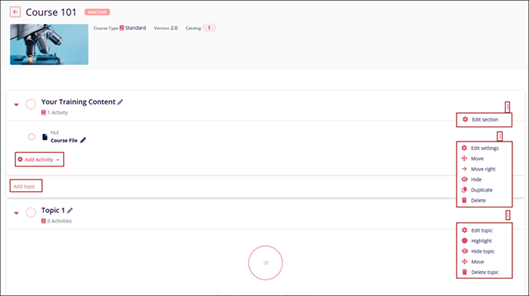
On the course details page, update the following:
- Course Section: Click the vertical ellipsis menu of the section and refer to Edit Course Section for more information.
- Edit Activities or Resources: Click on the vertical ellipsis menu for the activities or resources and refer to Edit Activity or Resource for more information.
- Add Activities or Resources: Click on the +Add Activity to add a new activity or resource and refer Add Activity or Resource section for more information
- Add or Edit Topics: Refer to Add Course Topic to create a new topic and Edit Course Topic to edit an existing topic.
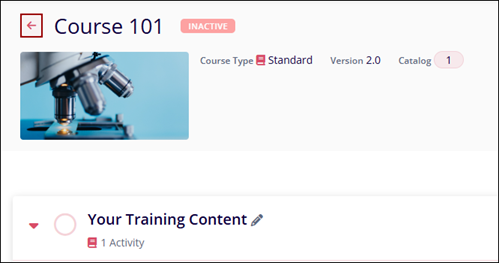
- Click on the arrow to navigate back to the Course Management page.
- Click on the second segment to update the Version settings on the three-segmented process
bar.
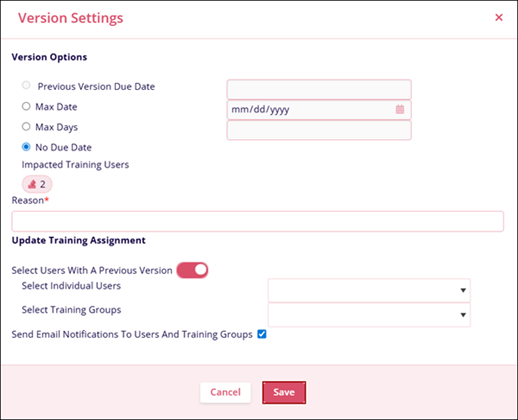
- On the Version Settings screen, provide a mandatory reason for the version change, make
other updates if required, and click on the Save button.
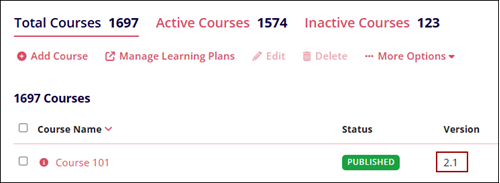
- Click on the third segment to publish the course version and the version number gets updated.

TransPerfect’s Trial Interactive is an industry leader in practical, global eClinical innovation
PRODUCTS
 Linkedin
 X
X
Didn’t find what you need?
Our dedicated Project Management and Client Services team will be available to meet your needs
24 hours a day, 7 days a week.
Toll Free:
(888) 391-5111
help@trialinteractive.com
© 2025 Trial Interactive. All Rights Reserved

