
Configure Dashlets
The Configure Dashlets allows administrators to manage the availability and visibility of dashlets on the dashboard for different user roles. Dashlets are individual components that display specific data or functionality, such as documents, users, or key metrics, making the dashboard customizable and role-specific.
Steps to Configure the Dashlets.
- Click the Configure Dashboard button located next to the Edit Dashboard button. A dropdown menu labeled Configure Dashlets appears.
- Select Configure Dashlets from the dropdown. The Configure Dashlets window opens.
- In the Configure Dashlets window, two tabs are displayed on the left:
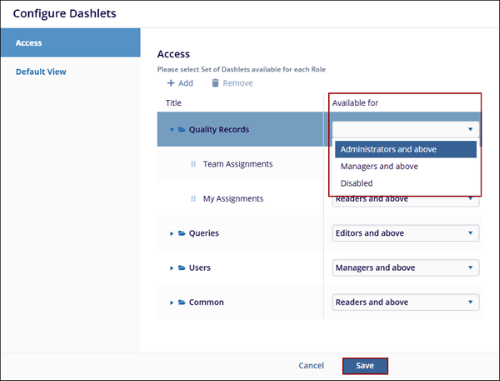
- Access: Allows selection of the set of dashlets available for each role.
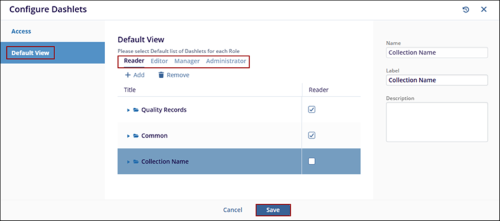
- Default View: Allows selection of the default list of dashlets for each role.
- In the Access tab, select the roles from the dropdown menu under the Available or column
to assign dashlets to specific roles and click the Save button.
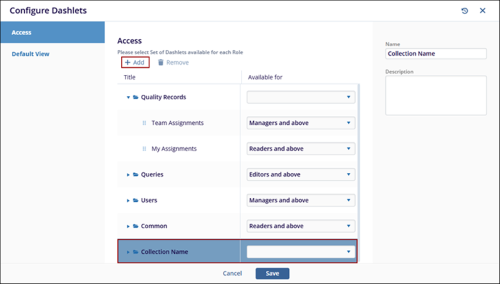
- Click +Add to create a new dashlet entry under the list of available
dashlets (displayed as the collection name). Enter the Name and Description in the fields on
the right.
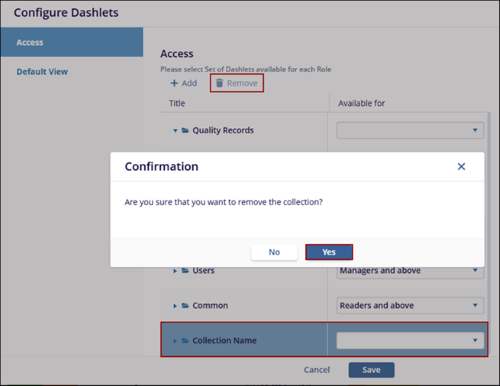
- Click the Remove button to delete the collection. A confirmation message appears stating, “Are you sure you want to remove the collection?”
- Additionally, the user can only remove the newly added fields, not the predefined fields.
-
Click Yes to remove the selected name and No to discard the change.
- Switch to the Default View tab, and select the required and appropriate checkboxesfor the roles mentioned – Reader, Editor, Manager, and Administrator.
- Click on the + Add button to configure a default list of dashlets for each role.
- Click on the Save button at the bottom of the pop-up window to save the changes or
click Cancel to discard the changes.

TransPerfect’s Trial Interactive is an industry leader in practical, global eClinical innovation
PRODUCTS
 Linkedin
 X
X
Didn’t find what you need?
Our dedicated Project Management and Client Services team will be available to meet your needs
24 hours a day, 7 days a week.
Toll Free:
(888) 391-5111
help@trialinteractive.com
© 2025 Trial Interactive. All Rights Reserved

