
Members
The Members page displays a list of users linked to the team, along with options to Add, Remove, or Edit their authority roles. It also includes tabs showing the count of users in each team and provides a Search function for easy user lookup.
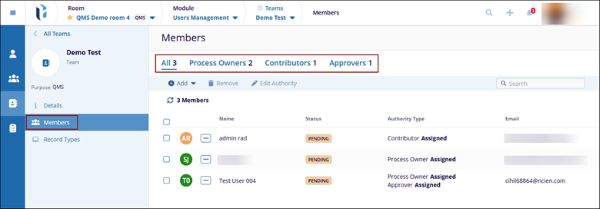
Add Users
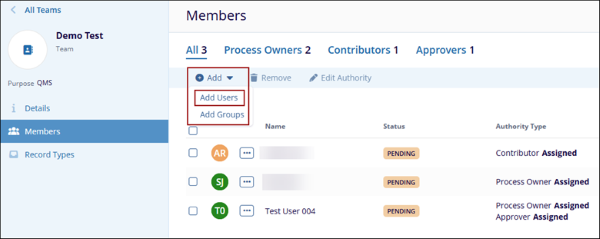
To add users to the team, follow the steps below:
- Click the +Add button from the top menu bar and select the Add Users
option.
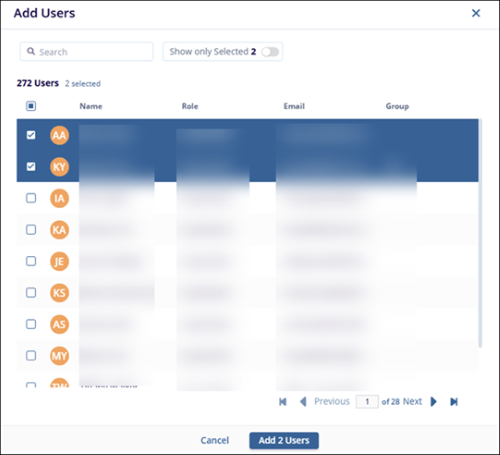
- On the Add Users pop-up window, select the required users and click the Add
(number) Users button at the bottom.
- The added users are displayed in the members list.
Add Groups
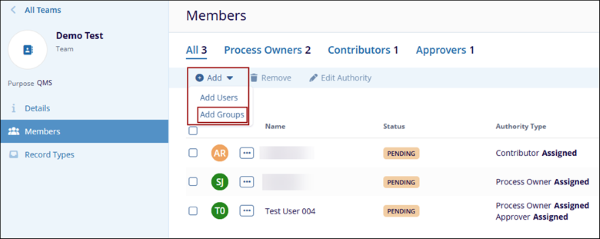
To add groups to the team, follow the steps below:
- Click the +Add button from the top menu bar and select the Groups
option.
- On the Add Groups pop-up window, select the required users and click the Add
(number) Groups button at the bottom.
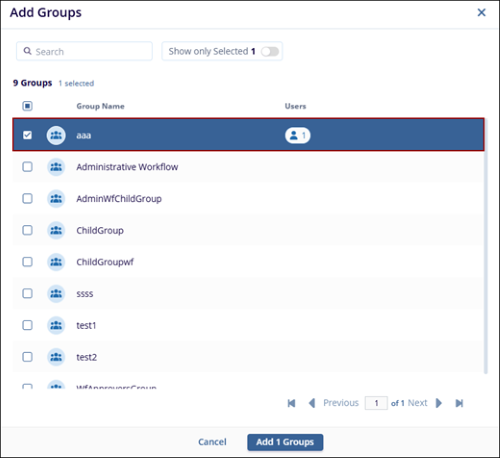
- The added group is displayed in the members list.
Remove Users/Groups
To remove users or groups from the team, follow the steps below:
- Select the users or groups with no authority assigned to remove from the member’s page.
Click the Remove button on the top menu bar.
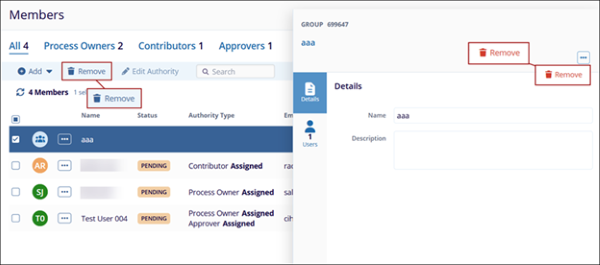 Note: The user can access the Remove option either through the three-dot menu next to the created Team in the grid or from the three-dot menu in the metadata panel.
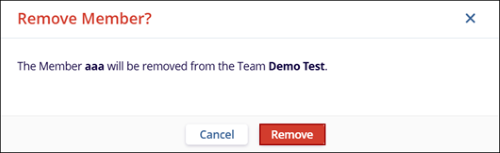
- The Remove Member? A pop-up window is displayed with the Cancel and Remove buttons.
- Click the Remove button to remove the users/groups and the Cancel button to
discard the changes.
Edit Authority
To edit the authority, follow the steps below
- Select a user with the authority type assigned.
Click the Edit Authority button from the top menu bar.
Note: Ensure that the selected Users/Groups have the assigned authority.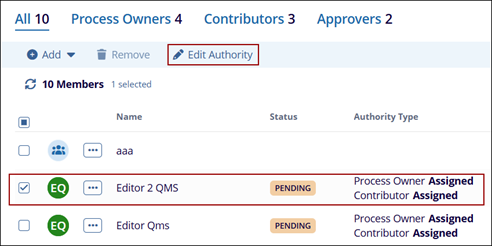
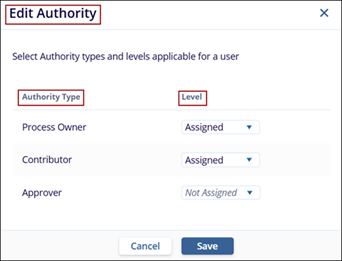
- On the Edit Authority pop-up window, click the drop-down arrow and select the appropriate Authority Level.
- Click the Save button.
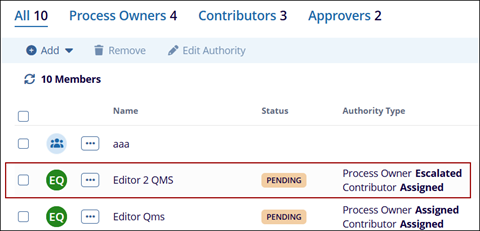
- The user can see the Assigned Authority in the Authority Type column on the main Members
page.
Search
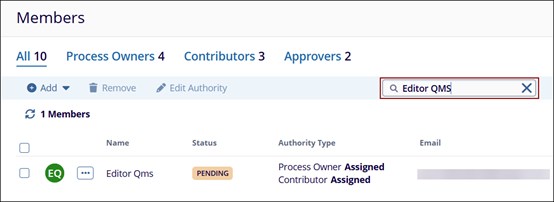
The Search functionality enables users to locate specific users or groups on the Members page by entering keywords. As text is entered in the search bar, the grid dynamically updates to display matching results.
To search for a specific user, follow the steps below:
- Click the Search field and type the keyword or initial Teams name and click enter.
- The search results should be displayed on the main Members page.
Metadata Panel
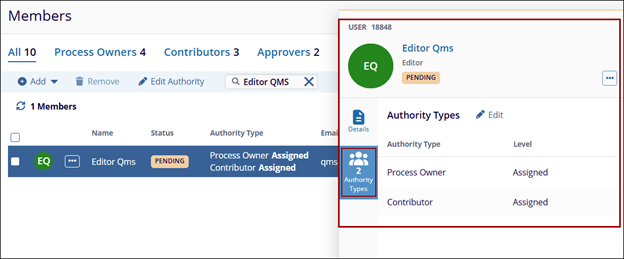
The Metadata Panel displays detailed information for the selected team member.
- Click the team member’s name to open the Metadata Panel, which appears on the right side of the page.
- The User Details section includes the following information:
- First Name
- Last Name
- Country
- Role
- Actions, and more
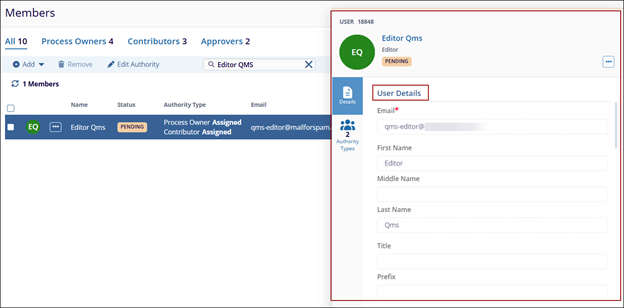
- Click the Authority Types tab within the metadata panel to view the authorities associated
with the selected user.
© 2025 Trial Interactive. All Rights Reserved

