
Search Catagories
Trial Interactive offers a targeted search capability that enables users to locate information across various record types and entries. Users can search within the following categories, with search results filtered based on the selected category, such as:
- Documents
- Users (search only within a room)
- Rooms (only cross-room search)
- Sites
- Queries
- Contacts
For document searches, results can be further refined by content, metadata, or both. Searches can be performed directly from the Home Page search bar or within a specific room.
Important:
- To understand how the search function works, refer to the Trial Interactive Search section.
- To understand the different search types, refer to the Search Types section.
Documents Search
The Document Search allows users to find specific documents by entering keywords or criteria in the search bar. Results are displayed instantly, and users can apply filters as follows, depending upon the information required.
- Metadata and Document
- Document Content Only and
- Metadata Only
To perform the document search, follow the steps below:
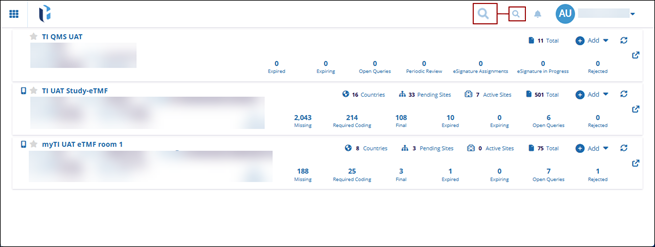
- On the Trial Interactive Home Page, click the Search icon.
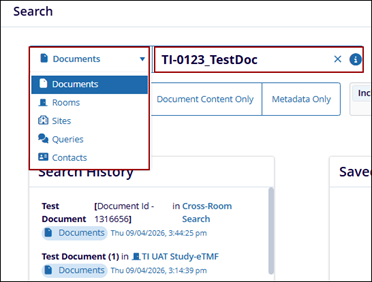
- On the Search window, click the drop-down arrow beside the search bar and select Documents.
- Enter the document name in the search bar.
- Select either the Metadata and Document, Document Content Only, or Metadata Only option by clicking on their respective tabs.
- Click the dropdown next to these fields and select Documents and Placeholders.
- To add advanced search criteria, refer to the Advanced Search steps detailed in the Search Types section.
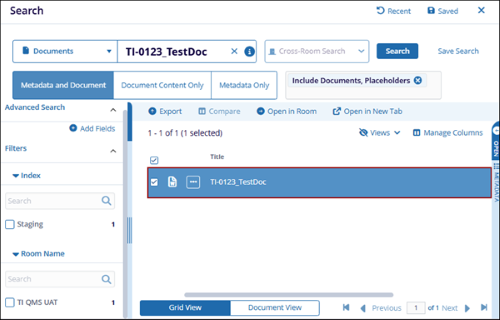
- Click the Search button.

- The search results are displayed when the search criteria match the available
records.
Users Search
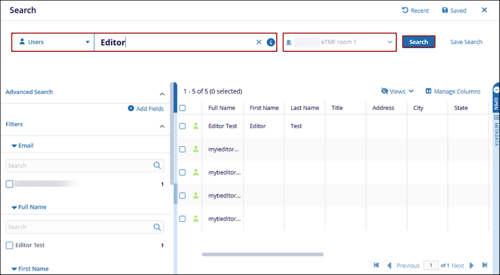
The Users’ Search enables users to locate individual users within a specific room. A room must be selected before searching, either by choosing one from the search interface on the homepage or by navigating into a room directly. The User Search does not support searching for users across multiple rooms.
To search for users, enter a room, click the dropdown next to the search bar on the search interface, then select Users.
Note:
Refer to the steps detailed in the Document Search section above
Rooms Search
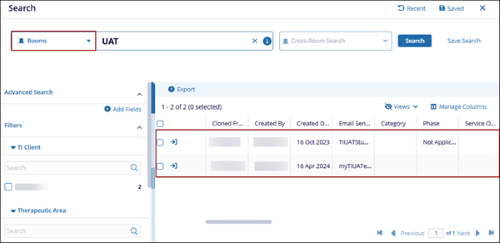
Room Search enables users to find specific rooms they are part of by entering a room name or keyword in the Home Page search bar.
To search for a specific room, click the dropdown next to the search bar within the search interface, then select Rooms.
Note:
Refer to the steps detailed in the Document Search section above.
Sites Search
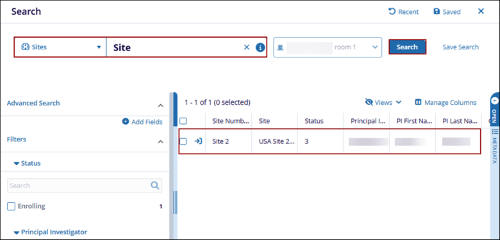
Site Search enables users to locate specific sites across all rooms accessible to the logged-in user. Users can also select or enter a specific room to search for a site within that room.
To search for sites, click the dropdown next to the search bar on the search interface, then select Sites.
Note:
Refer to the steps detailed in the Document Search section above.
Queries Search
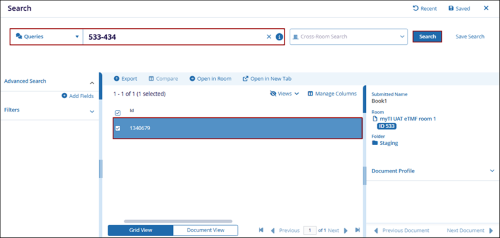
The Queries Search feature allows users to locate queries across all rooms accessible to the logged-in user. Users can also select or enter a specific room to search for a site within that room.
To search for a specific query, click the dropdown next to the search bar within the search interface, then select Queries.
Note:
Refer to the steps detailed in the Document Search section above.
Contacts Search
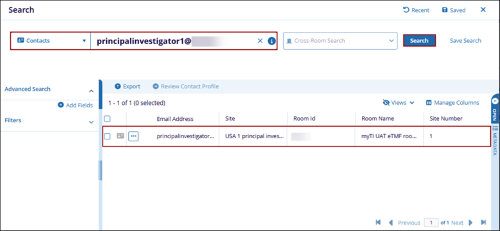
Contact Search enables users to locate specific contacts across all rooms accessible to the logged-in user. Users can also select or enter a specific room to search for a contact within that room.
To search for a specific contact, click the dropdown next to the search bar within the search interface, then select Contacts.
Note:
Refer to the steps detailed in the Document Search section above.
© 2025 Trial Interactive. All Rights Reserved

