
Team Assignments
Users with Manager and above access levels can view the Team Assignments tab in the Quality Record Dashlet if configured via Configure Dashboard > Configure Dashlets.
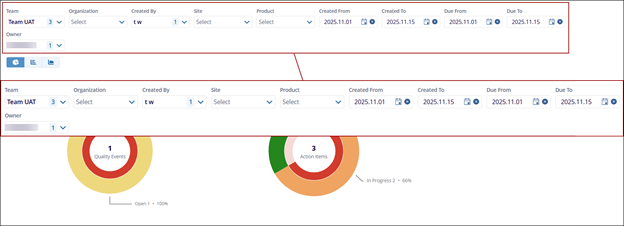
- The following filters can be applied to the Team Assignments tab to configure the data as
per the requirement.
- Team: Expand the Team dropdown and select a team to view only the records assigned to that specific team.
- Organization: Expand the Organization dropdown and select an organization to display records associated with the chosen organization as defined during record creation.
- Created By: Expand the Created By dropdown and select one or more users to filter and display records created by those users.
- Site: Expand the Site dropdown and select a site to view records assigned to that specific site as specified during record creation.
- Product: Expand the Product dropdown and select a product to display records associated with that product as defined during record creation. The dropdown lists all products configured under QMS Settings > Field Values > Product.
- Created From and To: Expand the Created From and Created To dropdowns and select the required date range.
- Due From and To: Expand the Due From and Due To dropdowns and select the desired date range.
- Owner: Expand the Owner dropdown and select one or more record owners to filter the dashlet based on ownership.
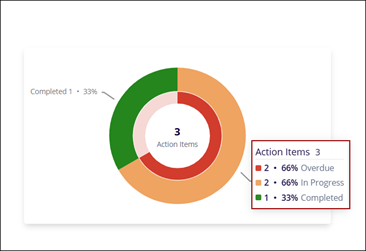
- Hovering the mouse over the chart displays the count and percentage of overdue records of
assignments based on their status and corresponding color:
- Overdue
- Open
- Pending
- In Progress
- Completed
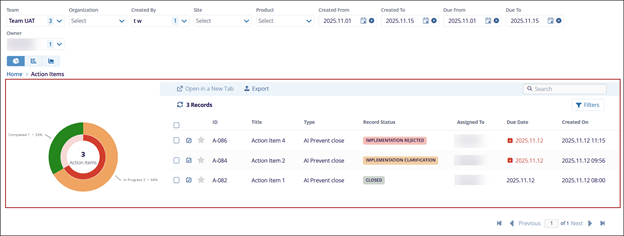
- Clicking on the chart displays the Team Assignment Records next to it, showing information
related to the selected Team.

TransPerfect’s Trial Interactive is an industry leader in practical, global eClinical innovation
PRODUCTS
 Linkedin
 X
X
Didn’t find what you need?
Our dedicated Project Management and Client Services team will be available to meet your needs
24 hours a day, 7 days a week.
Toll Free:
(888) 391-5111
help@trialinteractive.com
© 2025 Trial Interactive. All Rights Reserved

