
Set Up Dashboards
The Set-Up Dashboards allow users to customize their dashboards by adding, removing, or managing dashlets. Dashlets are individual components that display specific types of data or functionality on the dashboard, helping users personalize their view to highlight the most relevant information.
Steps to set up the dashboard.
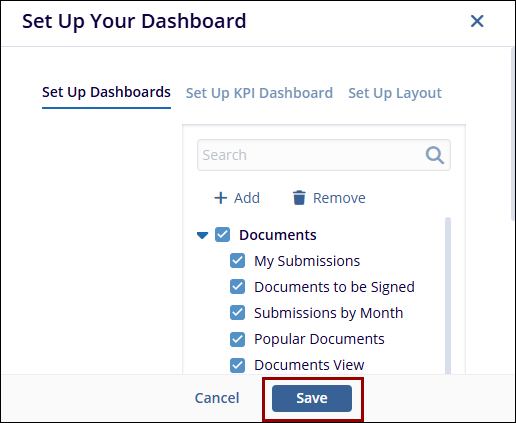
- The Set Up Your Dashboard window appears. By
default, the Set-Up Dashboard option is displayed. Expand the
fields using the arrow and select the required
checkbox.
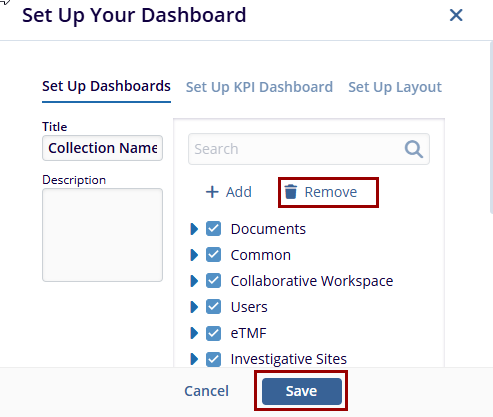
- To remove any entry. Select the entry. Click the Remove button to initiate the removal process.
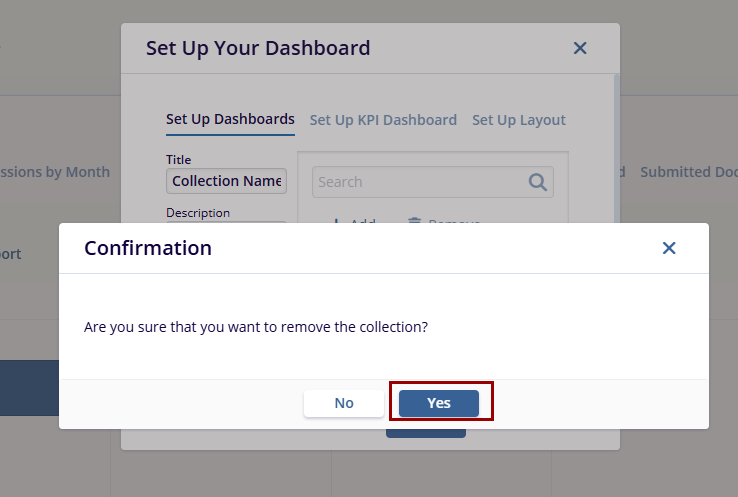
- A confirmation window will appear with the message:
‘Are you sure that you want to remove the
collection?’ Also, the user can only remove
the newly added fields and not the pre-defined fields.
- Click Yes to confirm and remove the collection
or click No to cancel the action and keep the
collection.
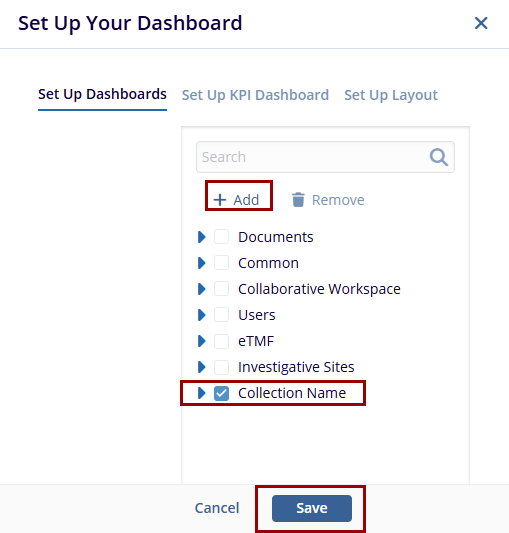
- Click on the Add button, and a new entry will
appear under the list of available dashlet as (collection Name).
While adding a new dashlet, the user has to mention the Title and
Description in the left-side fields.
- Once all necessary changes are completed. Click the Save button at the bottom of the pop-up window to apply the changes.
Note: The checkbox(s) selected for each dashlet from the set up your dashboard window will only display those tabs in the Dashboard. Refer to the above screenshot.

 Linkedin
 X
X

