
Template Folders
The Template Folders panel is a crucial tool for generating the folder structure where all Investigative Sites' documents will be stored during the study. The structure created here follows the guidelines provided in the Configuration Manual.
- Click Add to create the first folder in the
Template Folders.
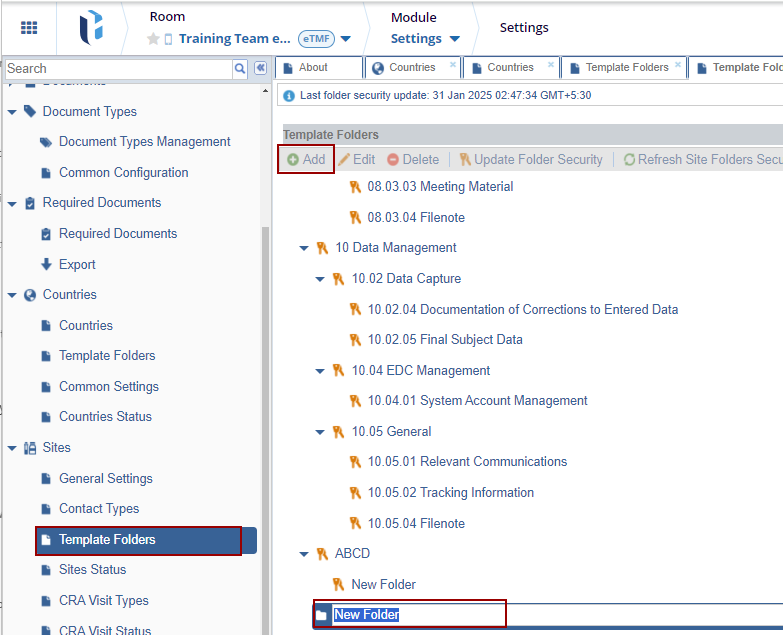
- Type the name of the folder in the available field.
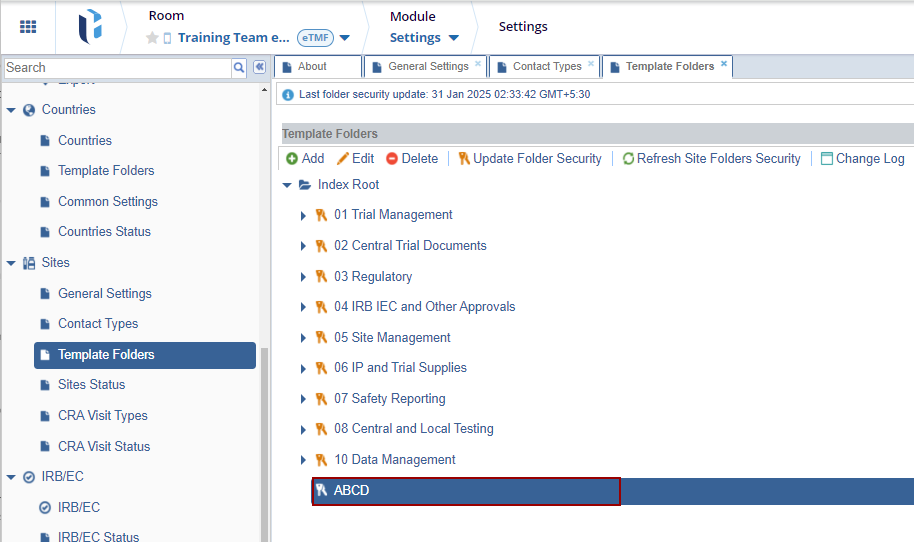
- To add another folder at the same index level, click the
Index Root folder and click
Add.
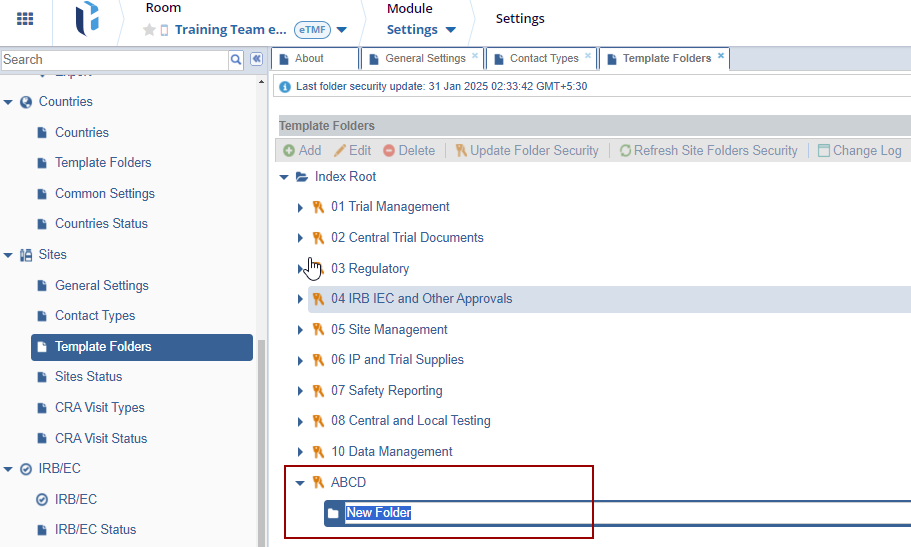
- To add a subfolder inside a folder, you have already created,
click the name of the new folder and click
Add.
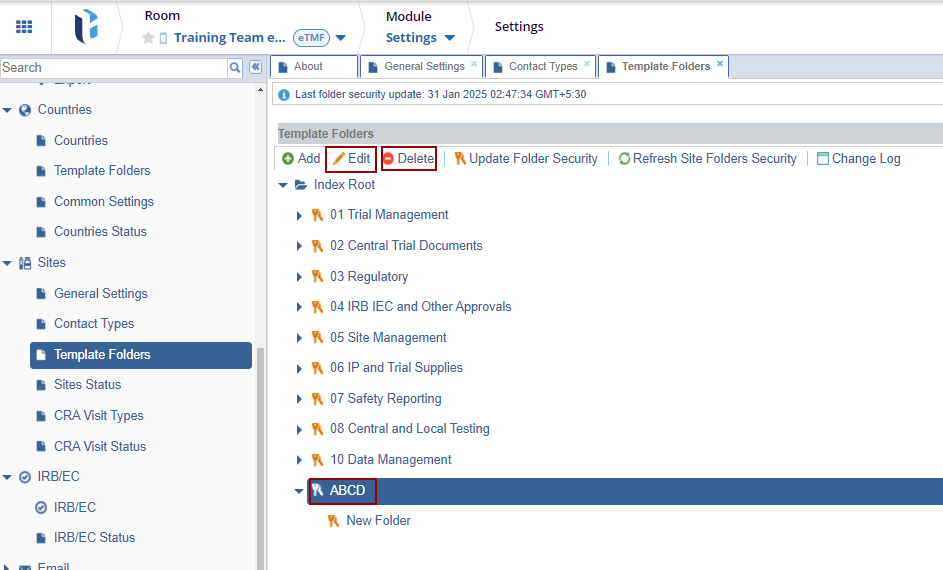
- Continue adding folders and subfolders until the full Investigative Site Folder Index is complete and in compliance with the client’s request.
- Similarly, Edit or Delete the
folders by selecting them as required.
- Click the Search icon beside the
‘Restricted Site Personnel Folder’.
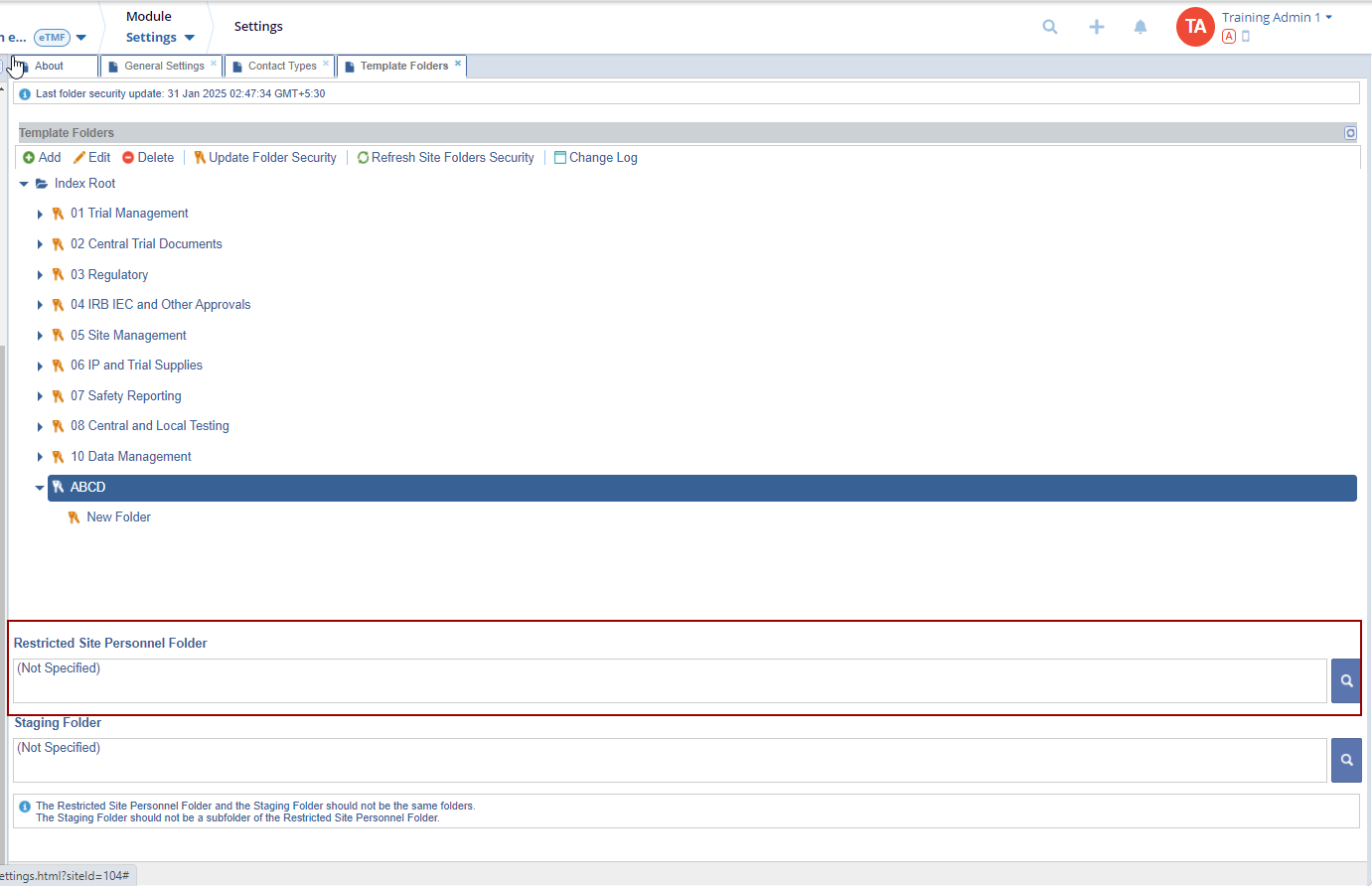
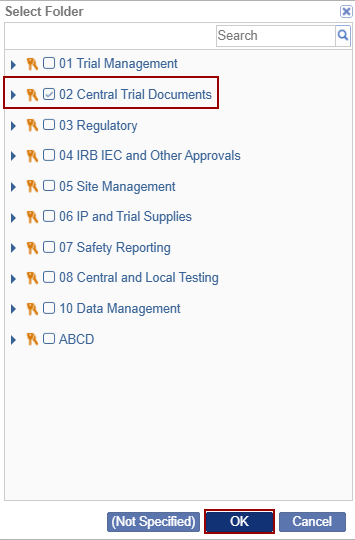
- The Select Folder window is displayed with the list of folders. Select the appropriate folder.
-
Click OK.
- Click the Search icon beside the
‘Staging Folder’.
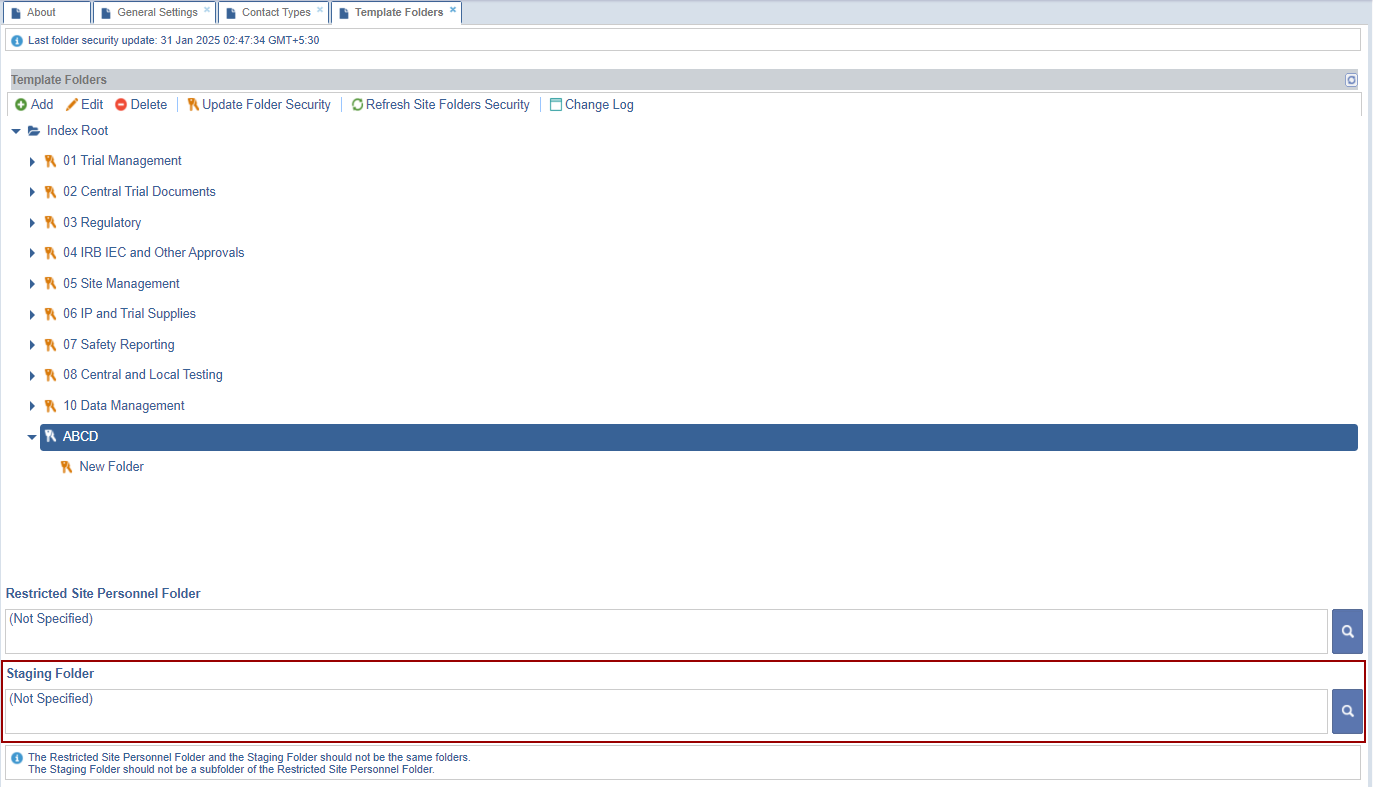
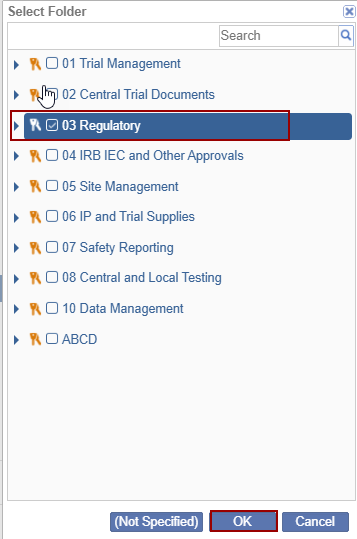
- The Select Folder window is displayed with the list of folders. Select the appropriate folder.
-
Click OK.
- In eISF rooms, this is also where site folder security rules are created and maintained. These security rules are laid out in the configuration manual and should be adhered to throughout the study. If changes need to be made, please work with the Trial Interactive Service Desk.
Note: The Restricted Site Personnel Folder and the Staging Folder should not be the same folders.
The Staging Folder should not be a subfolder of the Restricted Site Personnel Folder.

 Linkedin
 X
X

