
Add and Edit Countries
Explore Job Aids for more help:
Job Aids
Add Countries within a Study
To add countries within a study, follow the steps below
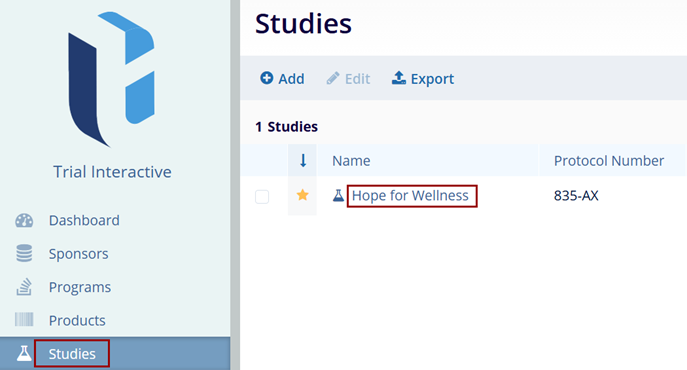
- From the left-hand navigation pane, select the Studies link.
- On the Studies screen, click on the study name.
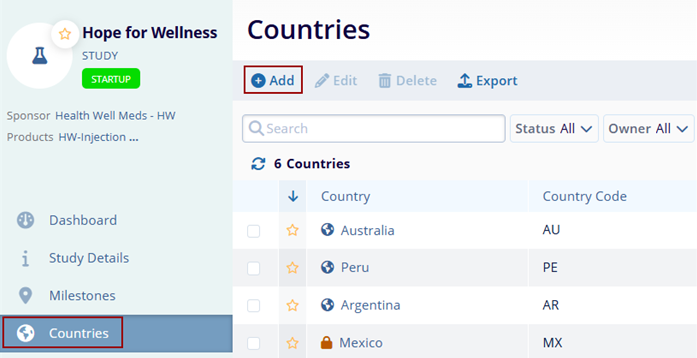
- On the Study screen, click on Countries from the left navigation pane.
- On the Countries screen, click on the +Add button.
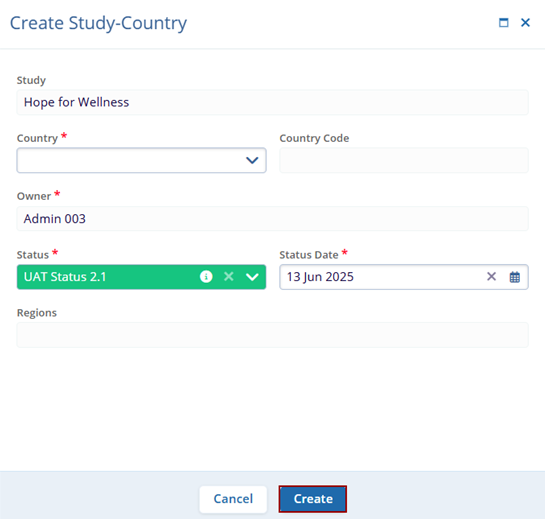
- On the Create Study-Country form, enter the mandatory metadata into the respective
fields.
- Country*
- Owner*
- Status*
- Status Date*
- Region Note:
Fields highlighted with a red asterisk (*) mark require a mandatory update.
- Click on the Create button.
Edit Country Details
To edit country details, follow any one of the methods below.
Method 1
- Click on a Country name in the countries tab within a Study.
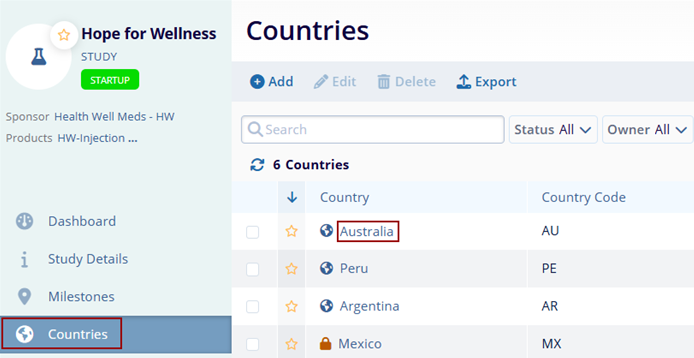
- Click on the Country Details tab.
- Click on the Edit button.
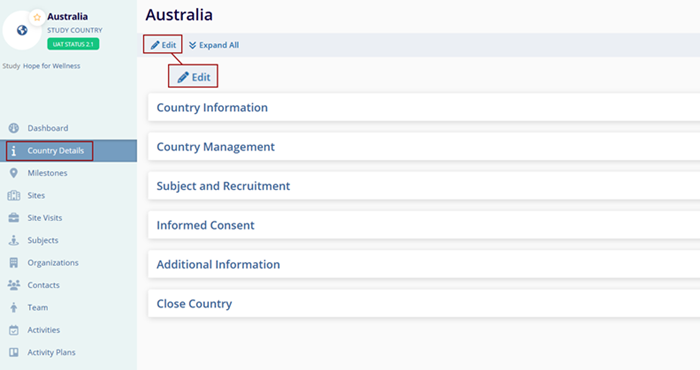
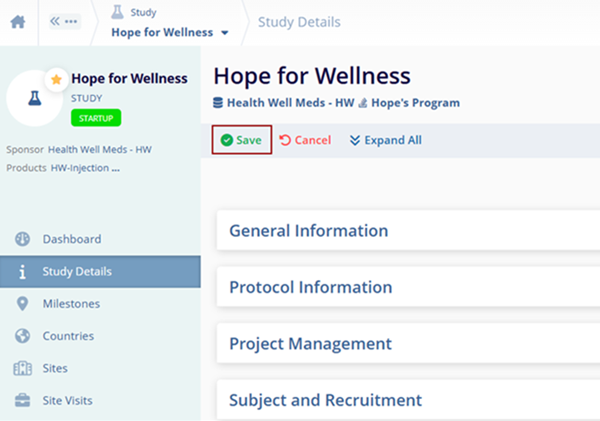
- Make the required changes by expanding each section and clicking on the Save button.
Method 2
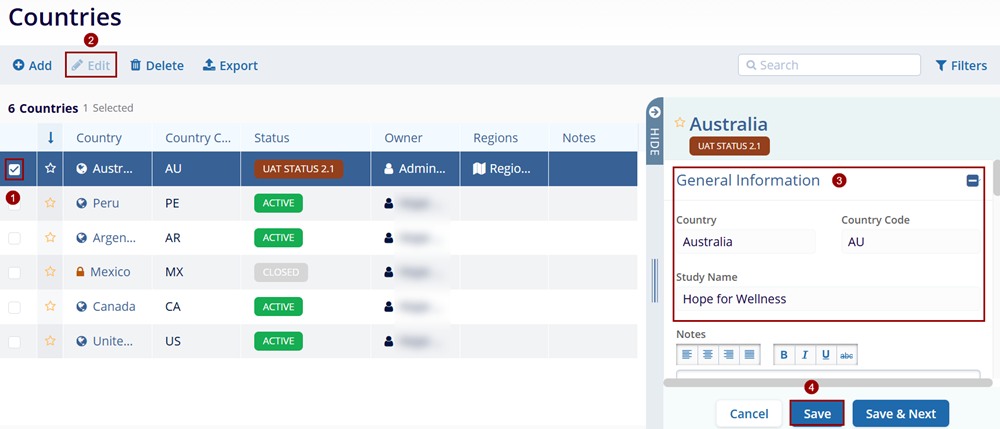
- Click the checkbox next to the name of the country to edit
- Click on the Edit button from the top-left menu bar.
- Make any necessary changes in the quick view panel on the right-hand side of the screen.
- Click on the Save button at the bottom of the quick view panel.

TransPerfect’s Trial Interactive is an industry leader in practical, global eClinical innovation
PRODUCTS
 Linkedin
 X
X
Didn’t find what you need?
Our dedicated Project Management and Client Services team will be available to meet your needs
24 hours a day, 7 days a week.
Toll Free:
(888) 391-5111
help@trialinteractive.com
© 2025 Trial Interactive. All Rights Reserved

