
Milestone Templates Management
Edit Milestone Templates
To edit Milestone Templates, follow the steps below:
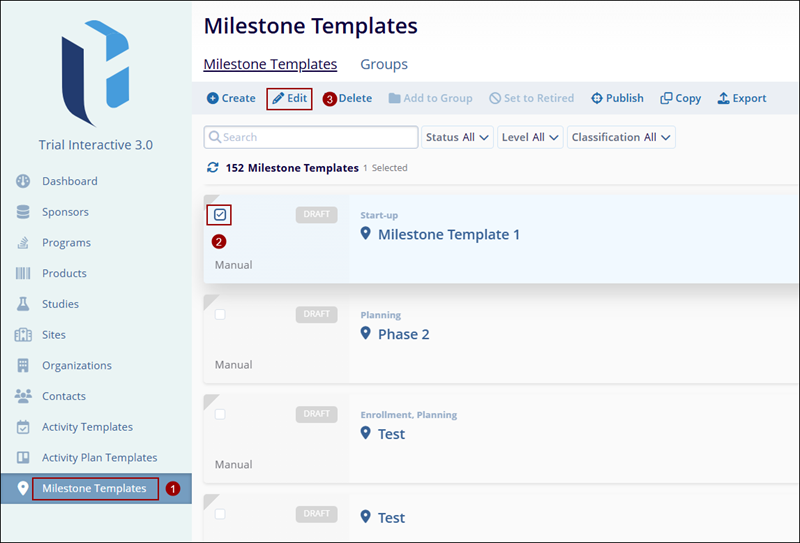
- From the left-hand navigation links, select Milestone Templates.
- On the Milestone Templates screen, click on the Milestone Template to edit.
- Click on the Edit button in the top-left of the screen. This opens the Edit
Milestone Template screen.
- On the Edit Milestone Template, Make any necessary changes and click on the
Save button.
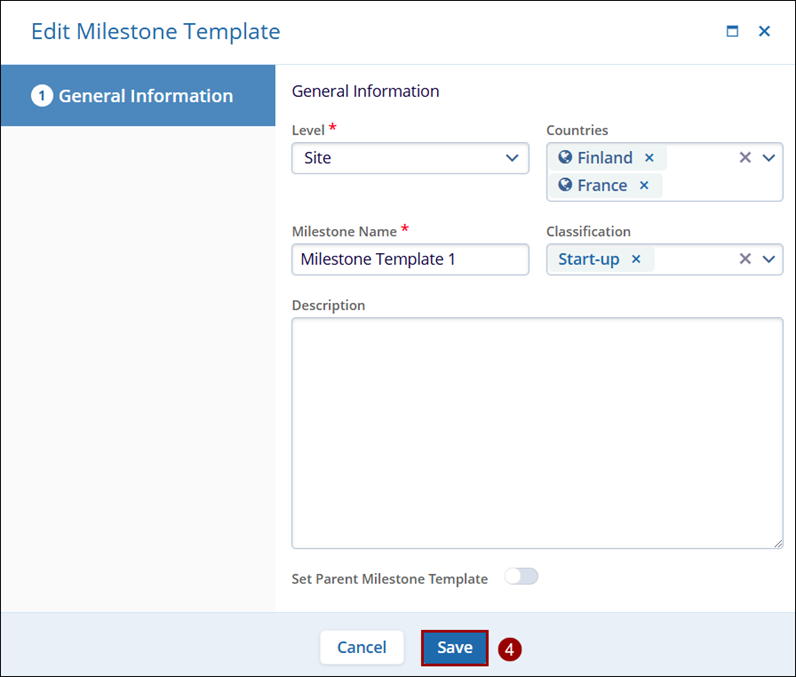
Note: Users can only edit templates with a Draft status.
Delete Milestone Templates
To delete Milestone Templates, follow the steps below.
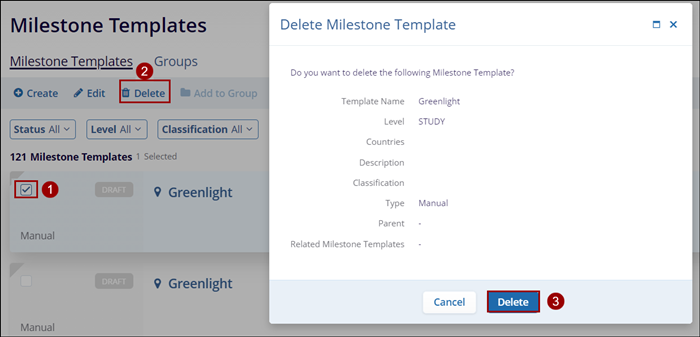
- On the Milestone Templates screen, click on the Milestone Template that needs to be deleted.
- Click on the Delete button in the top-left of the screen which opens the Confirmation window.
- Click on the Delete button on the confirmation page.
Note: Users can edit templates only with the Draft status.
Add Milestone Templates to Group
To add milestone templates to groups, follow the steps below.
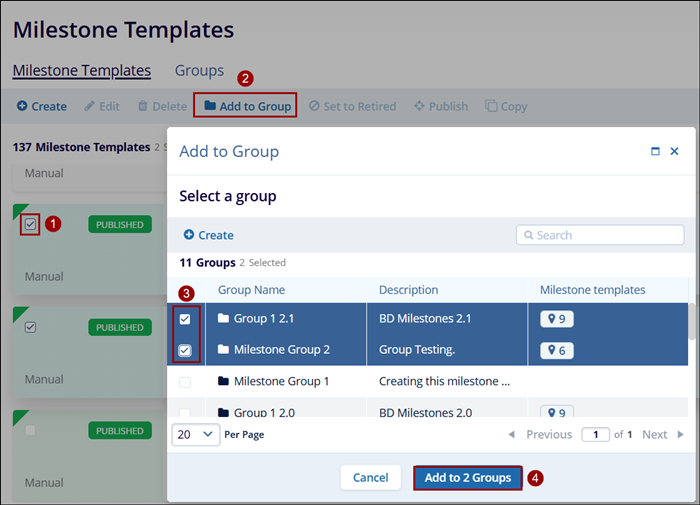
- Select published template(s) by clicking on the checkbox.
- Click on the Add to Group option from the top menu bar.
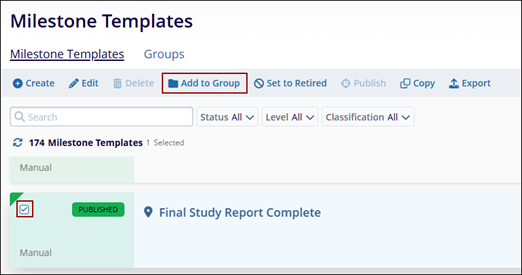
- On the Add to Group screen select one or multiple groups by clicking on their respective checkboxes.
- Click on the Add to (number of groups) Groups button.
Publish Milestone Templates
To publish Milestone Templates, follow the steps below:
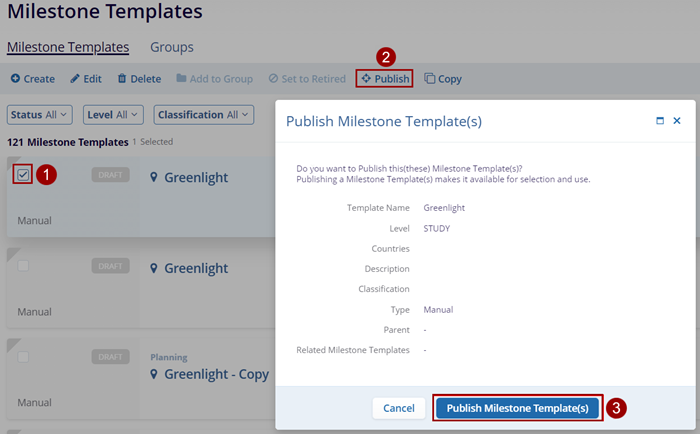
- On the Milestone Templates select a template with a Draft status
- Click on the Publish button in the top-left of the screen.
- Click on the Publish Milestone Template button in the Please Review Milestone
Template window.
Note: Milestone Templates with Draft status can be
published.
Retire Milestone Templates
Milestones at the Global level are retired in all data hierarchy levels. Suppose users want to continue to track a milestone after retiring it at the Global level. In that case, users must make a copy of the milestone at the Sponsor level or lower before retiring the milestone at the Global level.
To retire a Milestone Template, follow the steps below:
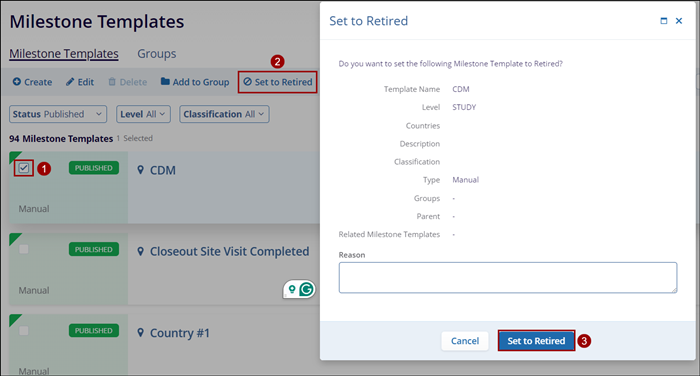
- On the Milestone Templates screen, select a milestone template in the Published state.
- Click on the Set to Retired button from the top menu bar.
- On the Set to Retired screen mention a reason to retire a template (optional), and
click on the Set to Retired button.
Copy Milestone Templates
To copy Milestone Templates, follow the steps below:
- Select a template to copy by clicking on the checkbox of the particular template.
- Click on the Copy button from the top menu bar.
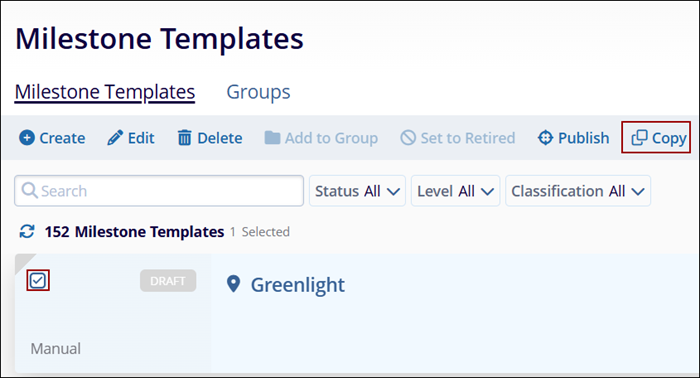
- On the Copy Milestone Template screen, click on the Create button.
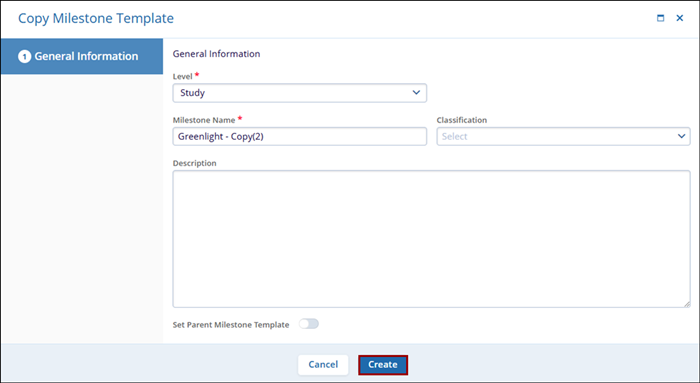
Note: The milestone templates with Draft and Published status can
be copied, only one at a time.
Export Milestone Template at the Global Level
Users can export a list of all Milestone Templates within the Milestone Templates library that have been created within the CTMS.
To export the miltestone templates, follow the steps below:
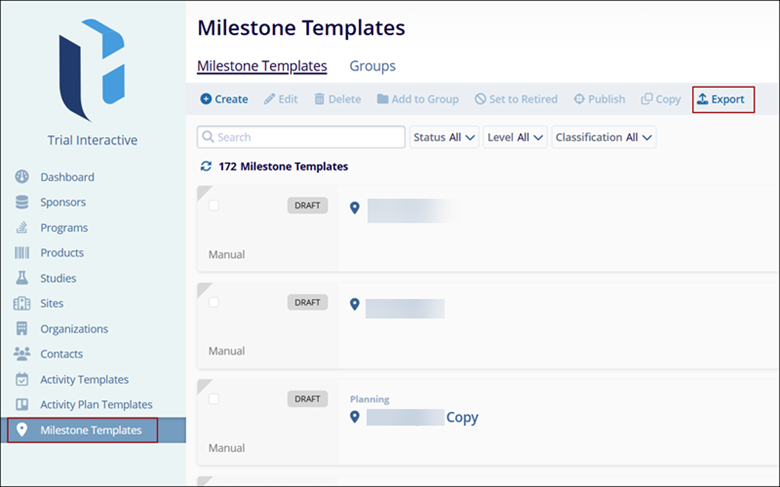
- From the left-hand navigation links, click on the Milestone Templates which opens the Milestone Templates window.
- Click the Export button.
-
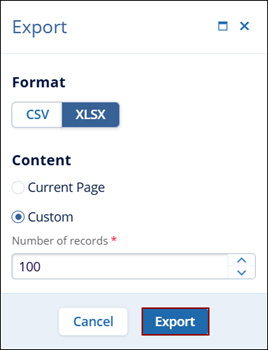
For the CSV or XLSX file formats, select either of the following:
- Current Page: This option will export data on the existing page of the Contacts screen.
- Custom: Here, specify the number of records to be exported by either clicking on the up and down arrows or entering the number of records since it is a free-text field.
- Click Export.
-
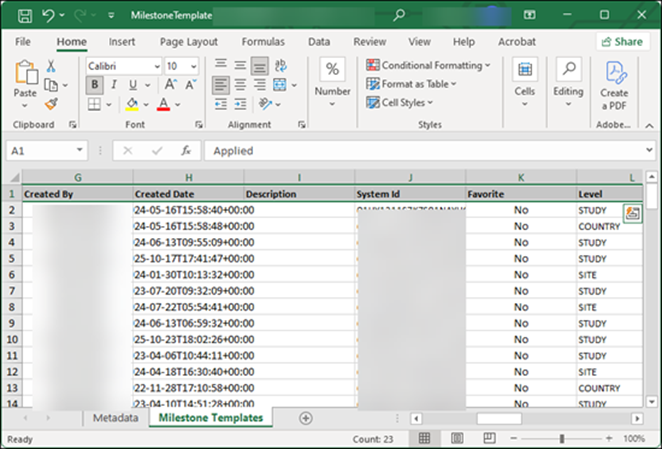
The exported file displays the milestone data in the ‘Milestone tab’

TransPerfect’s Trial Interactive is an industry leader in practical, global eClinical innovation
PRODUCTS
 Linkedin
 X
X
Didn’t find what you need?
Our dedicated Project Management and Client Services team will be available to meet your needs
24 hours a day, 7 days a week.
Toll Free:
(888) 391-5111
help@trialinteractive.com
© 2025 Trial Interactive. All Rights Reserved

