
Approve CAPA
When a CAPA record enters the approval workflow, the designated authorities are responsible for advancing the record through each stage until it reaches the final stage. At the final stage, a user (typically an Approver) reviews and approves the record, thereby resolving it.
To approve and resolve a record, follow the steps below:
- Login as a user who is assigned as an authority in the first stage of the workflow and
click on the Open CAPA button from the email notification.
.png)
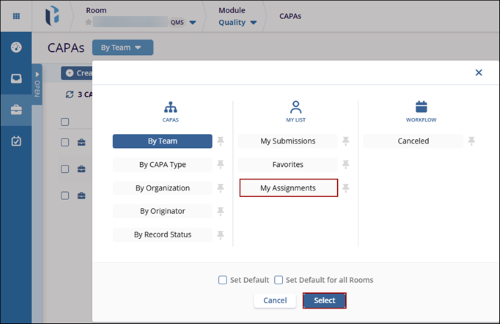
- Additionally, users can access the CAPA record assigned to them by setting the My Assignments view from the dropdown at the top.
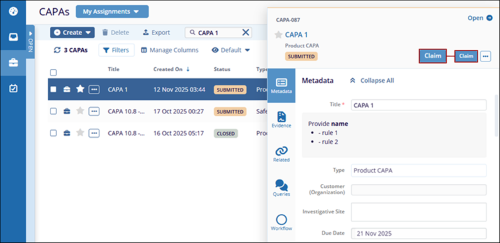
- On the CAPA records screen, click on the Claim button.
 Note:
Note:- The Claim button appears when there are multiple authority types in the workflow stage, and any one of the authorities should manually claim the record.
- If there is only one user in a stage, the record is auto-claimed.
- Once the record is claimed, the action buttons are displayed as configured in the
workflow.
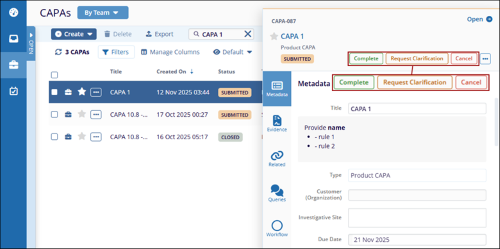
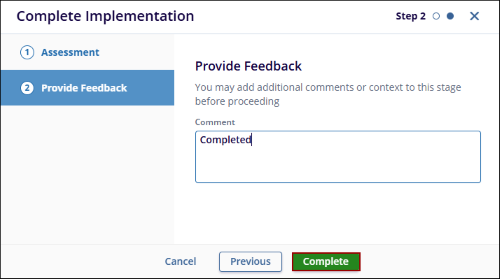
- Click on the Complete button, fill in the necessary details in the Complete
Implementation form, and click on the Complete button.
 Note:
Note:The display of forms and other sections, upon clicking an action button, depends on the Triggers configured within the workflow.
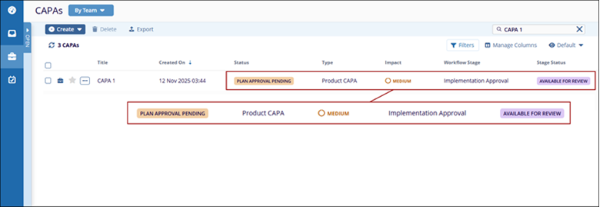
- Once the record is completed, it is transitioned into the next stage, i.e.,
Implementation Approval, and the record displays the statuses as configured in the workflow.
 Note:
Note:Follow the steps from STEP 1 to STEP 6 to complete the record transition to the last stage.
- As the assigned authority in the last stage, access the CAPA record through the email
notification or the My Assignments view.
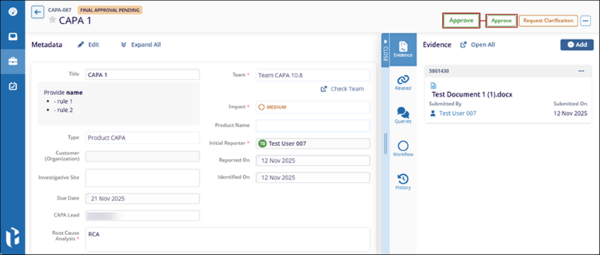
- Click on the Approve button above the Quick View panel.
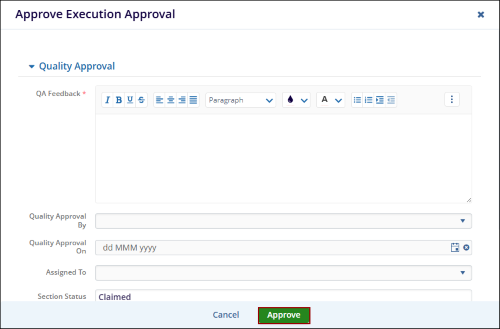
- Enter the required details in the Approval Execution Form and click on the
Approve button.
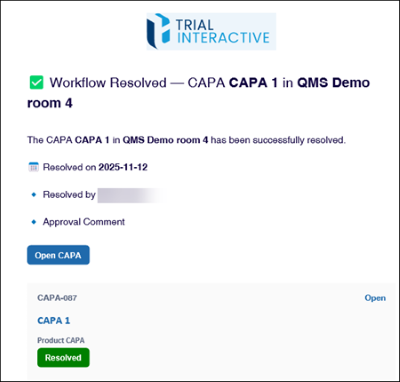
- Once the CAPA is successfully resolved, all the authorities for
whom the notifications are enabled, receive an email stating the
CAPA is resolved.
- On the CAPA records page, click on the Close CAPA button above the Quick View
panel.
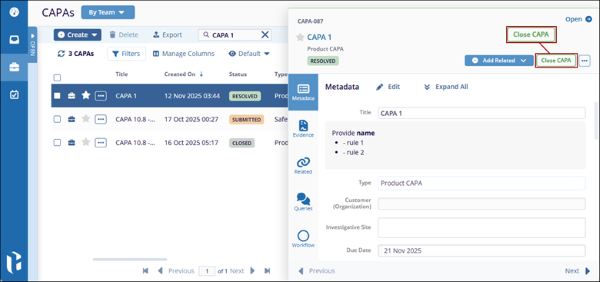
- On the Close CAPA popup, mandatorily add a comment and click on the Close CAPA button.
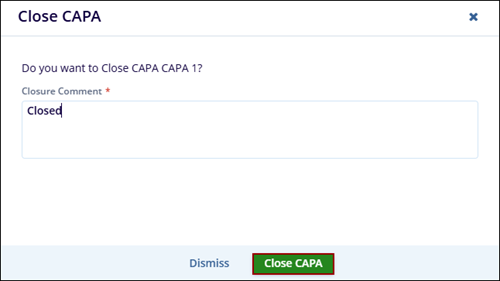
Note:
- The record cannot be closed if related items and queries are open, depending upon the Close Conditions configured in the room settings.
- If the Prevent Closure while Queries and Related Records are open is enabled, a tooltip is displayed stating the open items
- If disabled, the record can be closed even if related records and queries are open.
- If the Allow automatic closure is enabled and the Close Period is defined, the record will automatically close when it is approved and resolved.
© 2025 Trial Interactive. All Rights Reserved

