
Approve Quality Event
When a Quality Event record enters the approval workflow, the designated authorities are responsible for advancing the record through each stage until it reaches the final stage. At the final stage, a user (typically an Approver) reviews, approves, and closes the record.
Note:
- The record cannot be closed if a related item is open, depending upon the Close Conditions configured in the room settings.
- If the Prevent Closure while Queries are open is enabled, a tooltip is displayed stating the open items
- If the Prevent Closure while Queries are open is disabled, the record can be closed even if related records are not closed.
To approve a Quality Event, follow the steps below:
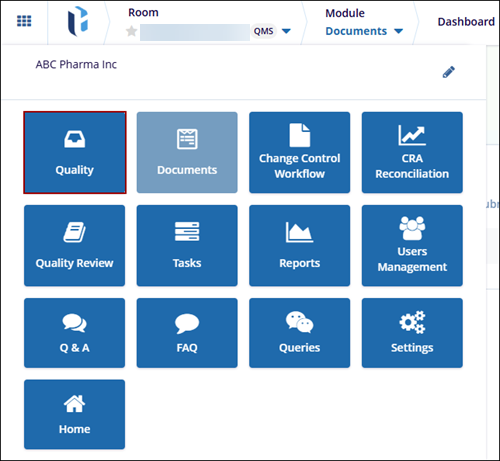
- Log in as a user who is assigned as an authority in the first stage of the workflow
and access the Quality module by entering the room.
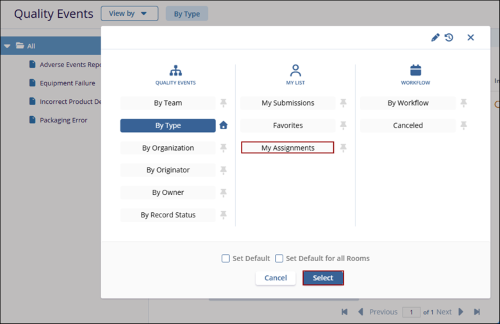
- Select the My Assignments view from the Views dropdown to display records assigned
to the authority.
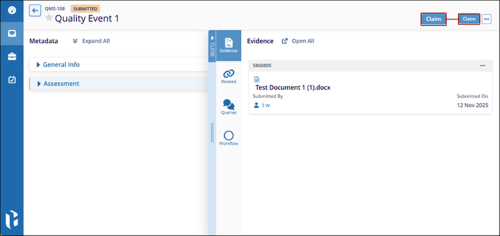
- Open the Quality record and click on the Claim button.
 Note:
Note:- The Claim button appears when multiple authority types exist in the workflow stage, and any one of the authorities should manually claim the record.
- If there is only one user in a stage, the record is auto-claimed.
- Once the assigned authority clicks the Claim button, the record is claimed by
that authority, and the action buttons appear as configured in the workflow.
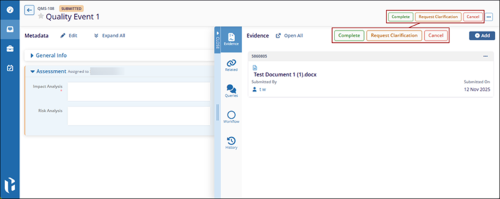
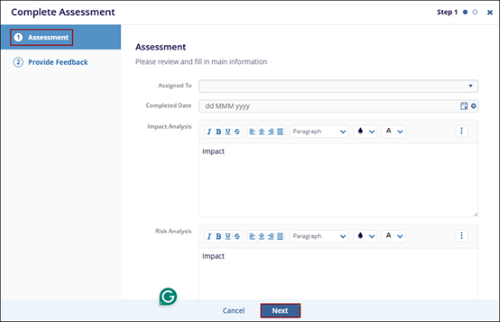
- Click on the Complete button, fill in the necessary details in the Assessment
section of the Complete Assessment form, and click on the Next button.
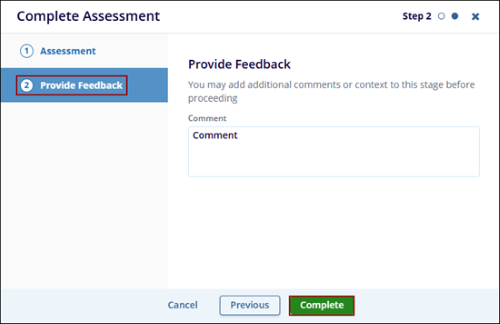
- Enter the necessary comments in the Provide Feedback section and click on the
Complete button.
 Note:
Note:The display of forms and other sections, upon clicking an action button, depends on the Triggers configured within the workflow.
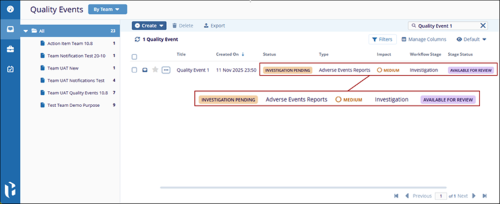
- Once the record is completed, it is transitioned into the next stage, i.e.,
Investigation, and the record displays the statuses as configured in the workflow.
- As the authority in the second stage, follow the steps from STEP 1 to STEP 7 to complete the record transition to the last stage.
- As the assigned authority in the last stage, access the Quality Event record through the email notification or the My Assignments view.
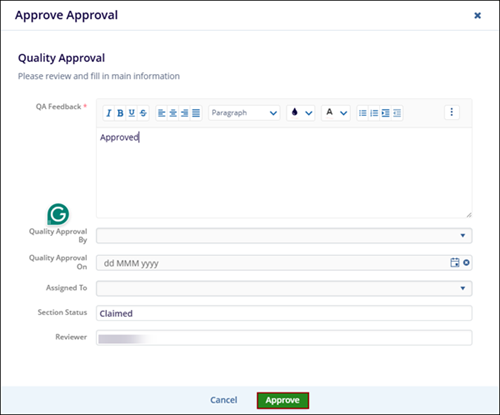
- Claim the record and click on the Approve button above the Quick View panel.
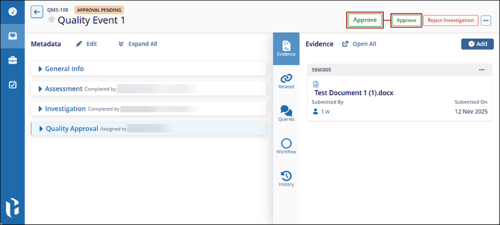
- Enter the necessary details in the Approval form and click on the Approve
button.
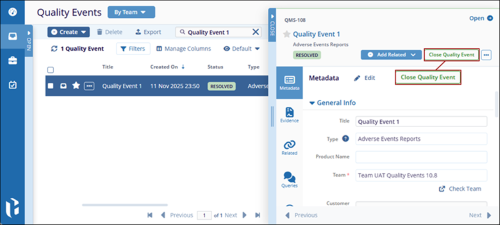
- Click on the Close Quality Event button from the metadata panel.
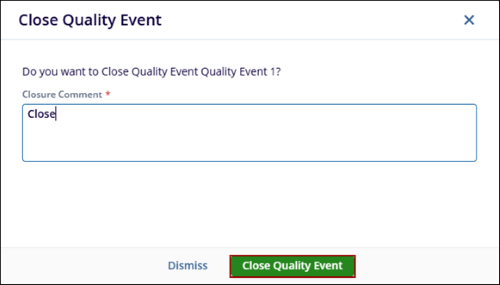
- Mandatorily enter a closure comment on the Close Quality Event pop-up and click on
the Close Quality Event button.
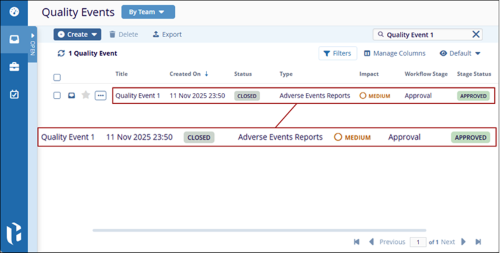
- Once the record is closed, it displays the corresponding statuses.
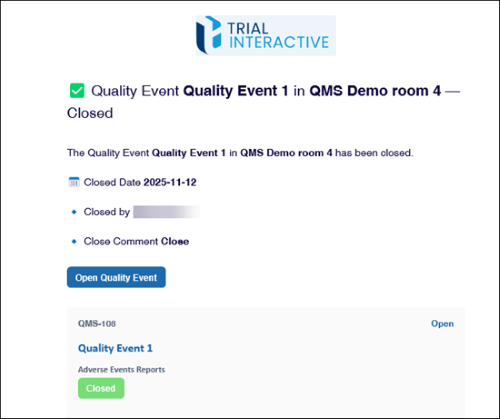
- The authorities in the workflow stage receive an email notification stating the
record is closed.

TransPerfect’s Trial Interactive is an industry leader in practical, global eClinical innovation
PRODUCTS
 Linkedin
 X
X
Didn’t find what you need?
Our dedicated Project Management and Client Services team will be available to meet your needs
24 hours a day, 7 days a week.
Toll Free:
(888) 391-5111
help@trialinteractive.com
© 2025 Trial Interactive. All Rights Reserved

